Verifying Identity
This page walks the identity step from a subject with nothing run yet through to a recorded result. It describes what you see and click at each point.
For the legal requirement behind it, see Customer due diligence. This page is the product walkthrough.
Where verification happens
Identity verification runs on the CDD review for a customer. You reach it from the CDD step of onboarding, or from the CDD tab on a matter.
The step groups work by review subject. Each subject is a person or an entity that needs checking, and each carries its own identity and screening state.
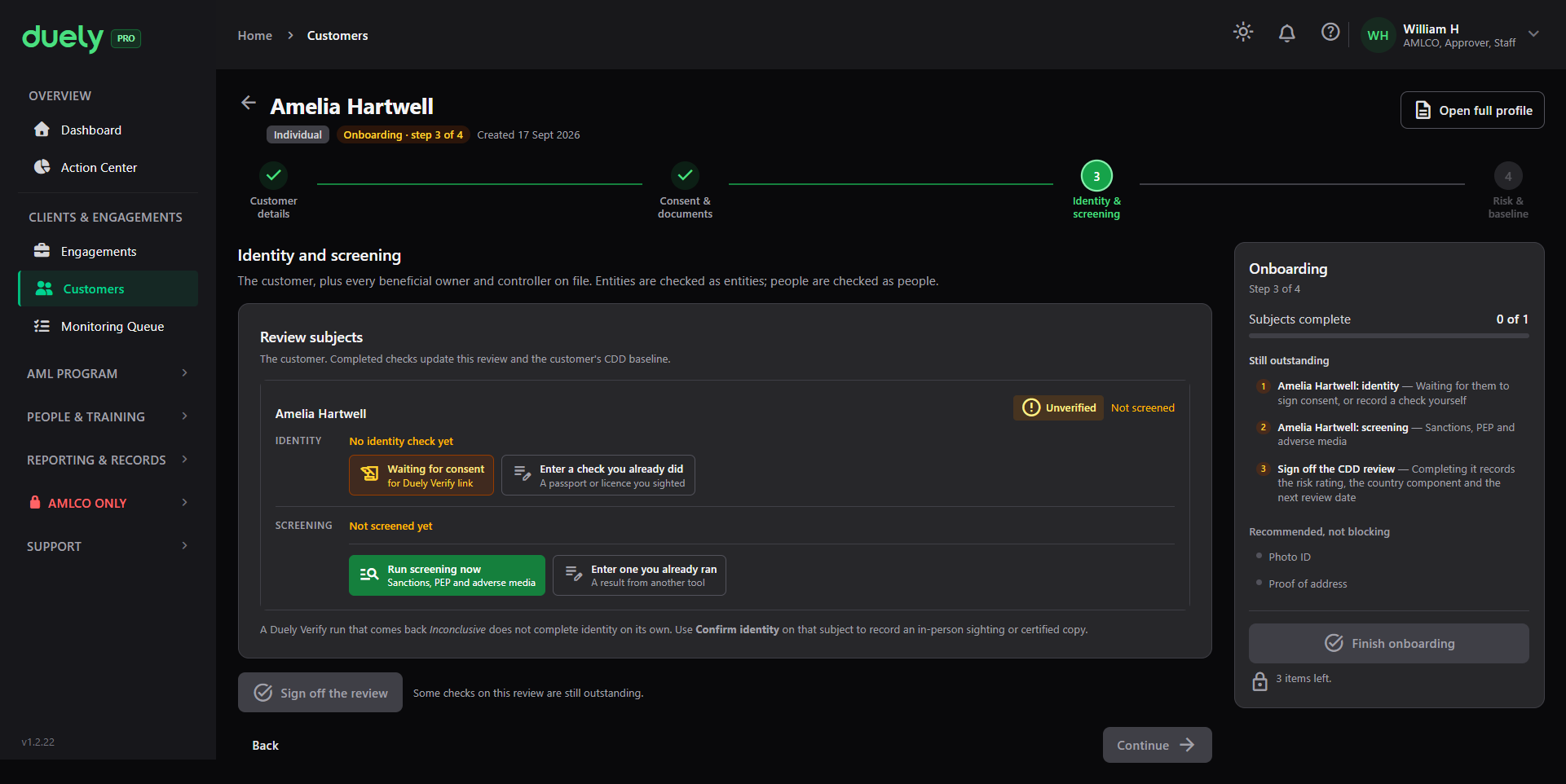
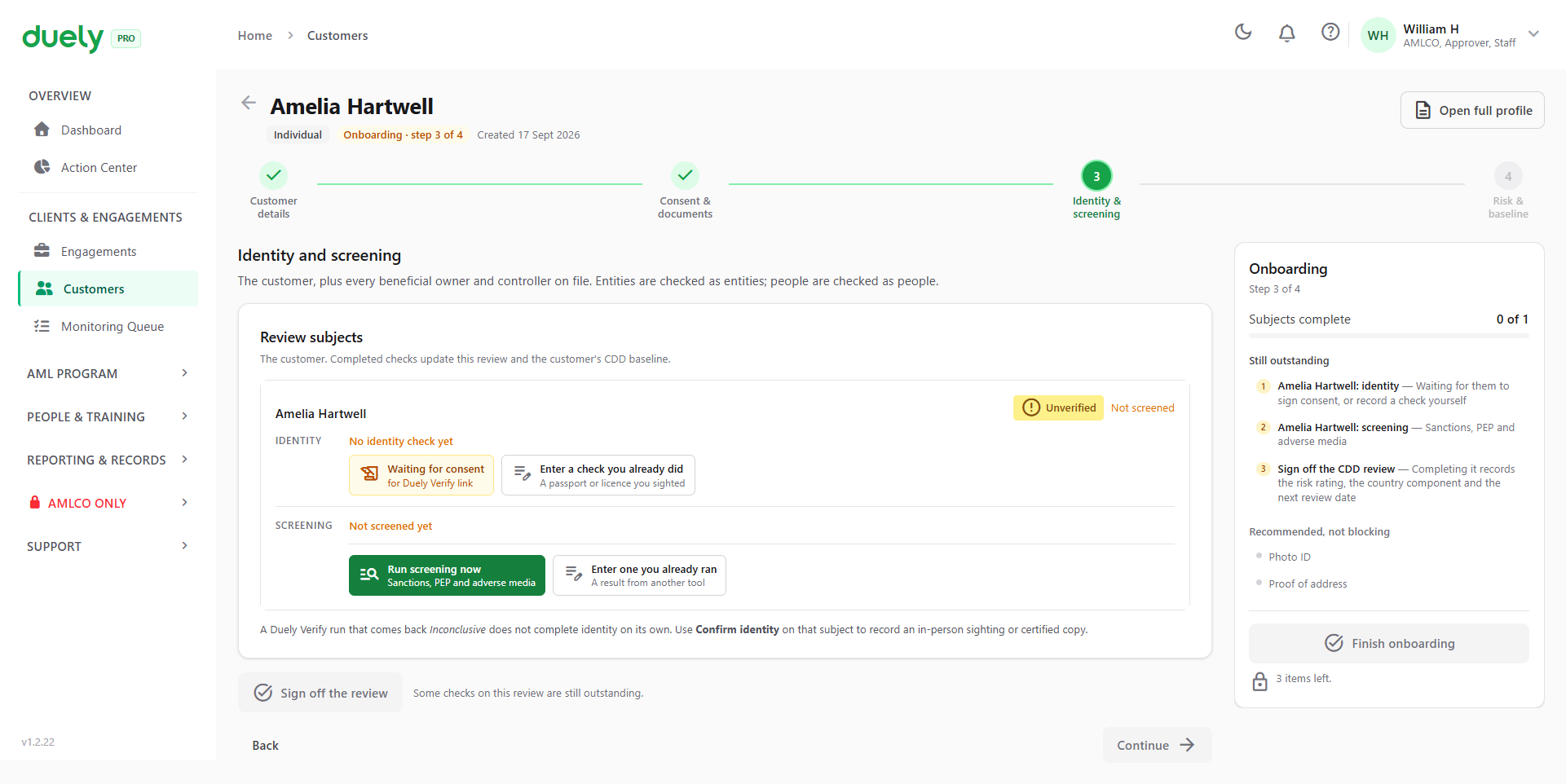
On a subject with nothing done, its state reads Unverified and Not screened, with the buttons to change that. Which buttons you get depends on the subject:
- Send a Duely Verify link for a person, where your firm has the feature. Once a Duely Verify run exists it reads Send a new Duely Verify link
- Enter a check you already did on any subject. For a subject carried forward from an earlier baseline it reads Re-check identity yourself
- Run screening now where your firm has that feature, or Enter one you already ran
- Confirm identity, which appears when a Duely Verify run exists for the subject and has not confirmed their identity
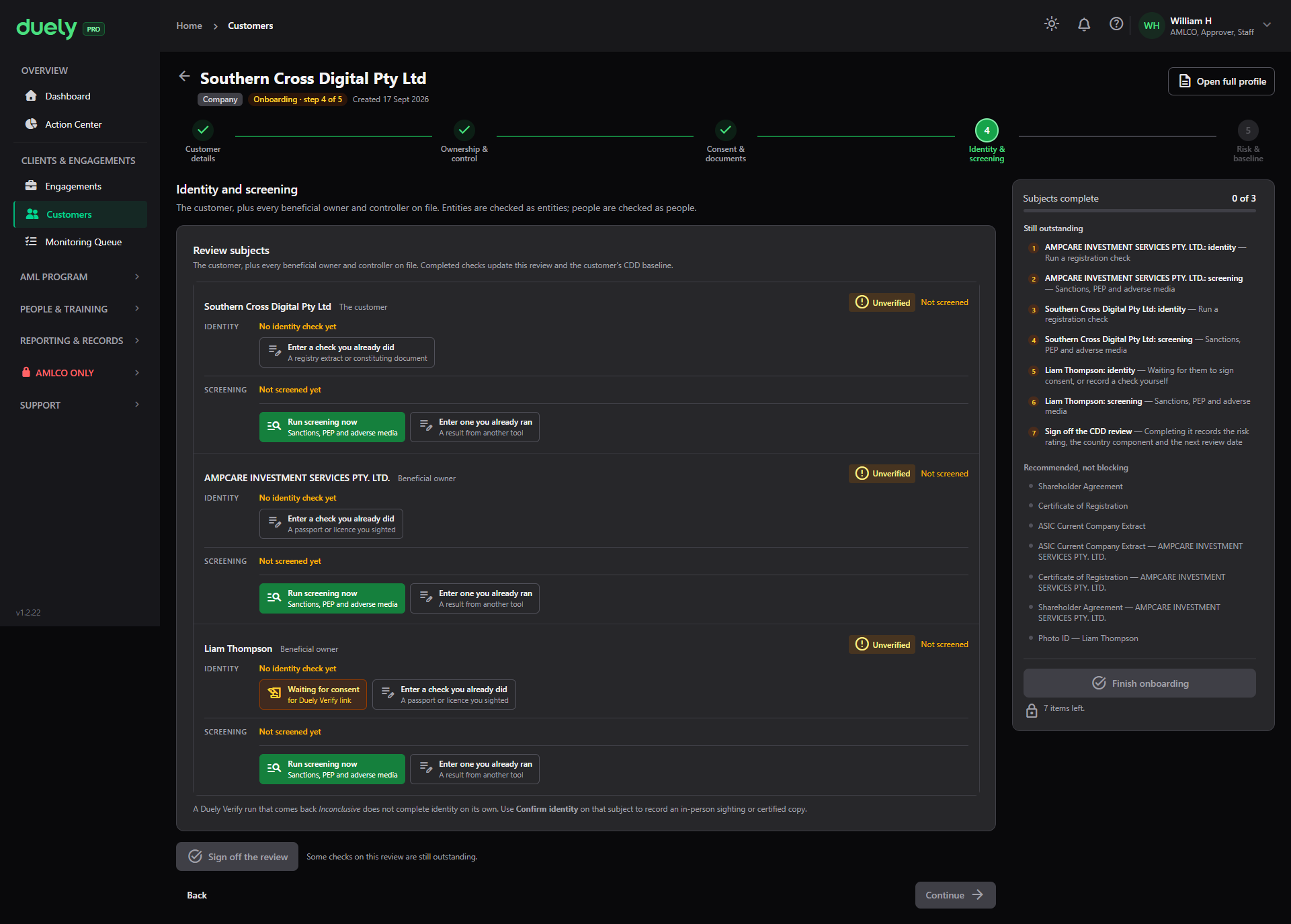
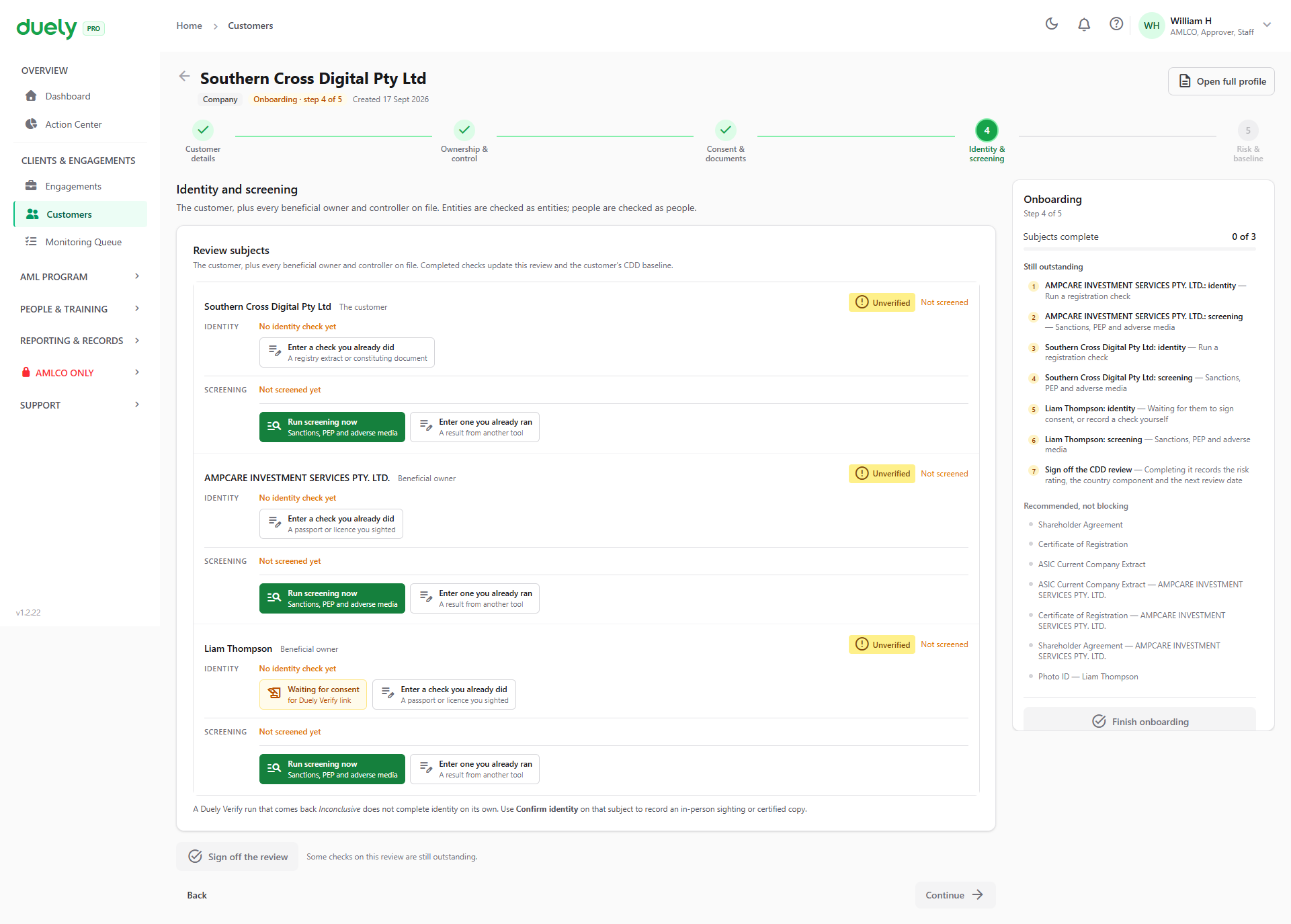
For a company, the step lists one subject per party: the company itself, and each beneficial owner and controller behind it. A company with a corporate owner and a secretary produces three subjects, and each needs its own outcome.
The consent gate comes first
A hosted verification link can only be sent once that subject has signed their consent form. Until then the button reads Waiting for consent and does nothing.
The gate is consent signed, not only consent sent. While you wait for the signature, you can still enter a check you did yourself or run screening.
You send consent from the Consent tab of the customer's onboarding flow. See Onboarding a customer.
Path 1: the customer verifies themselves
Where your firm has hosted verification, Send a Duely Verify link creates a one-time link for that subject. The customer opens it and completes the journey on their own: photographing their identity document, taking a live selfie for a face comparison, and answering the identity questions.
The customer can use an identity document from any of the countries and territories on Countries and identity documents, which also lists the document types accepted for each.
You enter nothing on this path. The result comes back to the review and the subject's state updates.
While a hosted session is pending, the controls change to copy, open and cancel, so you can resend it or withdraw it. A hosted session that returns without a clear pass does not close off the manual path.
Path 2: you record the check yourself
Enter a check you already did opens the Record verification dialog, titled with the subject's name. This is the path for a document you have seen, a check run through another service, or a hosted session that needs a human decision.
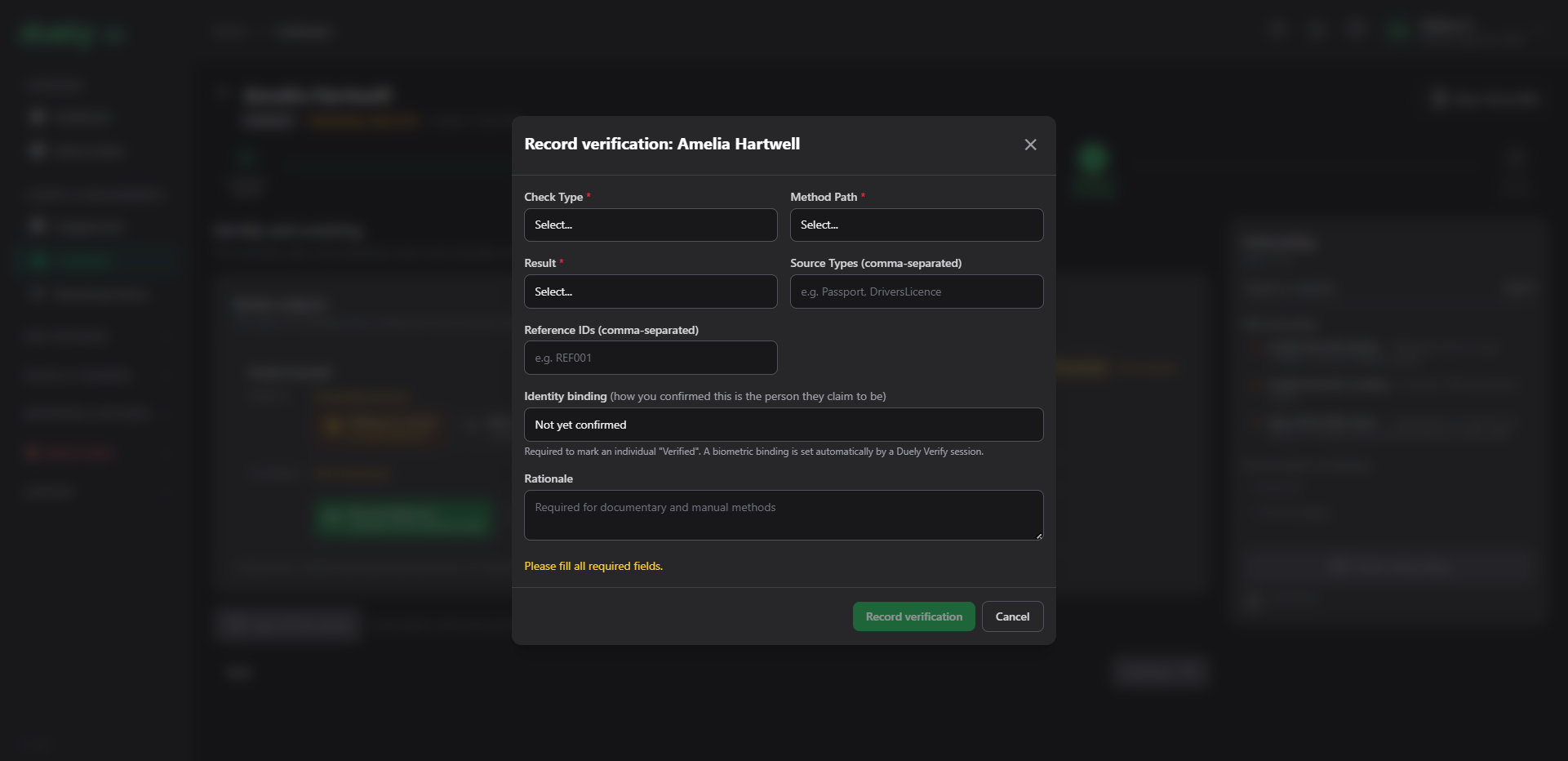
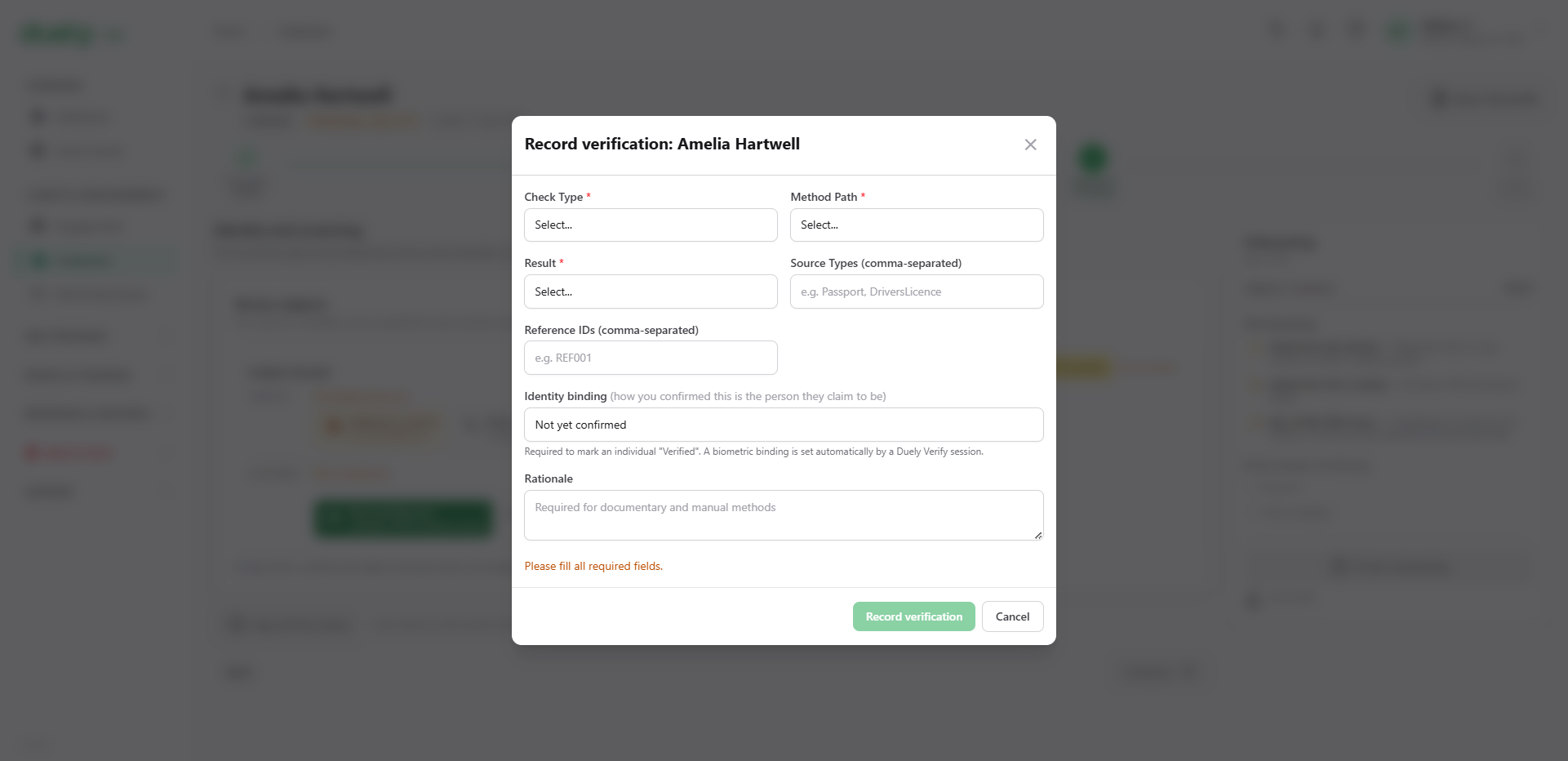
You work through four decisions, in this order.
Decision 1: the check type
Choose what you checked. The types on offer depend on the subject:
- Individual or sole trader: Identity Verification, Address Verification and Document Check
- Beneficial owner or controller: the same three, plus Beneficial Owner Verification
- Company: ASIC Registration and Regulated Status
- Trust: Trust Deed
- Partnership: Partnership
This choice decides how the run is assessed, and it decides whether the identity binding step applies at all.
Decision 2: the method path
Choose how you did it:
- Electronic data, where details are checked against electronic sources
- Documentary, where you inspected documents
- Manual, where you performed the check by other means
Documentary and manual both require a written rationale. The dialog marks the rationale field as required and will not accept the record without it. Where a person made a judgement rather than receiving a machine result, the reasoning is the evidence.
Electronic data is not offered for entity check types. A registry or trust deed check is not something an electronic data match describes, so the combination is refused.
Decision 3: the result
Record the outcome as Verified, Not verified, or Inconclusive.
A rationale is required for Not verified and Inconclusive. Where the outcome is not a clean pass, the record has to say why, and the save is refused without one.
Decision 4: the identity binding basis
Recording that a customer's details matched a source is the first limb of due diligence. It does not establish that the person you dealt with is that person. The identity binding field is where the second limb is recorded, and on the dialog it starts as Not yet confirmed.
There are six bases, and they are set in different places:
| Basis | What it means |
|---|---|
| Biometric | Confirmed by a liveness check and face match. Set automatically by a hosted session |
| In person sighting | You saw the person in person holding their identity document. Chosen as "Confirmed in person (sighted the original ID)" in the Record verification dialog, or in the Confirm identity dialog |
| Certified copy | You relied on a certified copy of the identity document. Chosen as "Confirmed via a certified copy of the ID" in either dialog |
| Remote evidence review | You reviewed the document and selfie the provider captured, and confirmed identity yourself. Chosen in the Confirm identity dialog only |
| Not satisfied | The binding limb has not been established. Set by the system |
| Not applicable | The check was an entity level check, so there is no individual to bind. Set by the system |
The Record verification dialog offers three choices: Not yet confirmed, Confirmed in person (sighted the original ID) and Confirmed via a certified copy of the ID. The field is hidden for entity checks. A biometric binding is set automatically by a hosted session, so it is not one you pick by hand.
Remote evidence review is the correct basis where a hosted check did not produce a pass and you have looked at the captured evidence and made the call yourself. It is not an in person sighting, because no sighting happened, and it is not a biometric pass, because the check did not pass. Record the basis that applies.
A completed run is final
A completed verification run cannot be completed a second time. The product refuses it, and the remedy is to create a new run.
Each attempt sits on the record with its own result and rationale, so if a customer failed a check and later passed one, both runs are visible. Start a new run rather than looking for a way to edit the old one: a record showing a correction is more useful than one that appears never to have needed correcting.
Reading the result afterwards
Once the review is signed off, the CDD review shows what was recorded for each subject.
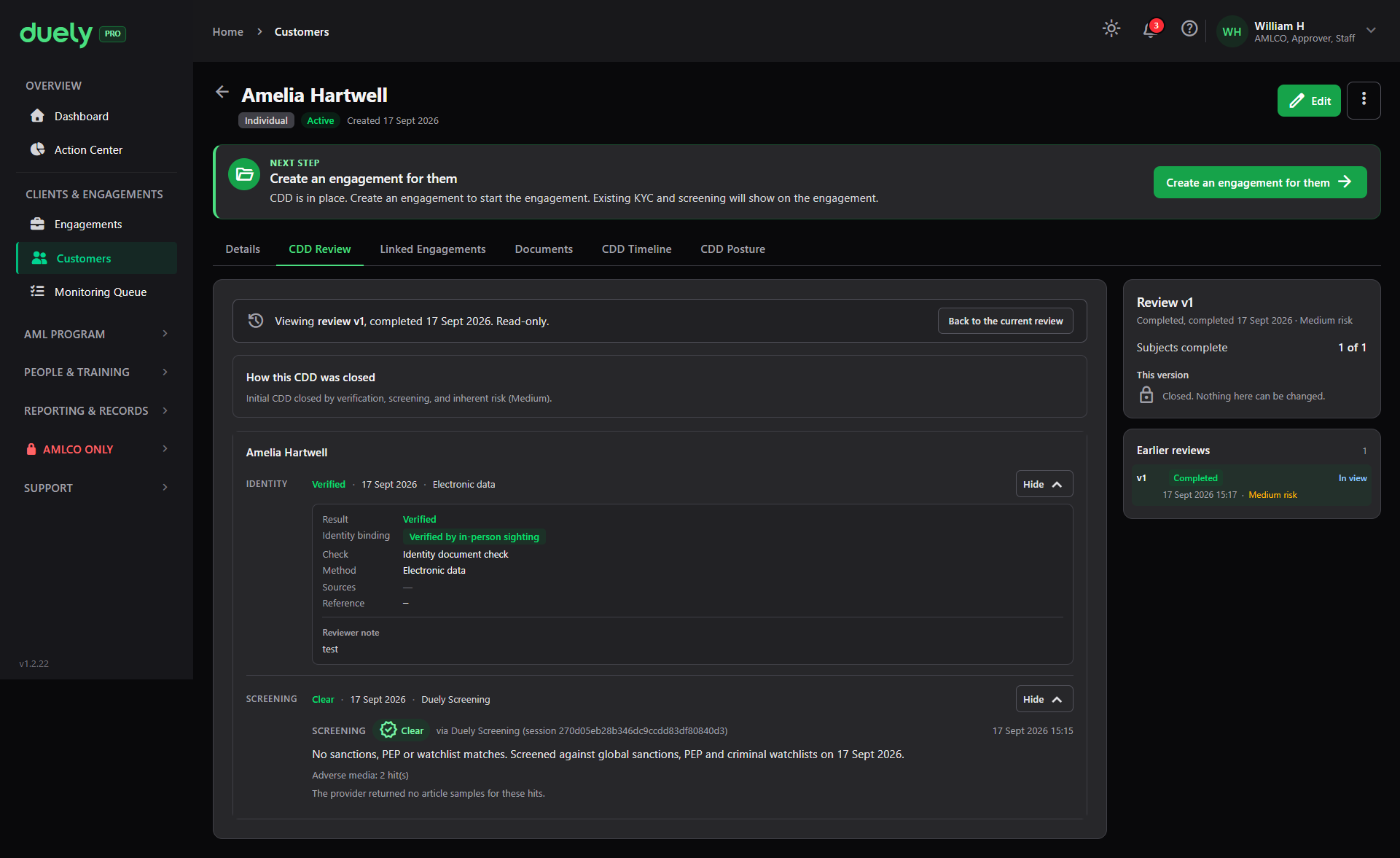
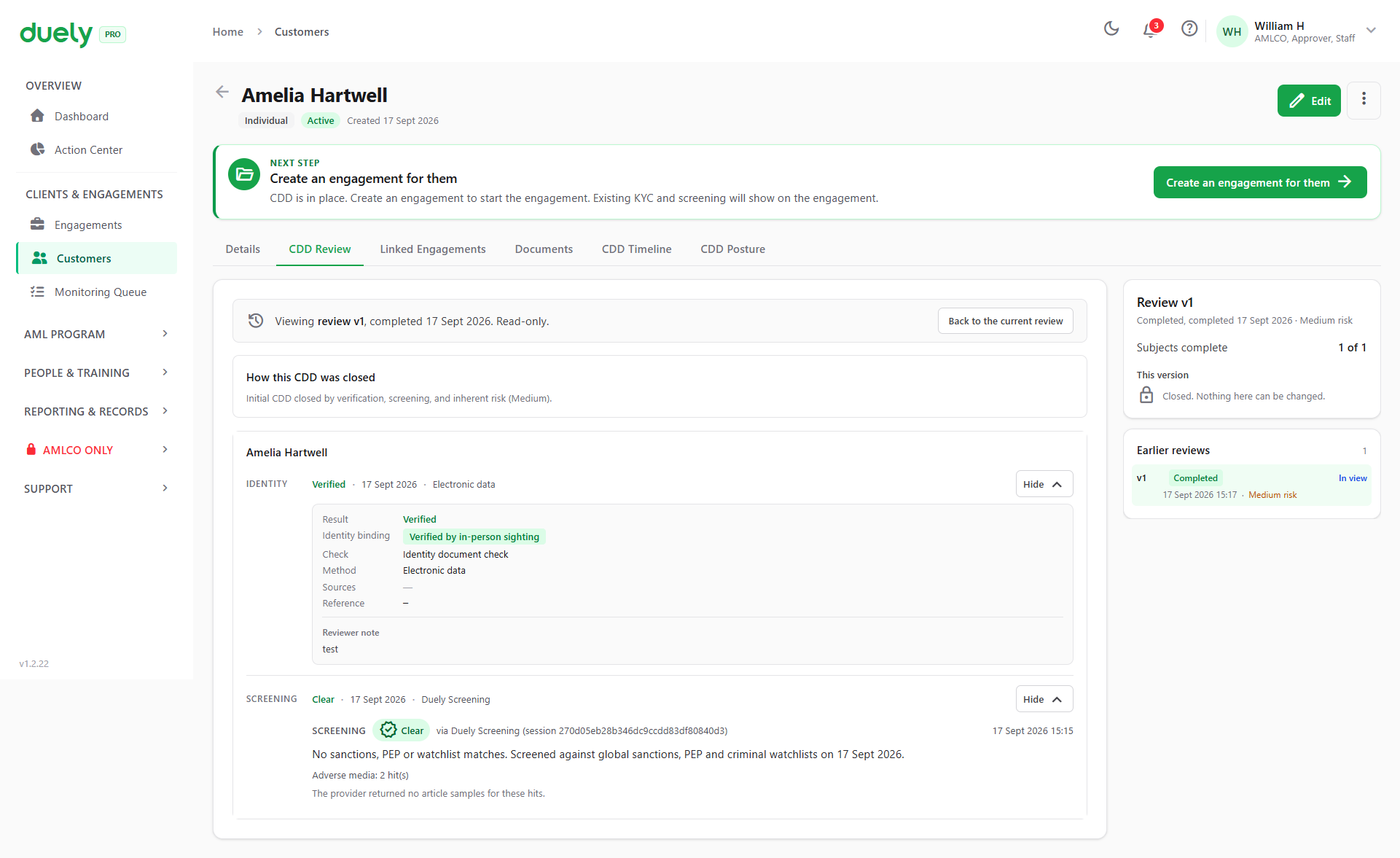
The identity block shows the result, the binding basis, the check type, the method, the sources, and any reference. Where the binding basis is one of the real bases, it is shown in green and reads as confirmed.
At the top, How this CDD was closed records the summary, such as that the review closed on verification, screening and an inherent risk rating.
When a check fails or is inconclusive
Both outcomes need a written rationale, and both leave the subject not verified.
- Not verified: the check did not establish identity. You cannot proceed on that check. Run a different check that succeeds, or record the reason it cannot be resolved.
- Inconclusive: the check could not produce a clear result. Record what was unclear, then resolve it, either with a further check or with a decision you record.
Neither outcome blocks the review by itself. A recorded Not verified is an answer: the review can close on it, and the subject card states it in red. What the review will not accept is a subject with no outcome at all.
Signing off the review
Once every subject has an identity and a screening outcome, the step offers Sign off the review.
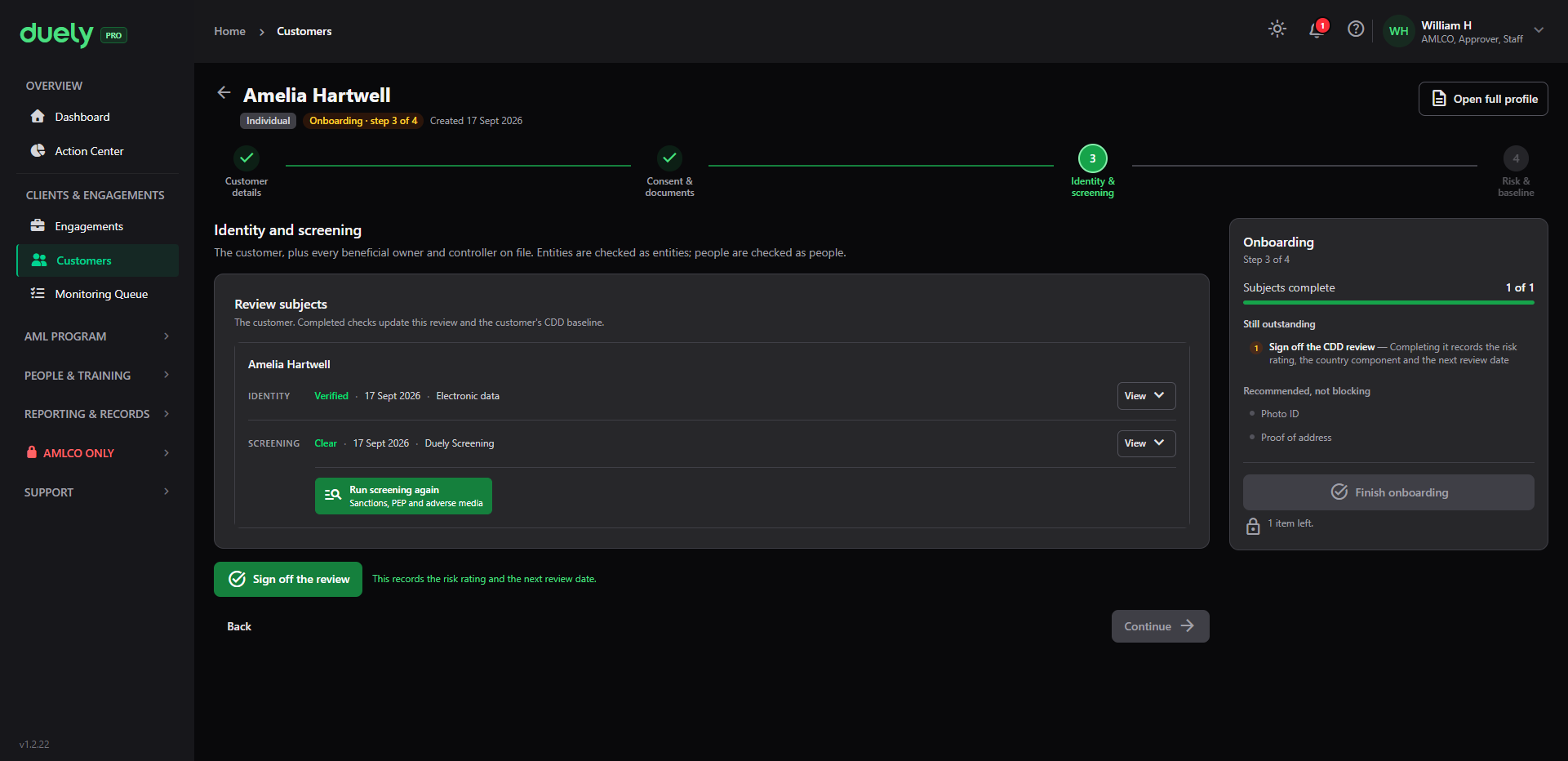
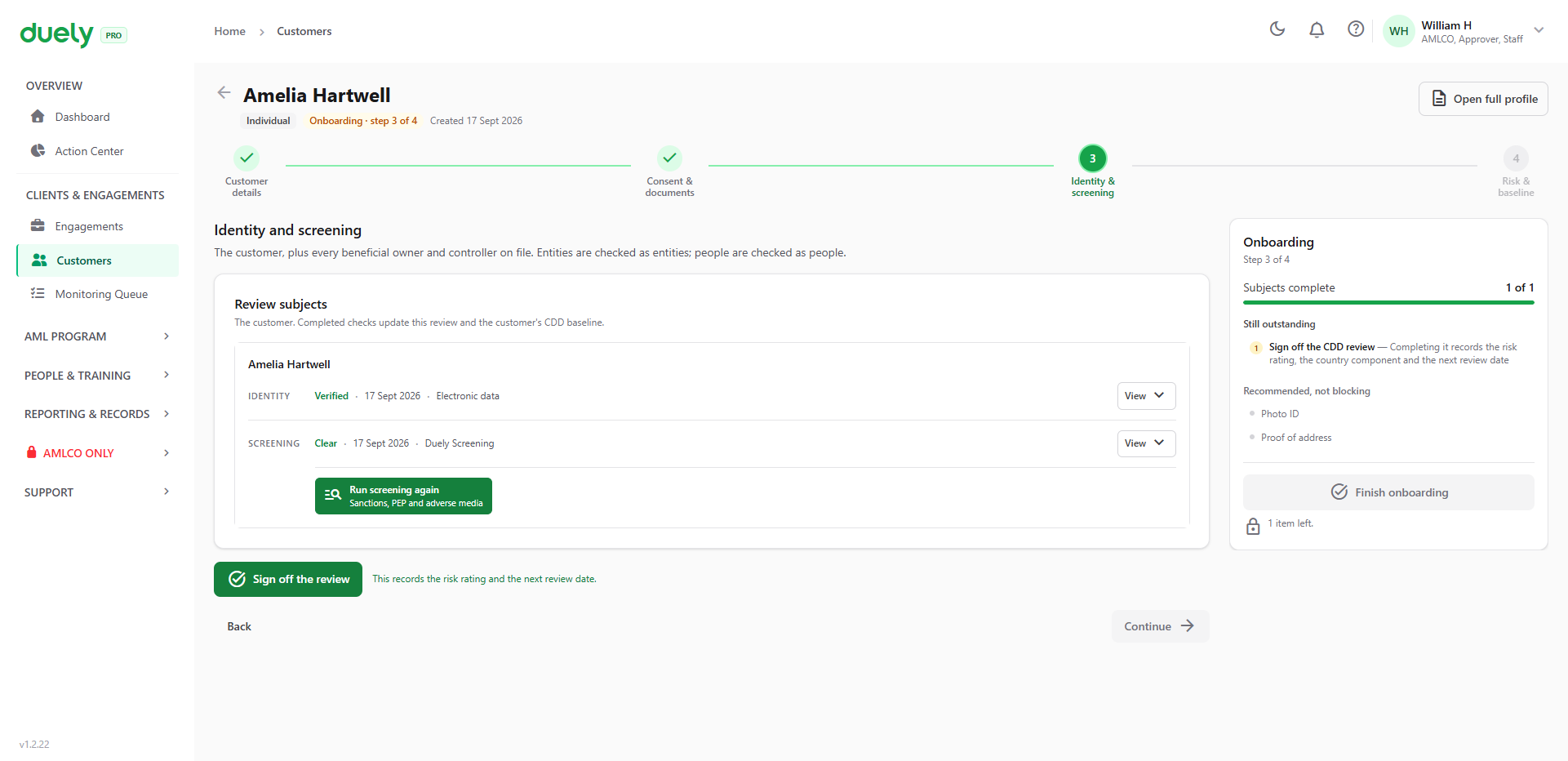
Signing off is what records the risk rating, the country component and the next review date, so it is the action that creates the customer's due diligence baseline. Before it, the checks are recorded but the customer is not yet established.
Where the review calls for it, an AMLCO sign off is required as well. A review that is complete but awaiting that sign off is not finished, and the product says so rather than reporting the customer as onboarded.
Conditional logic, in one place
| Situation | Effect |
|---|---|
| Consent not signed | No hosted link can be created. The button reads Waiting for consent |
| Hosted link sent, not yet completed | Session shows as pending, with copy, open and cancel controls |
| Hosted check inconclusive, evidence reviewed by a person | Record Remote evidence review as the binding basis |
| Binding basis left as Not satisfied | The run cannot be marked Verified |
| Check recorded as Not verified or Inconclusive | Allowed, with a rationale. Does not block completion |
| A subject with no outcome at all | Holds the review open |
| Review signed off | Baseline created: risk rating, country component, next review date |
| Review complete but AMLCO sign off outstanding | Still not finished |
Related pages
- Customer due diligence, for the two limbs and the timing rule.
- Screening, the other check on the review.
- Onboarding a customer, for the consent step that gates the link.
- Creating a matter, for the CDD tab on an engagement.