Onboarding a Customer
This page walks the customer flow from an empty register through to a customer who is ready to be used on an engagement. It describes what you see and click at each point.
For the legal requirement behind each step, see Customer due diligence. This page is the product walkthrough.
The register, and what a customer is
Customers live at Customers in the sidebar, under the Clients and Engagements group.
A customer is the party. A matter is the engagement. Obligations attach to the engagement, not to the party, so the same customer can be reused across as many engagements as they have with you, and each engagement carries its own scoping decision, risk assessment and evidence.
That is why onboarding a customer produces a reusable baseline rather than a one-off record.
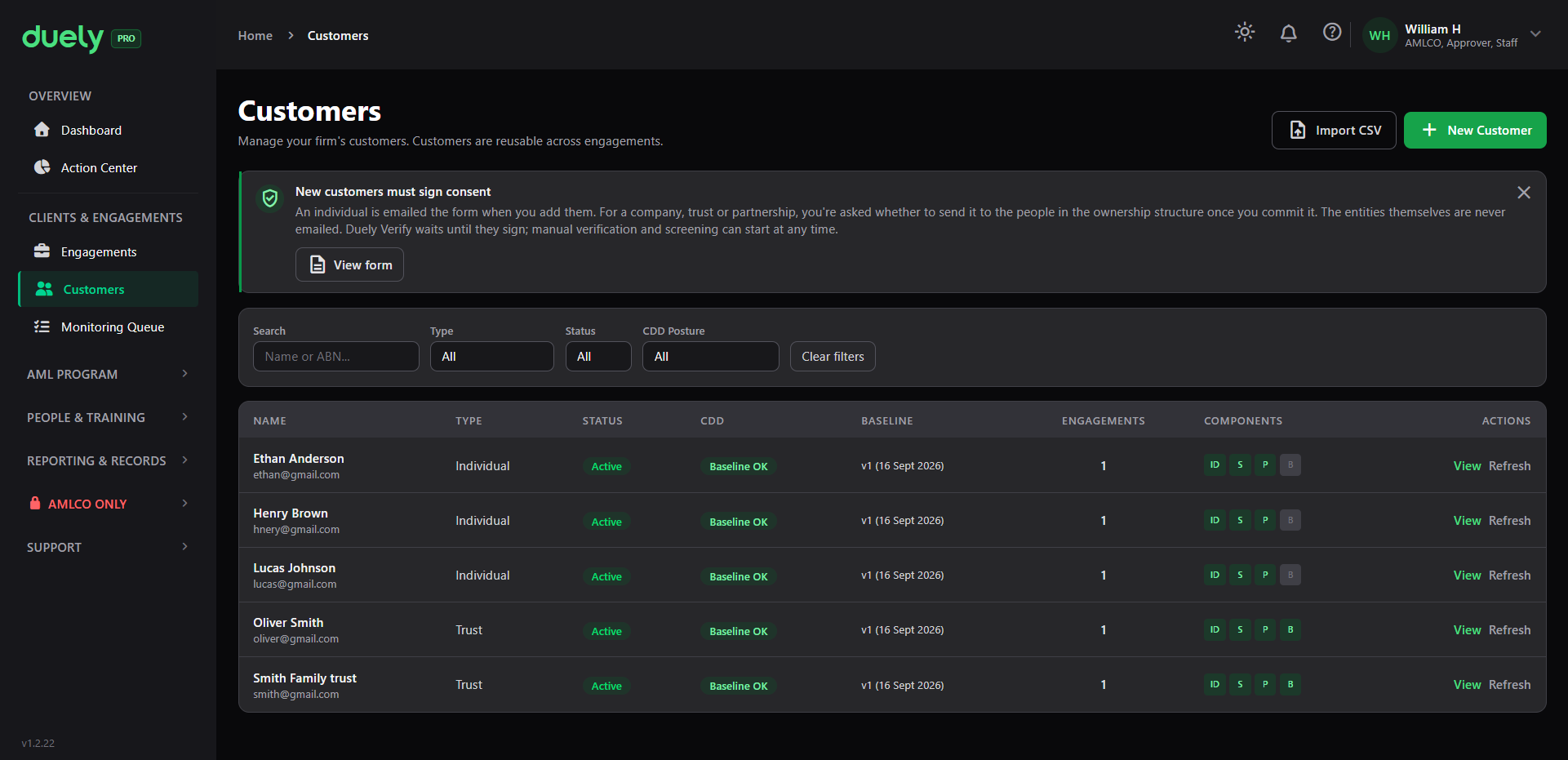
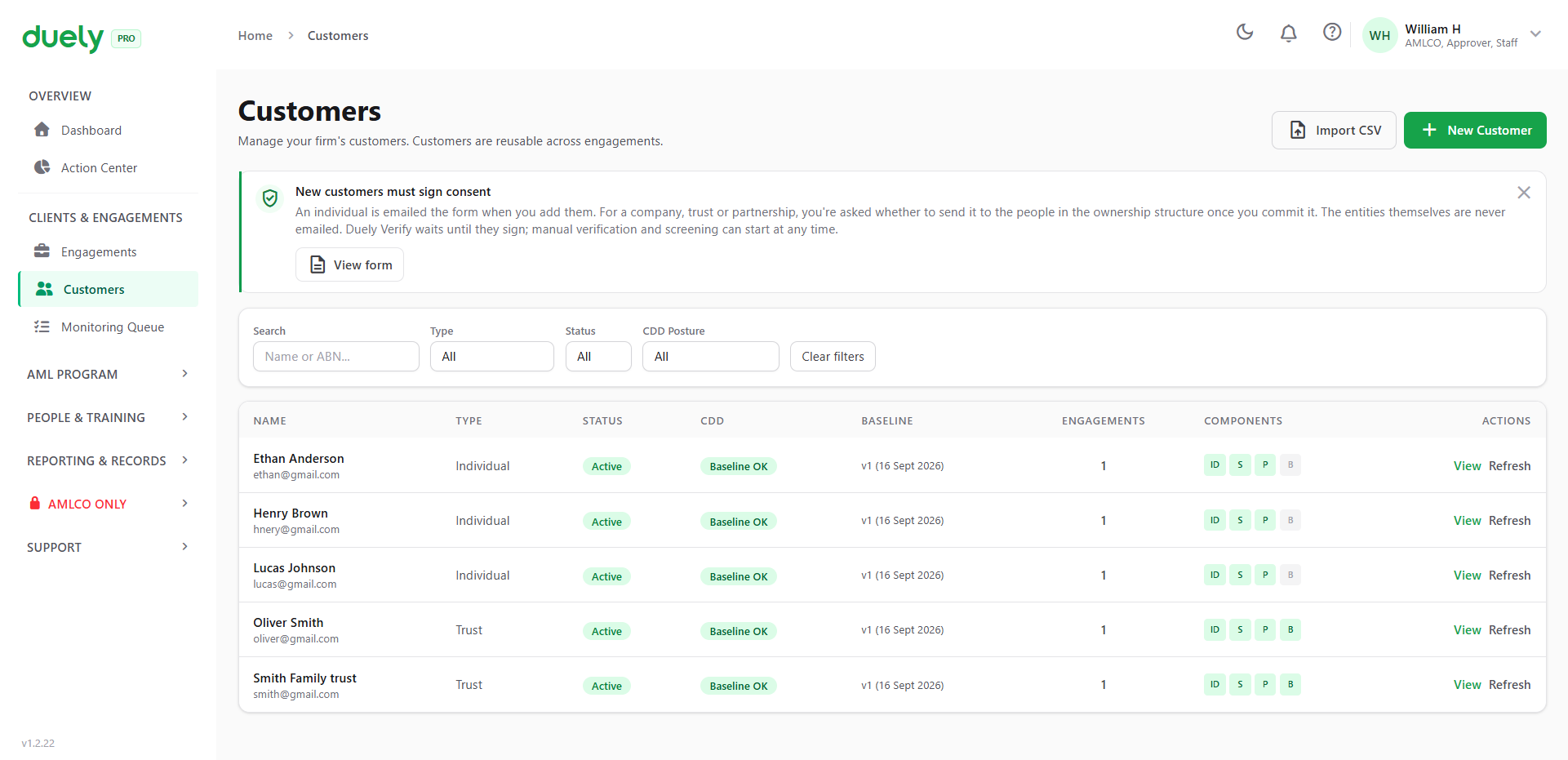
What you see on the register
The register opens on a table with these columns:
| Column | What it tells you |
|---|---|
| Name | The customer, with their email underneath |
| Type | Individual, Trust, Company and so on. This decides which onboarding steps apply |
| Status | Whether the record is Active |
| CDD | The due diligence posture. Baseline OK means the customer is ready to use on an engagement |
| Baseline | The baseline version, such as v1, and the date it was established |
| Engagements | How many engagements the customer is already linked to |
| Components | Which customer checks have been recorded: identity, sanctions, PEP and beneficial owners |
| Actions | View to open the record, or Continue onboarding while onboarding is still pending, and Refresh to re-run the checks behind the baseline |
The filter row above the table searches by name or ABN, and filters by Type, Status and CDD Posture. Above that, New Customer starts a new record, and Import CSV is for bringing a list across from somewhere else.
A banner at the top of the register explains the consent position in one line: an individual is emailed a form when you add them, for a company or trust you are asked whether to send it to the people in the ownership structure once you commit the structure, and the entities themselves are never emailed. There is a View form link to see the form itself.
Creating a customer record
New Customer opens the creation form. This is step 1 of the onboarding flow, and it is also the point at which the product decides how many steps the rest of the flow will have.
The first field is the ABN, ACN or business name lookup. If the customer is a company, searching here pulls the legal name, registered address and entity type from the register so you are not typing them. You can skip the lookup and enter the details by hand, which is the usual path for an individual.
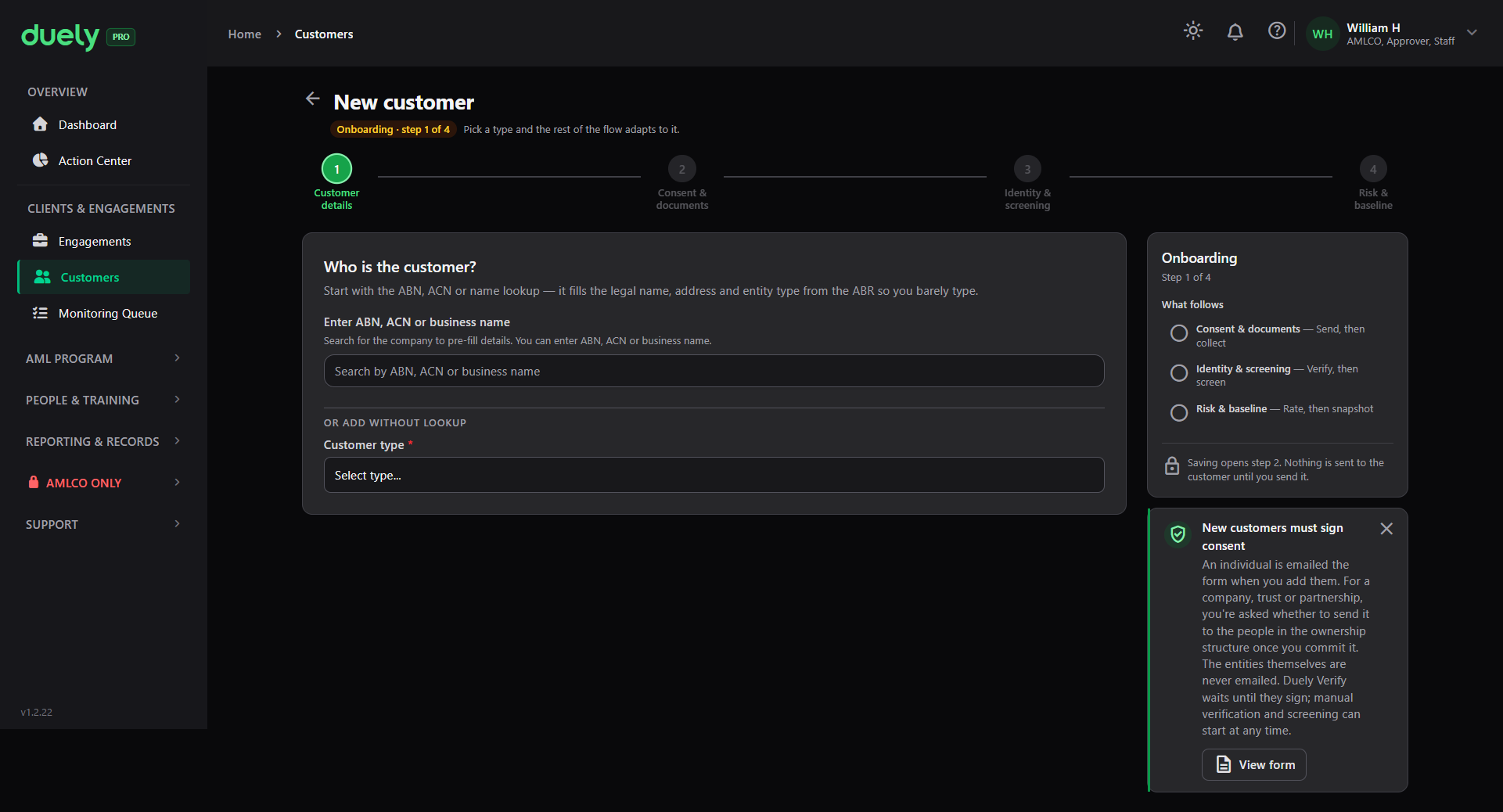
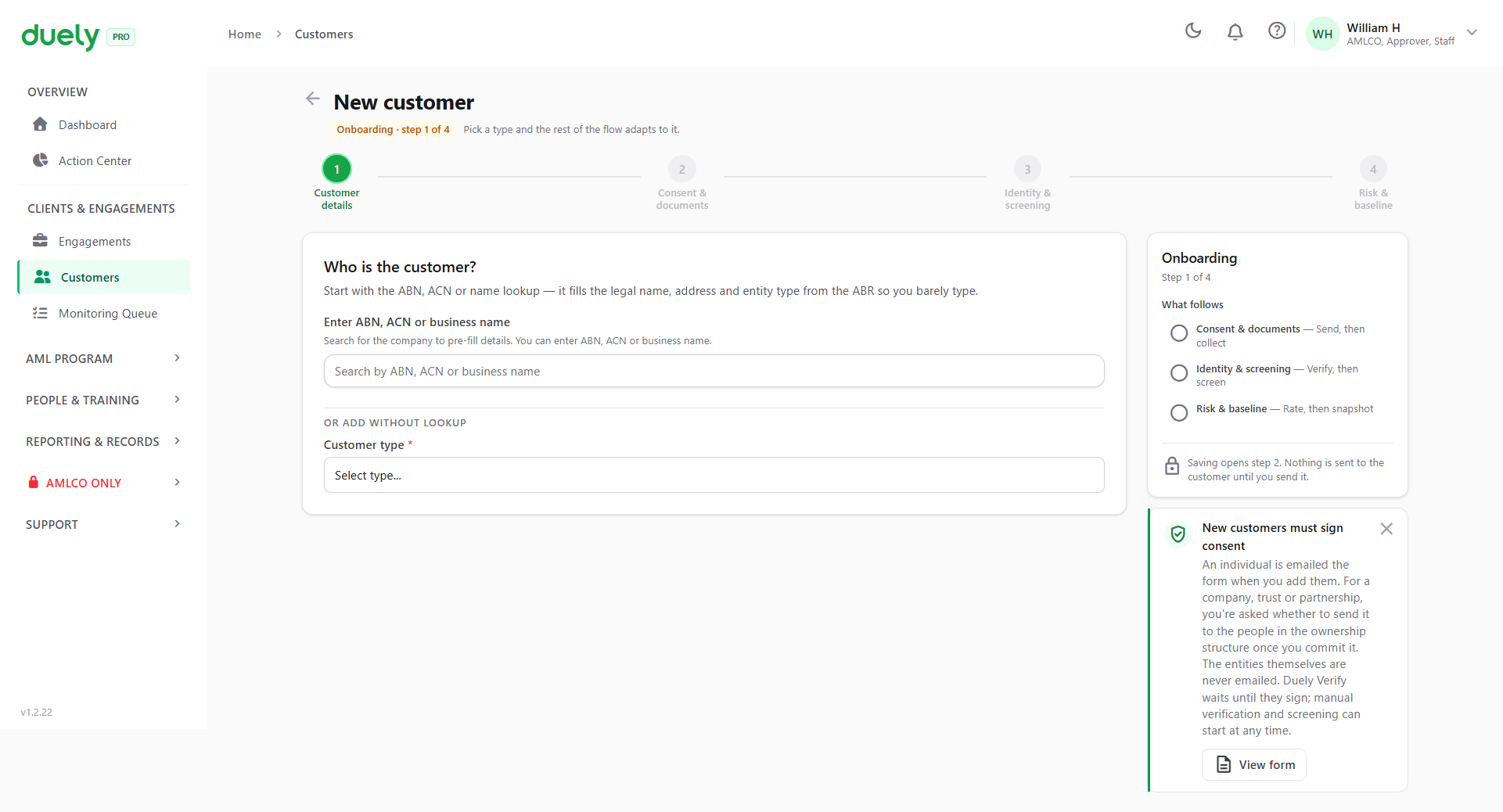
The Customer type field decides everything after it. The form then asks for whichever details that type requires.
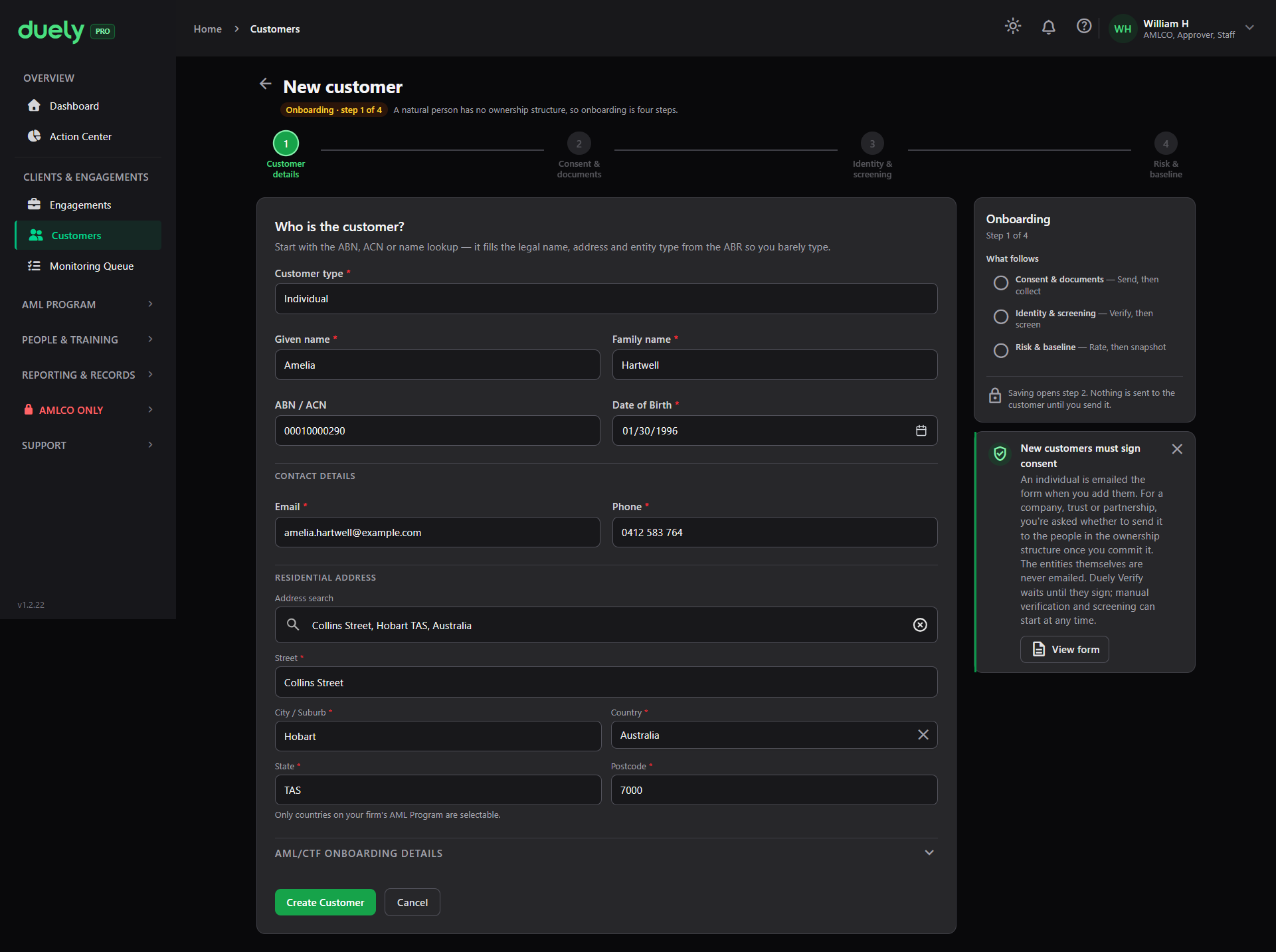
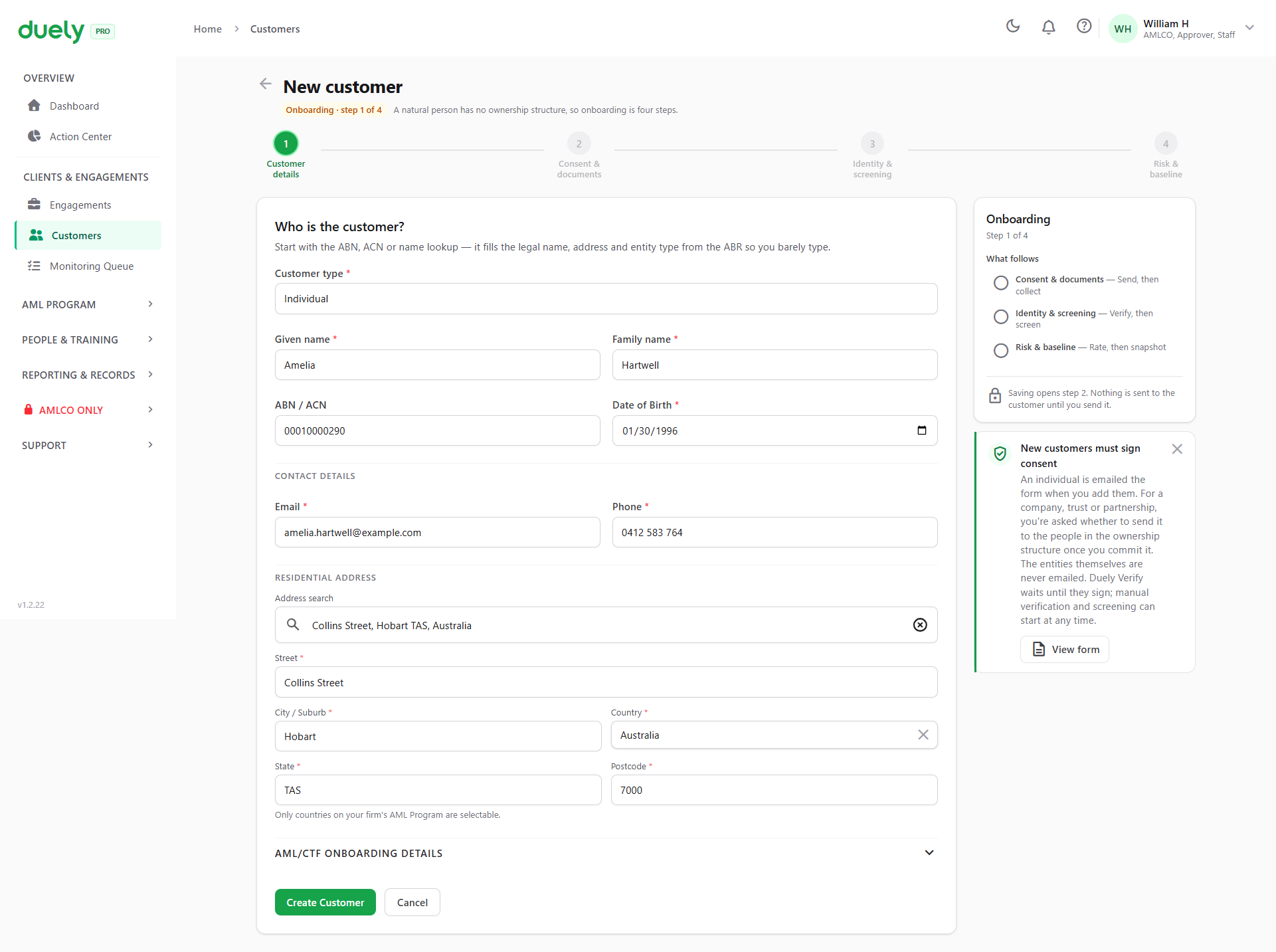
For an individual, the form asks for:
- Given name and family name
- Date of birth, which is not optional in practice. Screening cannot tell a real match from a namesake without it, so a hit recorded later would have nothing to rest on
- ABN or ACN, where the person is a sole trader
- Email and phone
- Residential address, which you can find through the address search rather than typing
For a Company, the form asks for the registered or legal name, the ABN or ACN, contact details and the registered or principal address, most of which the lookup has already filled in.
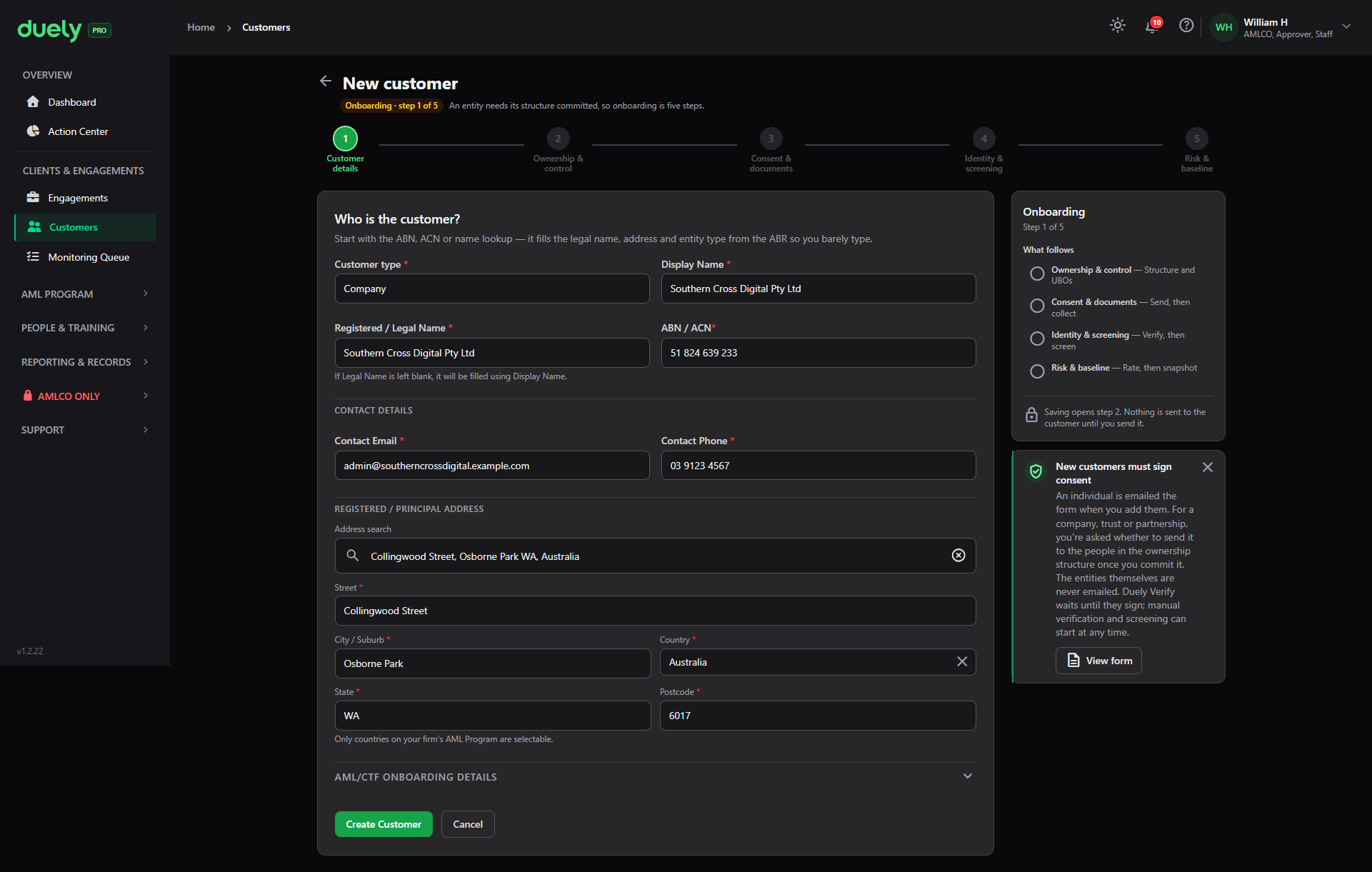
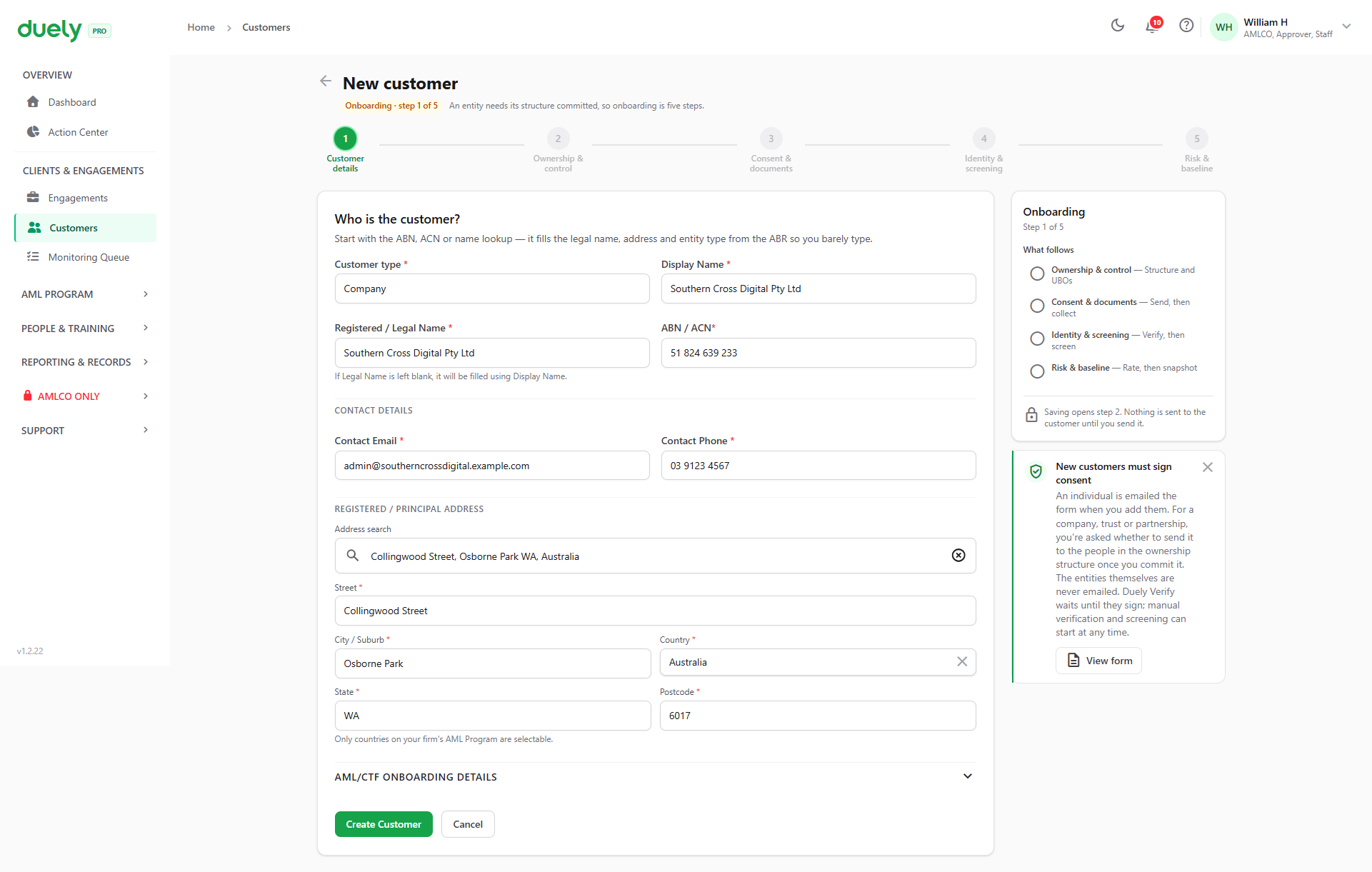
The step rail at the top shows how the two flows differ before you start. For an individual it reads four steps. For a company it reads five, with Ownership and control inserted second.
What the form gates on:
| What | Who | Why |
|---|---|---|
| Customer type | Everyone | It decides the fields and the number of steps |
| Date of birth | Individuals | Screening cannot separate a real match from a namesake without it |
| Registered or legal name | Entities | The name the entity is registered under |
| Everyone | The consent form is emailed to it | |
| Address | Everyone | It feeds the jurisdictional risk signal |
Create Customer saves the record and opens the onboarding flow on step 1. Cancel discards it.
The five steps, and which ones apply to you
The flow runs in a fixed order. Step completion is worked out from the record every time the page renders, so a customer imported from a file or half filled by a colleague lands in the same place as one you typed by hand.
| # | Step | Subtitle | Applies to |
|---|---|---|---|
| 1 | Customer details | Name, DOB, contact (individuals) or Lookup and profile (entities) | Everyone |
| 2 | Ownership and control | Structure and UBOs | Entities only |
| 3 | Consent and documents | Send, then collect | Everyone |
| 4 | Identity and screening | Verify, then screen | Everyone |
| 5 | Risk and baseline | Rate, then snapshot | Everyone |
Where a customer type has no ownership structure, the step is absent rather than disabled, and takes no slot in the rail. A step that can never apply is not shown greyed out, because that would suggest there is something to do.
Each step also carries an outstanding items panel on the right. It names what is left, and it is where to look when a step will not let you continue.
Step 1: Customer details
The step shows the customer's profile, and the panel on the right lists what is still outstanding.
What it gates on:
- Customer type, needed before anything else can be judged
- Date of birth for an individual, for the screening reason above
- Registered or legal name for an entity
- Email, because the consent form needs somewhere to go
- Address, which feeds the jurisdictional exposure signal
Nothing optional on this step blocks progress.
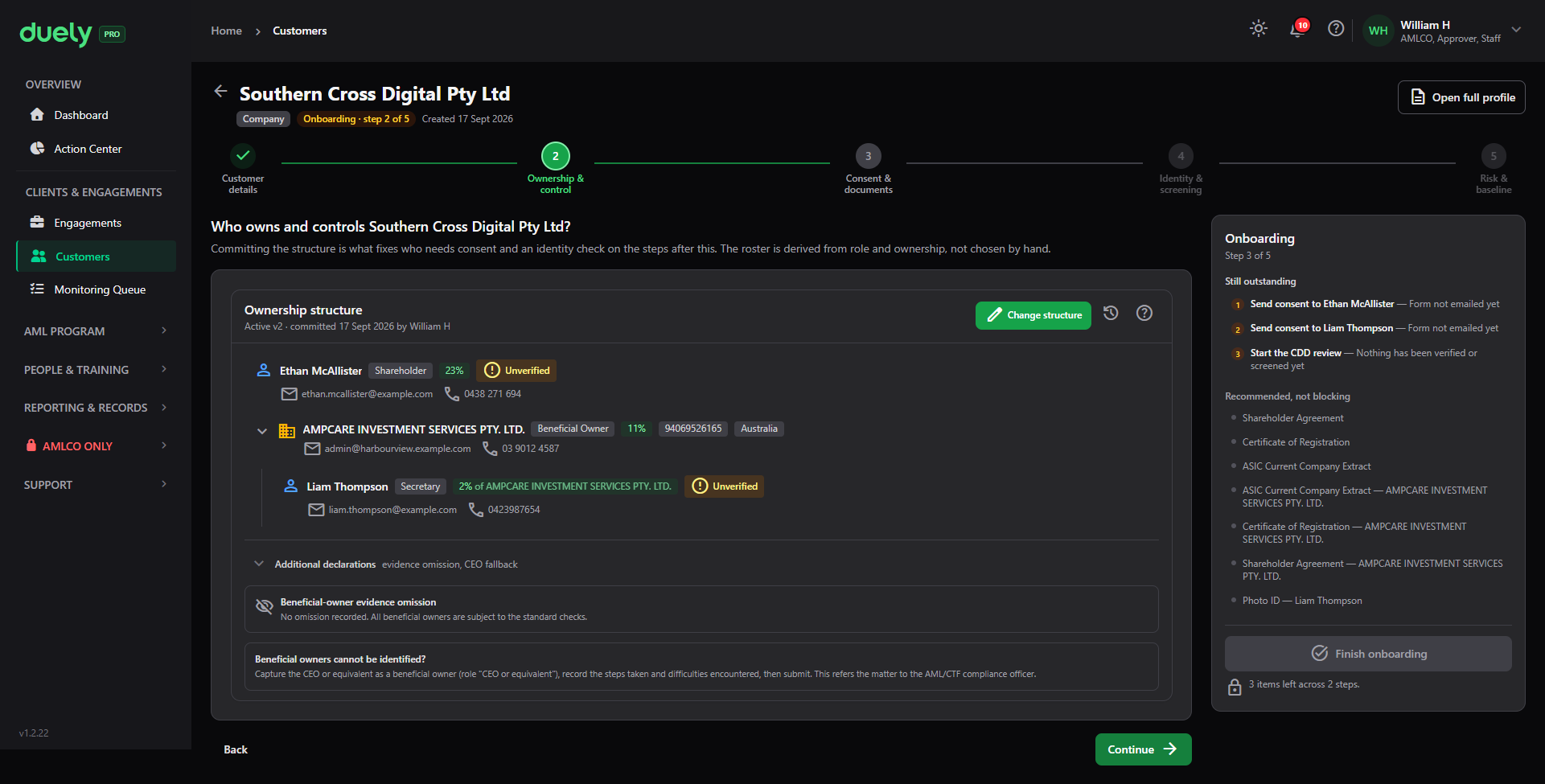
Step 2: Ownership and control (entities only)
This step records who owns the entity and who controls it. It does not appear for an individual.
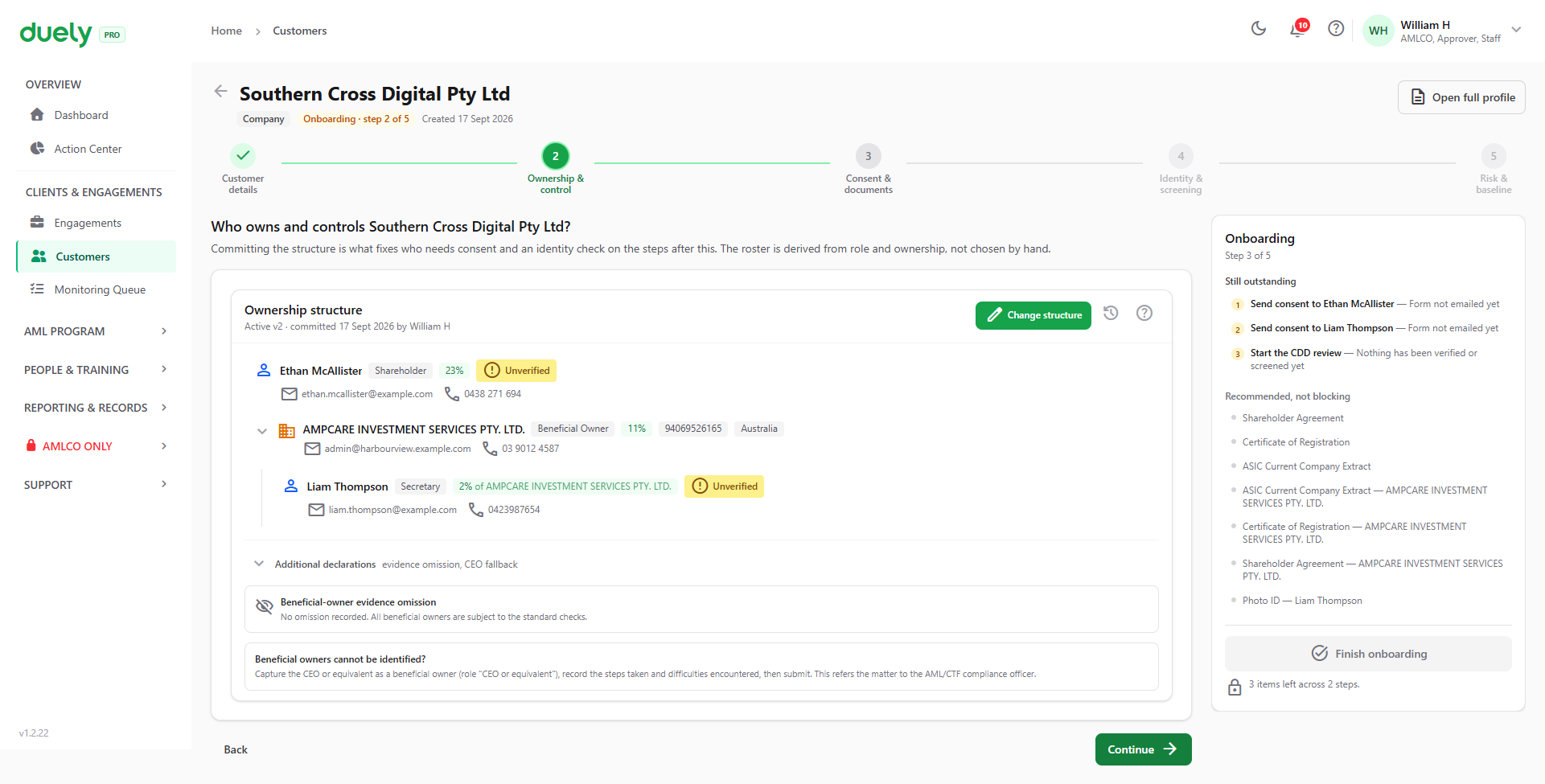
The step opens on a summary of what is currently recorded, with a Change structure button and a count of what is committed. For a company you will typically see a mix of roles: a shareholder holding a percentage, a corporate beneficial owner in another jurisdiction, and a secretary. Each person or entity carries its own tag, so you can see at a glance whether each has been verified.
Adding a person
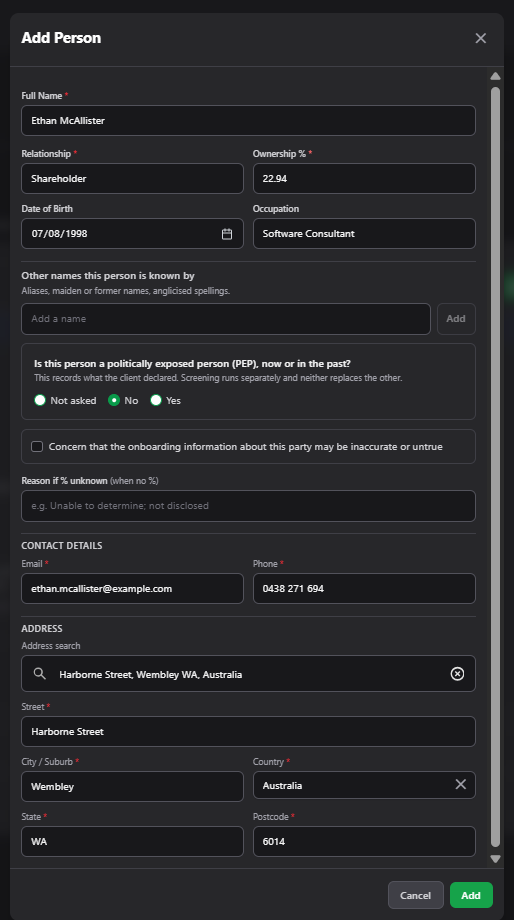
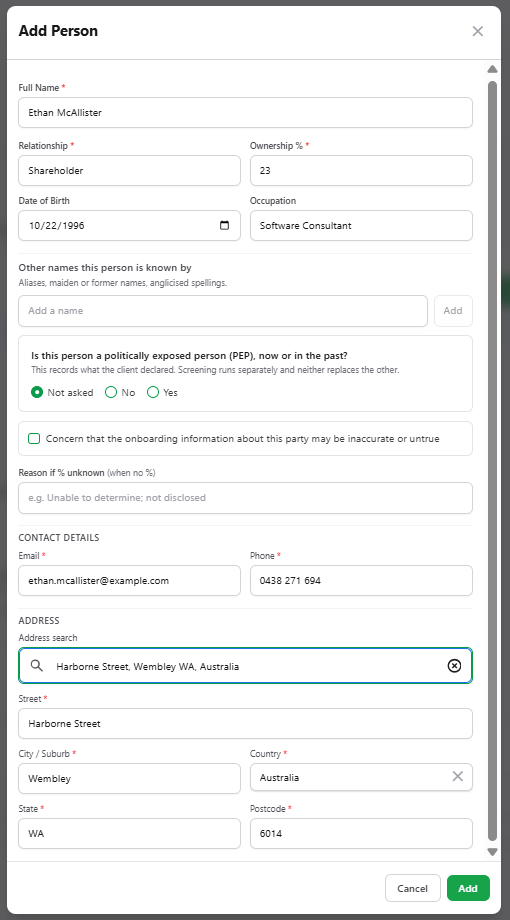
Change structure is where you add the people and entities behind the customer. Adding a person opens a form with these fields:
- Full name
- Relationship, such as Shareholder, Beneficial owner or Secretary
- Ownership percentage, where they own a share
- Date of birth and occupation
- Other names this person is known by, for aliases or former names
- Whether the person is a politically exposed person, now or in the past. The screen notes that this records what the person declared, and that screening runs separately and does not replace this
- A concern flag: whether you believe the onboarding information about this party may be inaccurate or untrue
- Reason if the percentage is unknown, for cases where you cannot establish it
- Contact details and address
Adding an entity
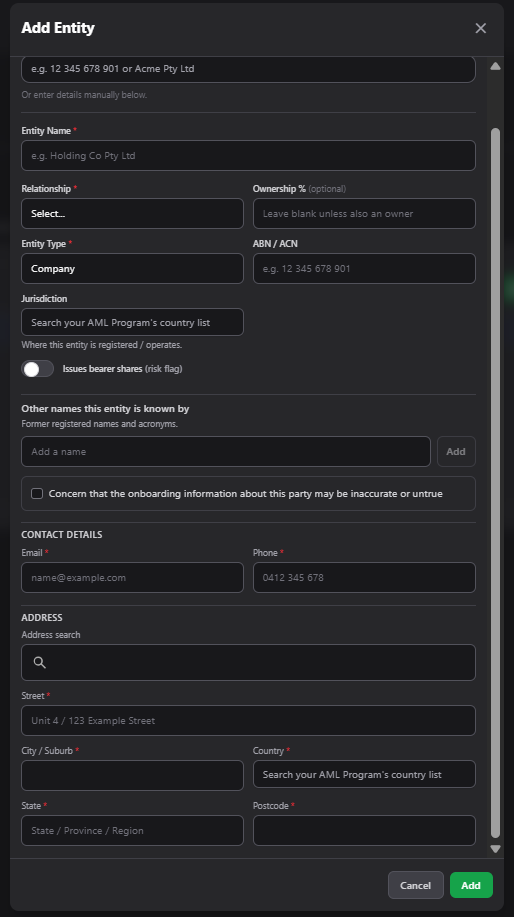
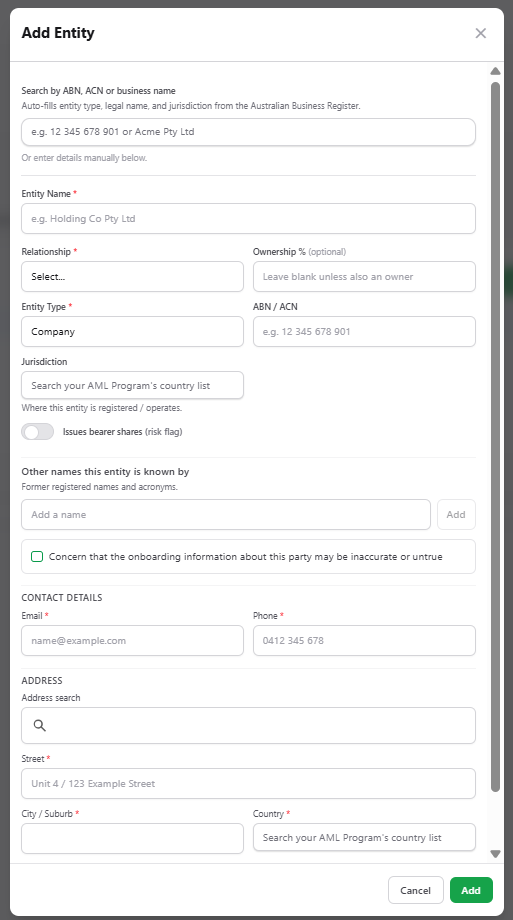
Where a company or trust sits in the structure, adding it opens a similar form with entity-level fields:
- Entity name, with the same ABN, ACN or business name lookup to auto-fill from the register
- Relationship and ownership percentage, which is optional here because an entity can sit in the structure without owning a share
- Entity type, such as Company
- ABN or ACN
- Jurisdiction, searched from the country list your AML/CTF program defines
- Issues bearer shares, a risk flag to set where it applies, since bearer shares make ownership harder to establish
- The same accuracy concern flag, plus contact details and address
What this step gates on
- At least one node in the structure. Nobody recorded yet is outstanding
- The structure must be committed. A draft is not part of the record, so a saved but uncommitted structure still blocks the step
- Every entity in the structure must resolve to a natural person, or one of the three alternatives below must be recorded
When a structure has no natural person beneath it
An entity in the structure that has no natural person anywhere beneath it is flagged. This happens legitimately, for example with a foreign holding company whose ownership you cannot establish. The flag on its own does not block you, because blocking on it would leave you stuck with no control that clears it. The product offers three ways forward instead:
- Add a natural person beneath the node, where you can establish who is behind it
- Record a CEO fallback, where you identify the chief executive or equivalent instead of the owners
- Record an evidence omission, where the information cannot be obtained
The step will not let you continue while an entity is unpierced and none of the three has been recorded. Being unable to establish a structure is a finding to record, and the omission you record is part of the audit trail.
A note on percentages
The product calculates ownership percentages from the structure you record. It does not discover the structure for you. If what you entered is partial, the percentage is partial too, and the screen still looks complete.
A filled in structure is not evidence that the structure was established.
Step 3: Consent and documents
This step has two tabs, and only one of them gates your progress.
Consent
Consent is sent per person. The tab lists everyone in the structure with their email and whether their form has been sent and signed, and it shows the count, such as zero of one signed.
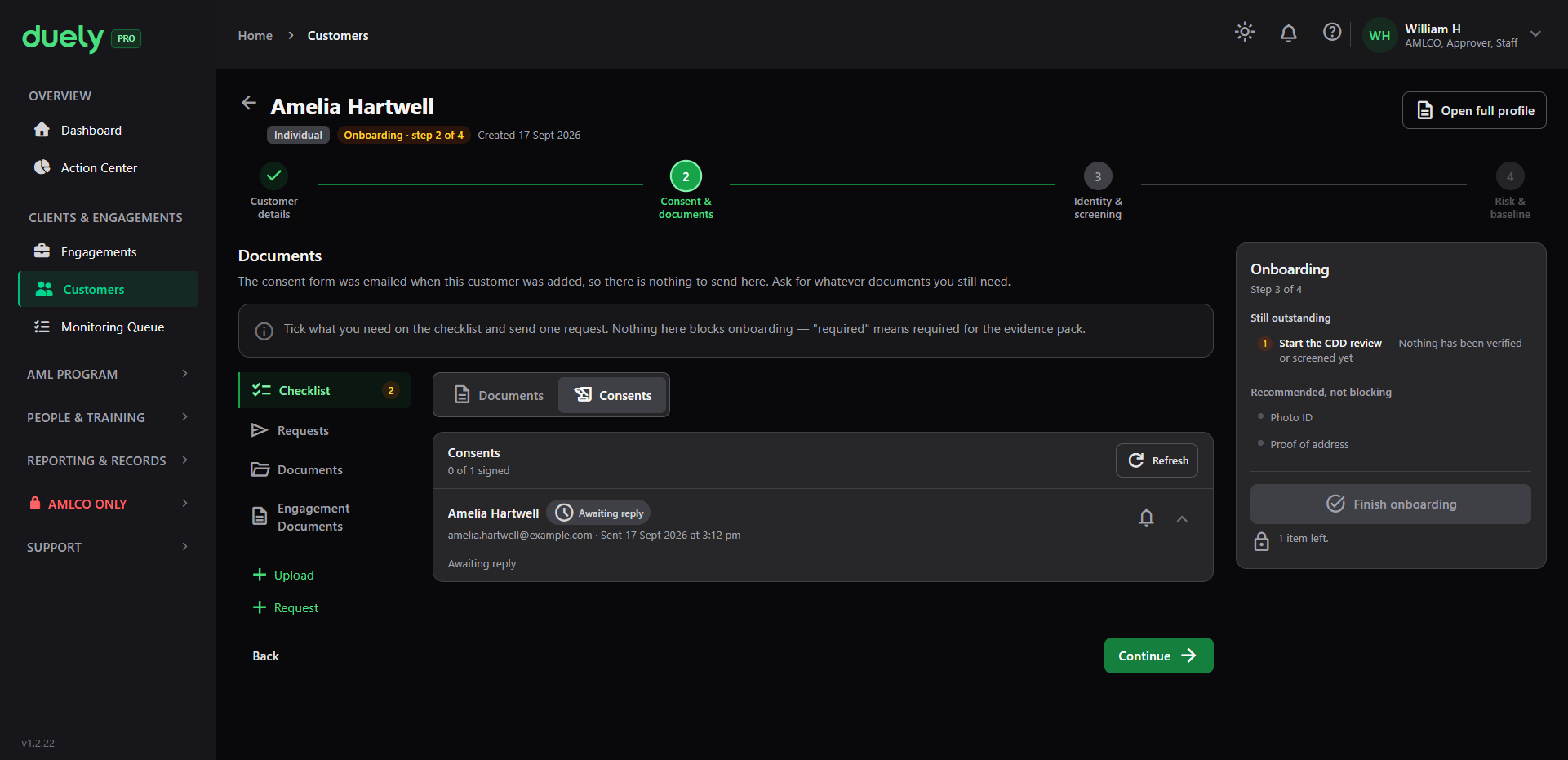
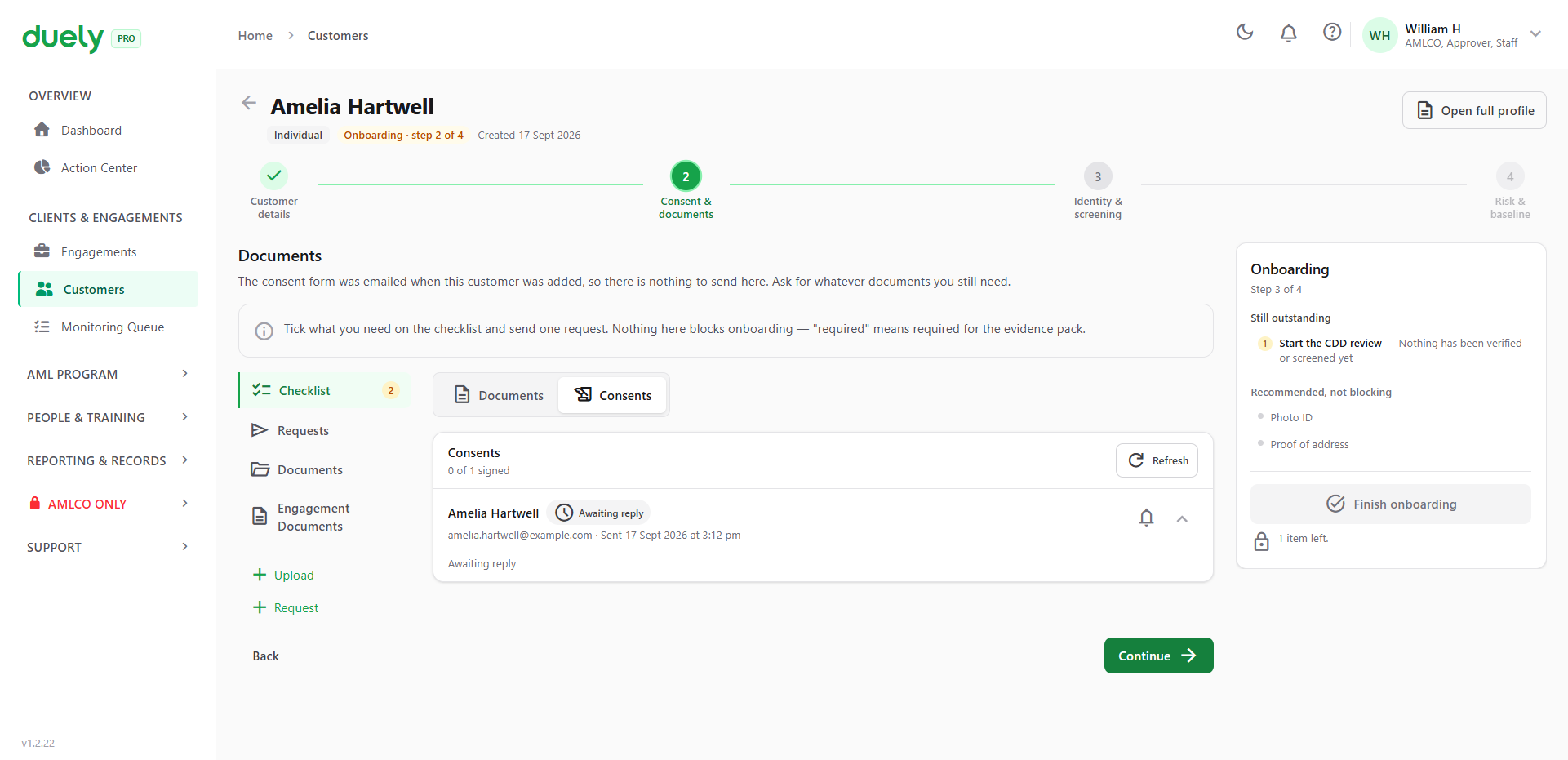
This step gates on sending the form, not on the person signing it. Waiting for signatures before moving on would stall the whole flow for something the customer completes in their own time. The step moves on once the form is sent. The Duely Verify link then waits until the person signs, and in the meantime you can record a check you did yourself or run screening.
For a company the list is longer, because it covers every person the structure produced rather than just the customer.
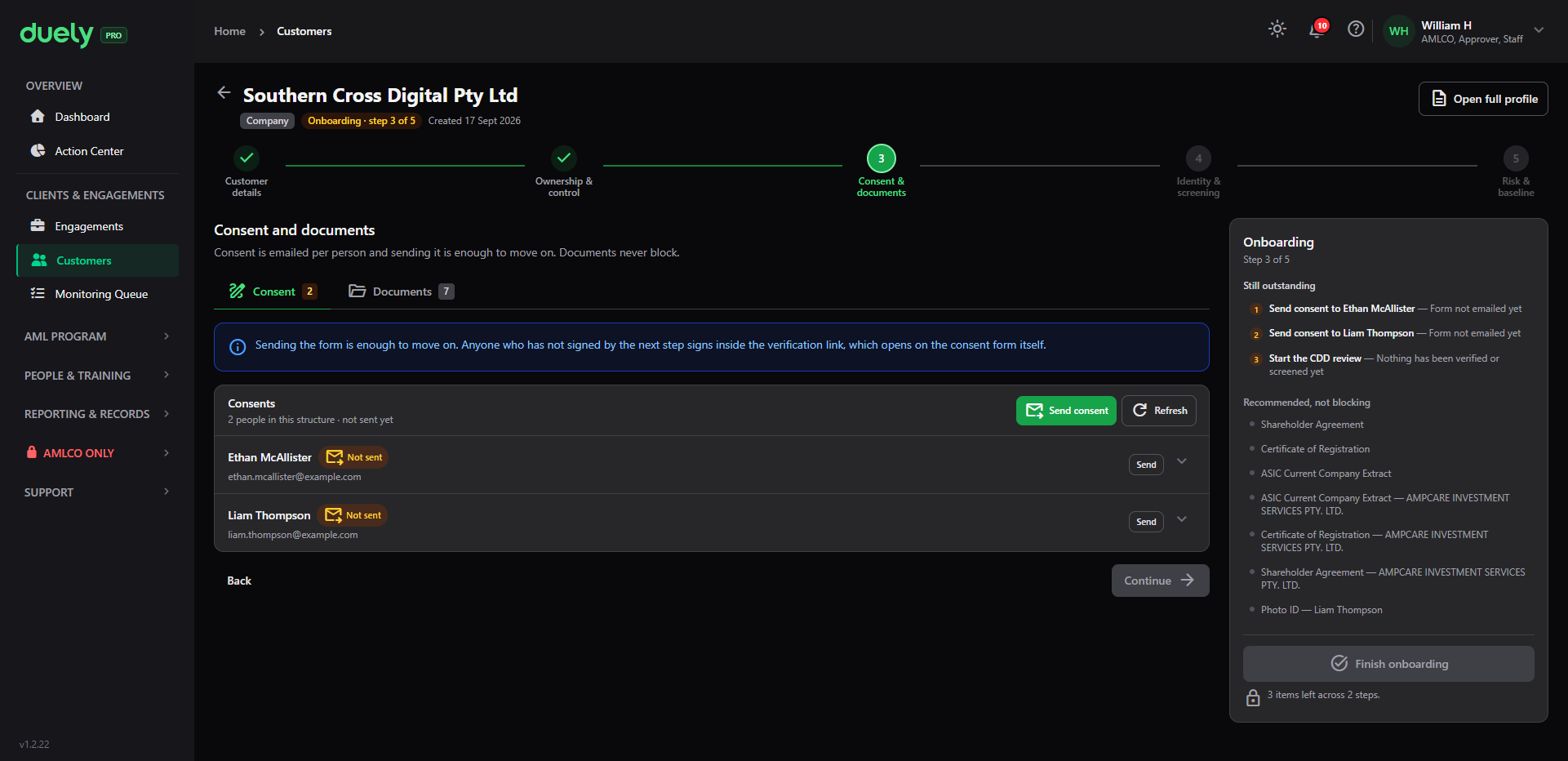
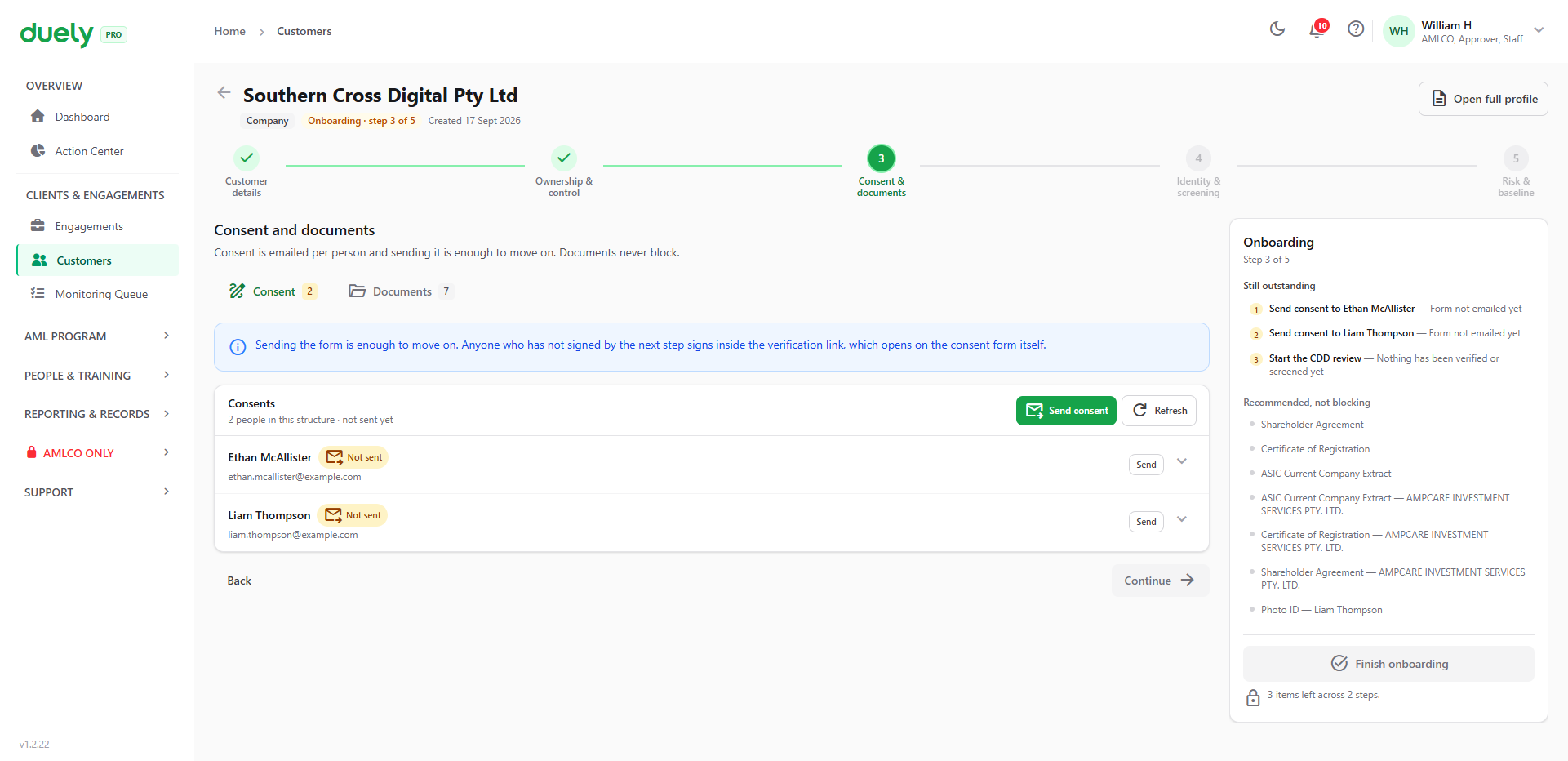
The entities themselves are never emailed. A signature still gates the verification link, but that gate sits on the verification button in the next step, not here.
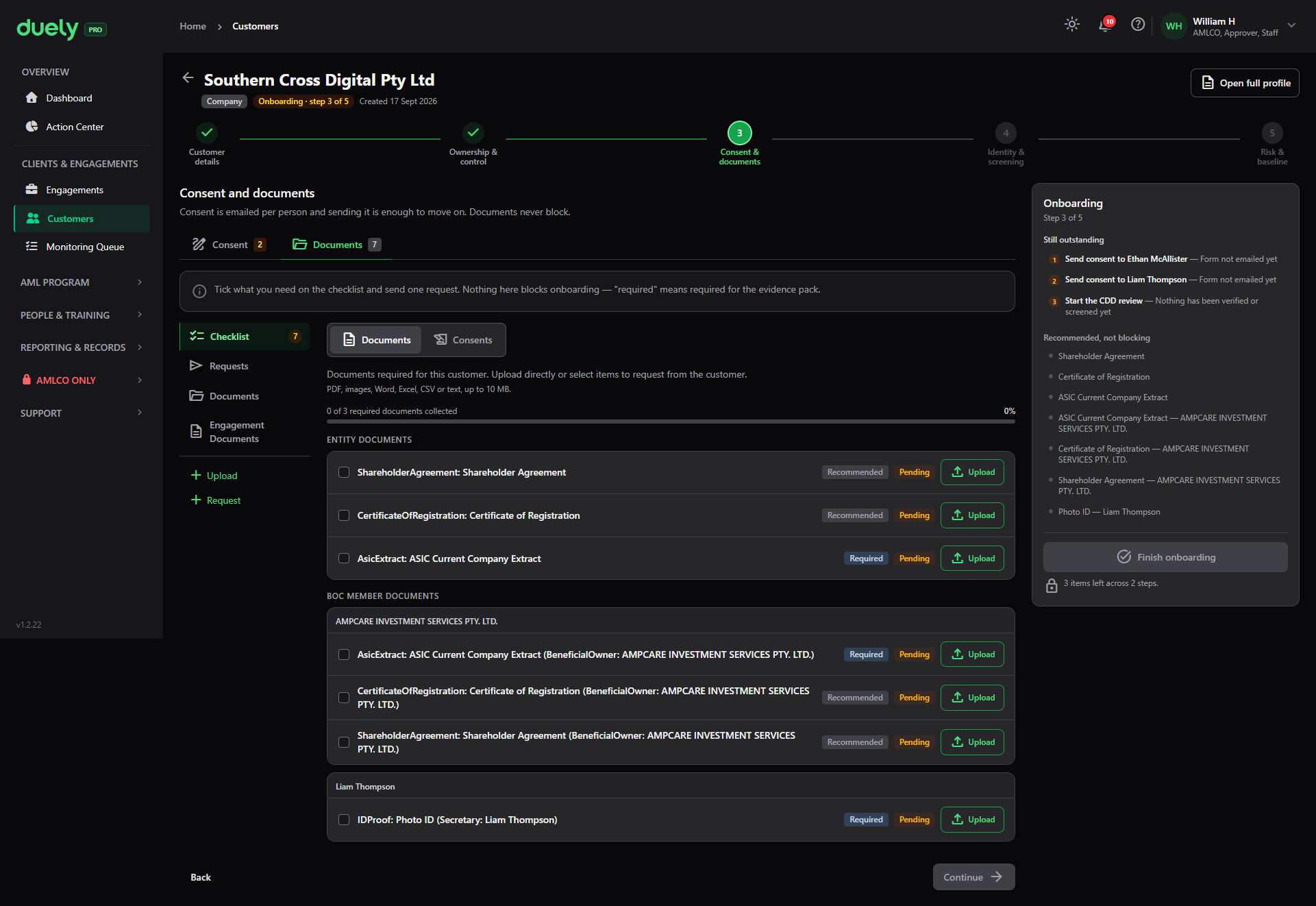
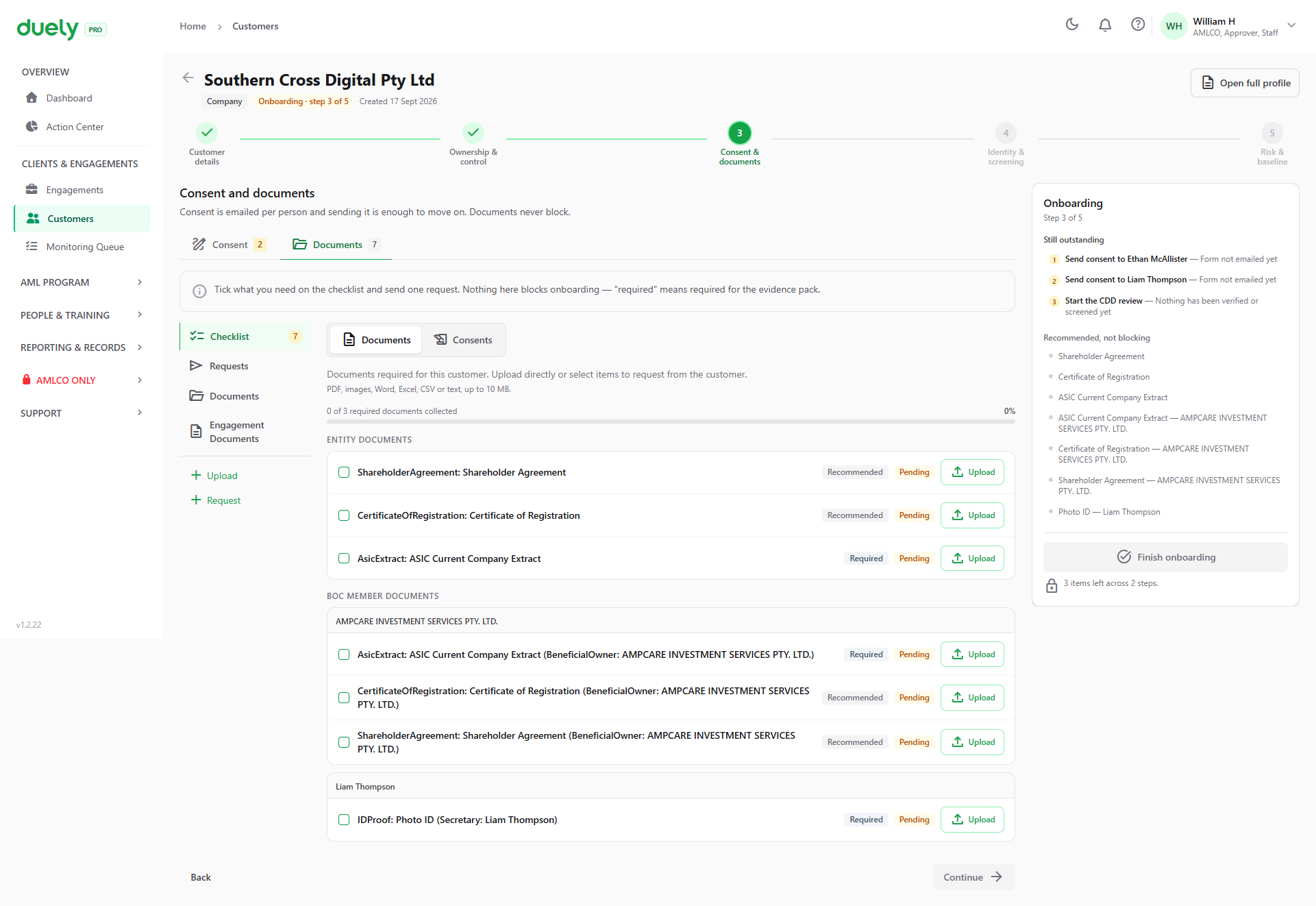
Documents
The Documents tab holds supporting documents. Ticking an item puts it on the checklist and lets you send one request for it.
Documents never block onboarding. They are marked Recommended or Required, and the count at the top, such as zero of three collected, tells you where you are, but nothing on this tab stops you continuing. They are surfaced so a reviewer can see what is missing.
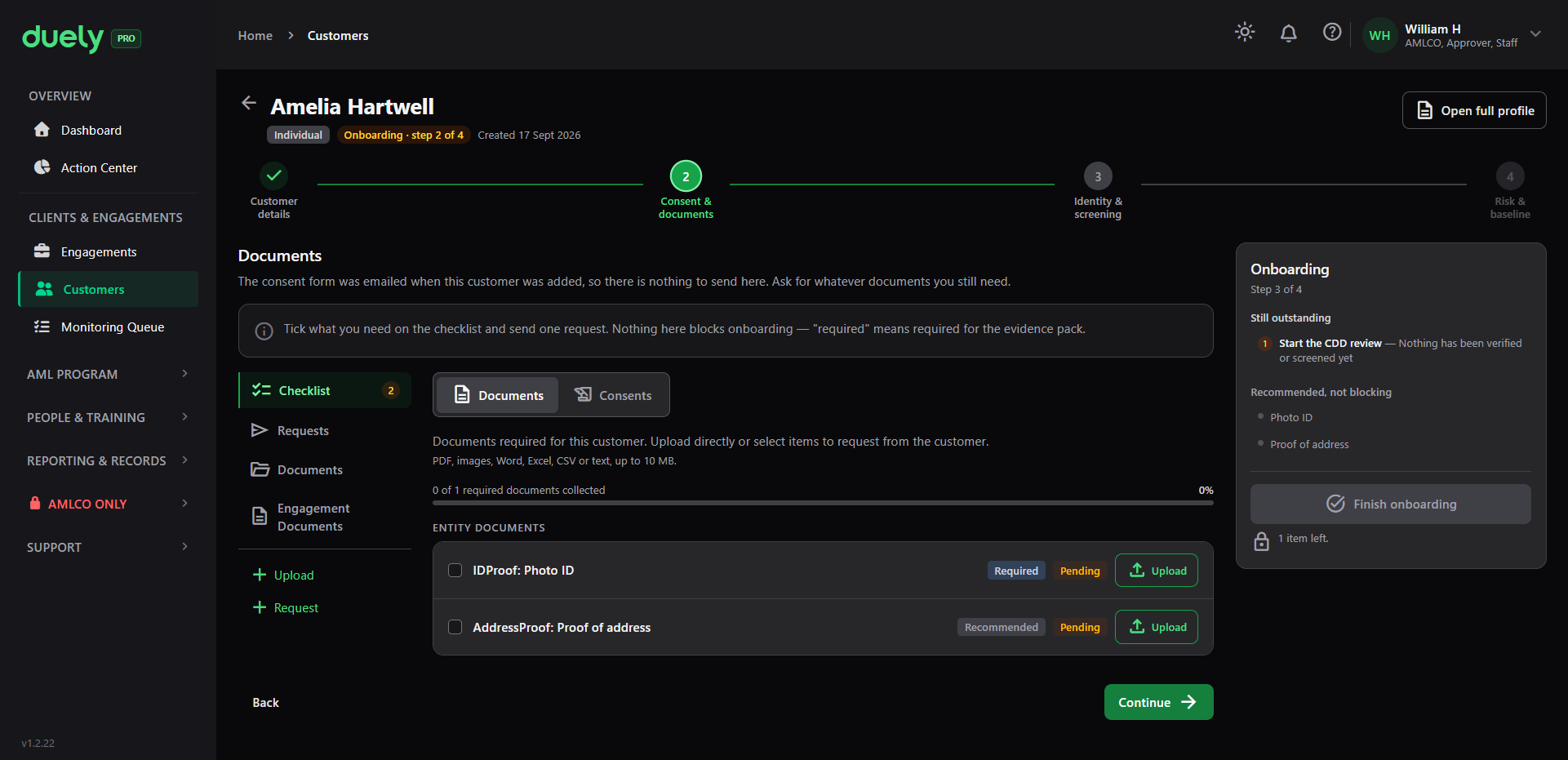
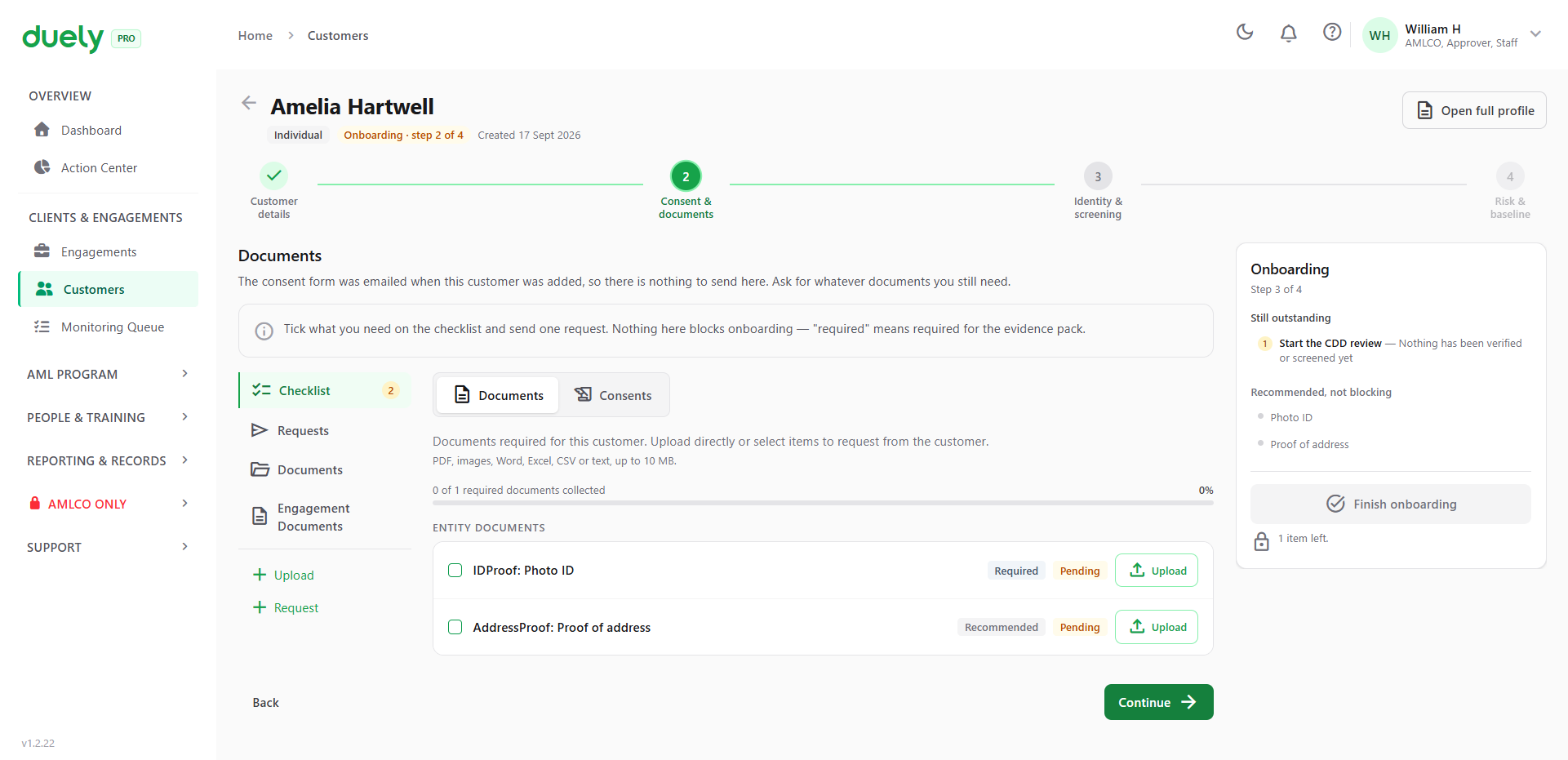
For an entity the documents are grouped by party. There is an Entity Documents set for the company itself, then a BOC Member Documents group repeating the set for each beneficial owner and controller. Each row names the party it belongs to, so with a corporate owner and a secretary you will see the same document types twice more, once per party. This is deliberate: the ASIC extract for the company and the ASIC extract for the corporate owner are different documents.
Step 4: Identity and screening
The step subtitle is "Verify, then screen", and that is the order within it.
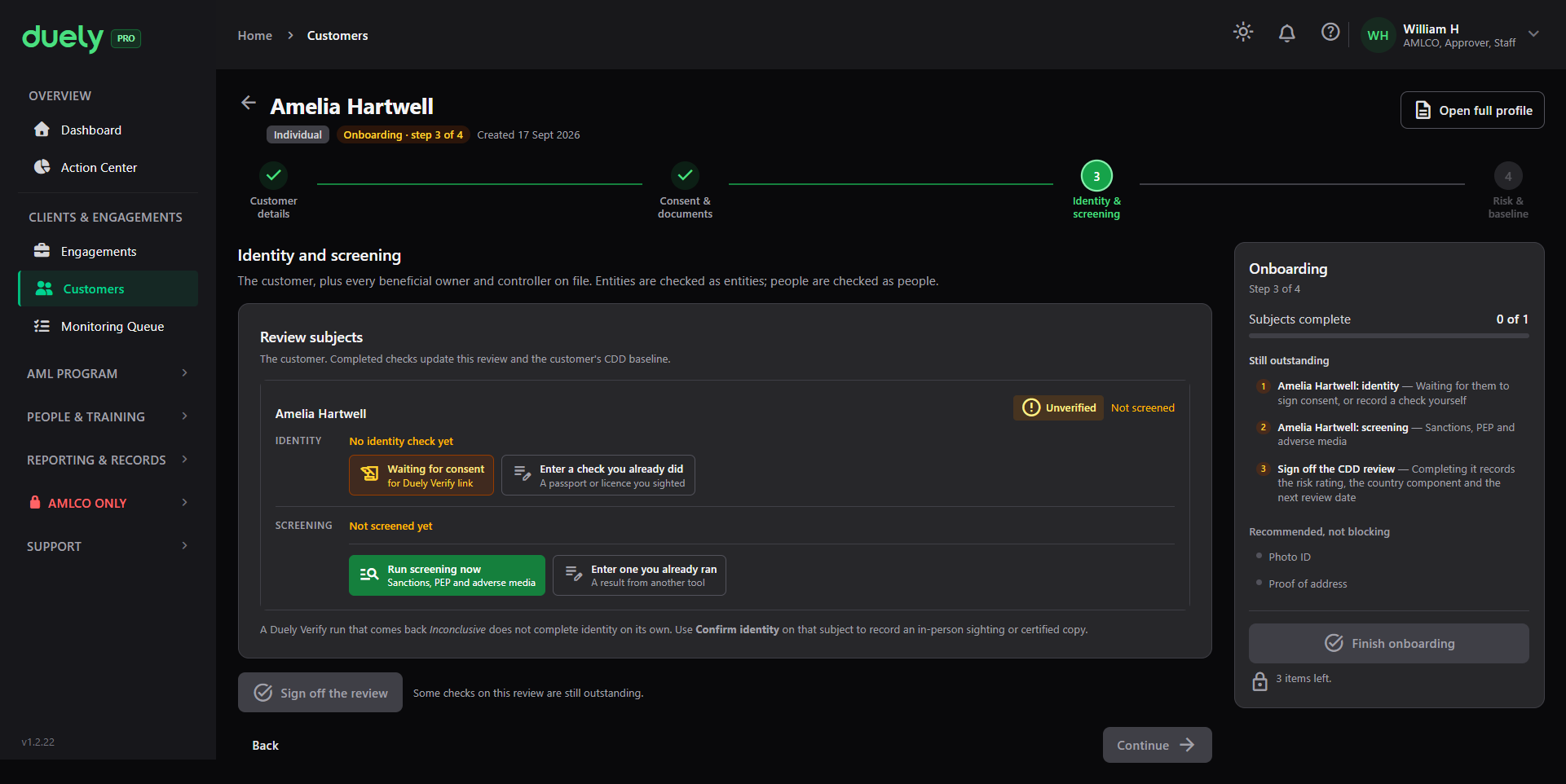
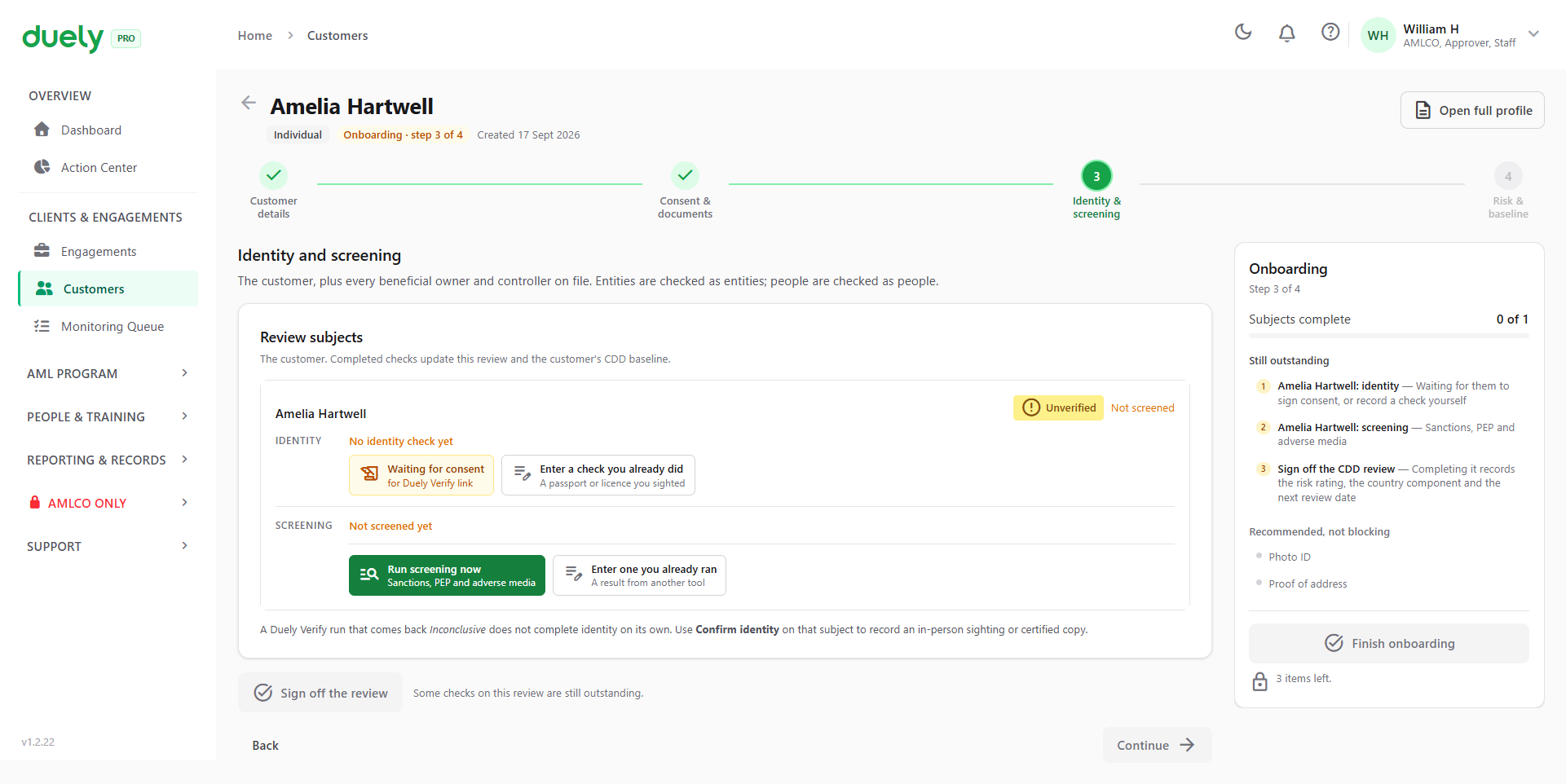
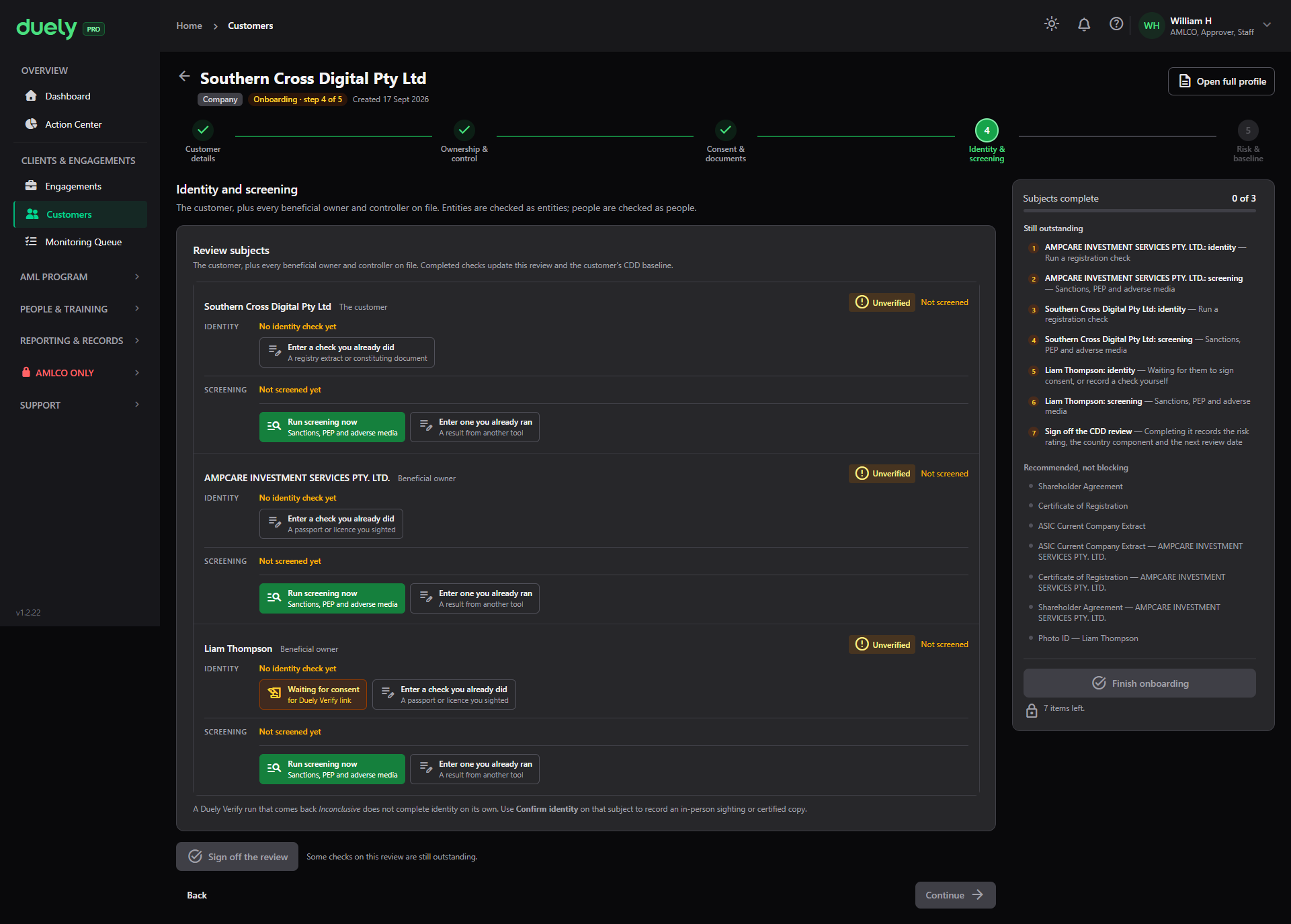
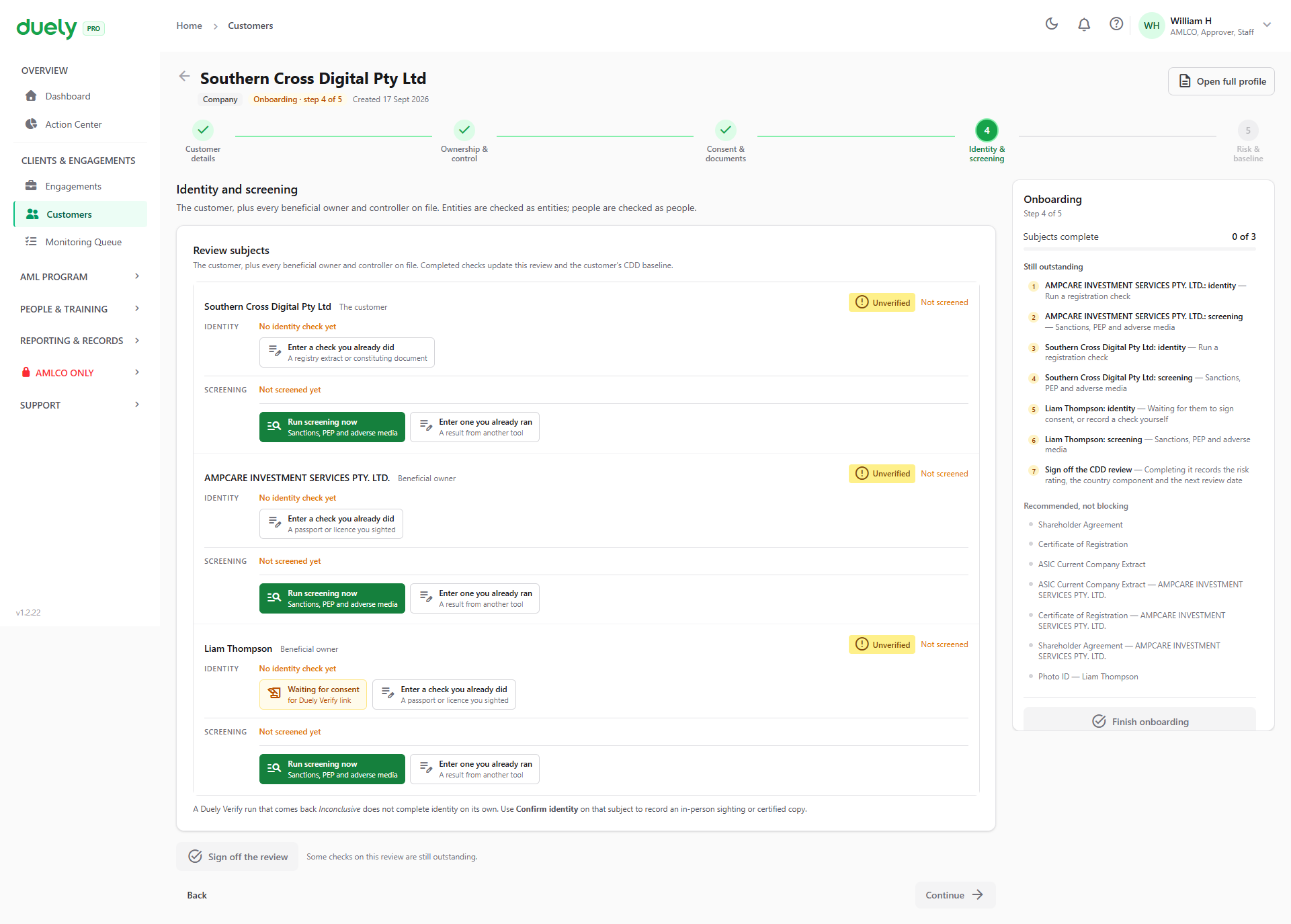
The screen groups work by review subject. Each subject is a person or entity that needs checking, and each carries its own identity and screening state with the actions to resolve them.
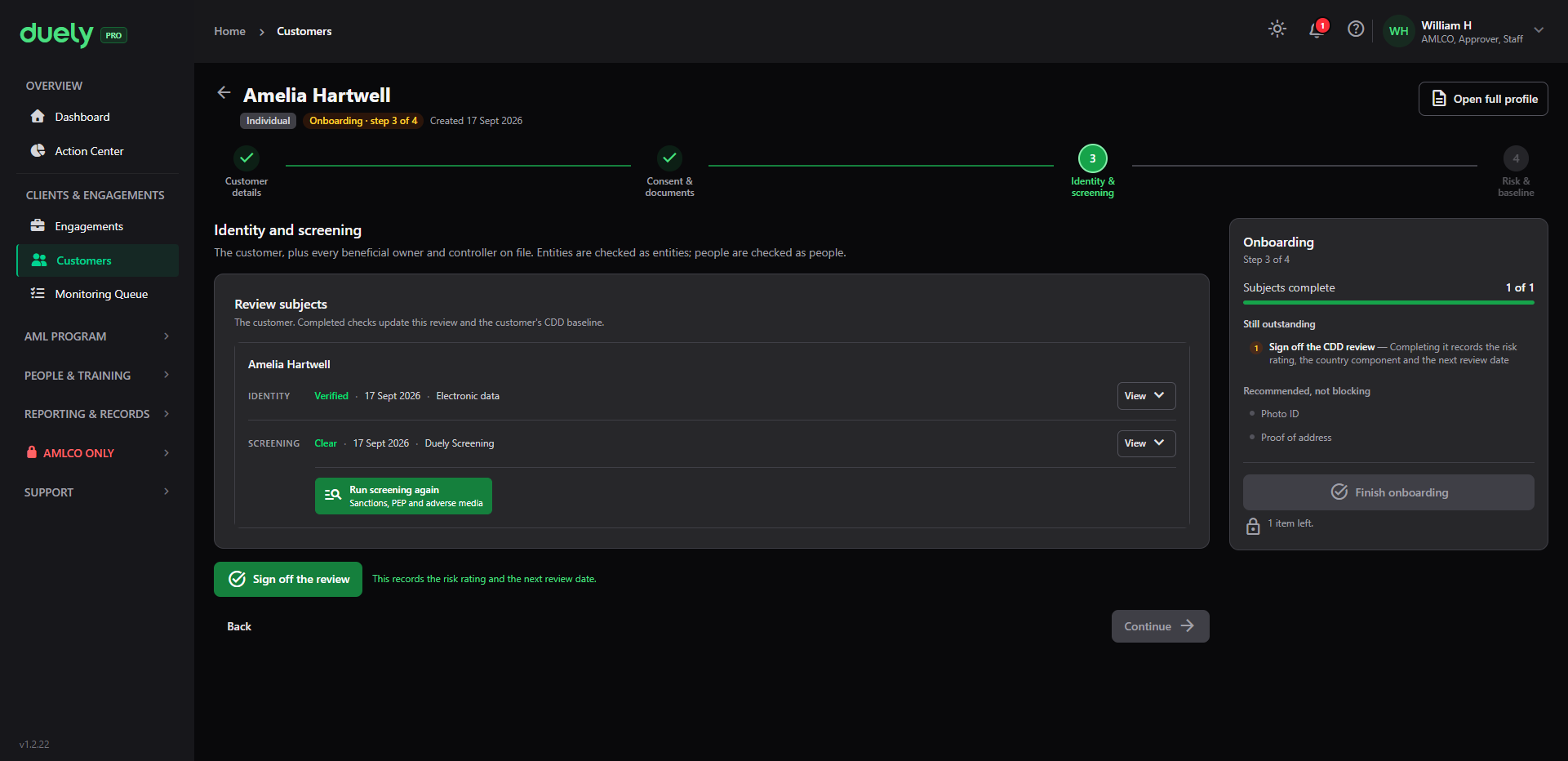
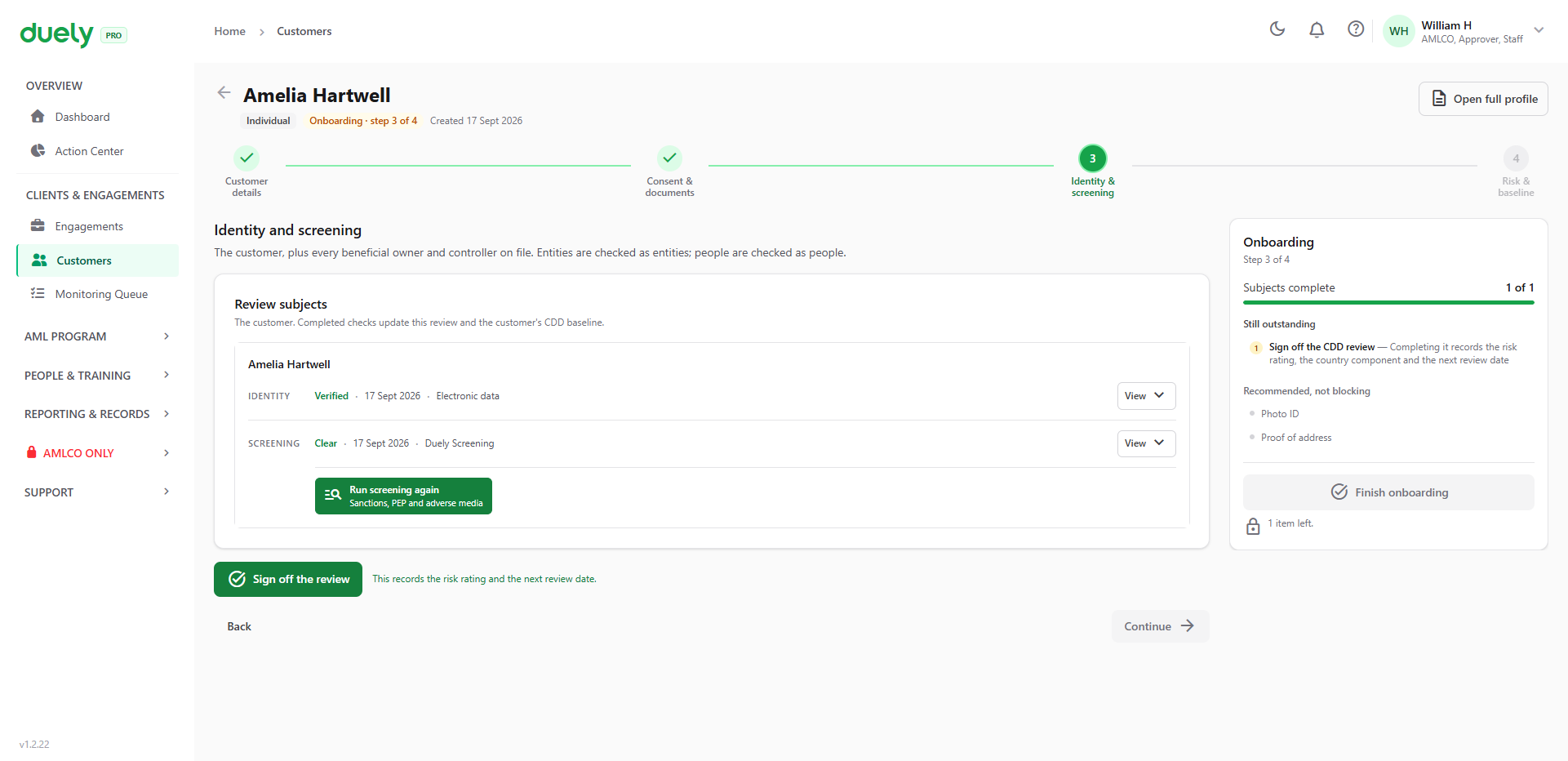
For an individual customer, there is one subject, the customer.
For a company, there are several. A company with a corporate beneficial owner and a secretary produces three subjects: the company itself, checked as an entity, plus each of the people behind it, checked as people.
What this step gates on
- A CDD review must exist. Before one is started the step says so, because before a review exists there are no subjects and an empty list would look like there was nothing to do
- Every subject needs identity and screening, where that subject requires verification. For an entity subject the equivalent of an identity check is a registry check rather than an identity document
- The review must be signed off, and where the review calls for it, the AMLCO sign off must be recorded
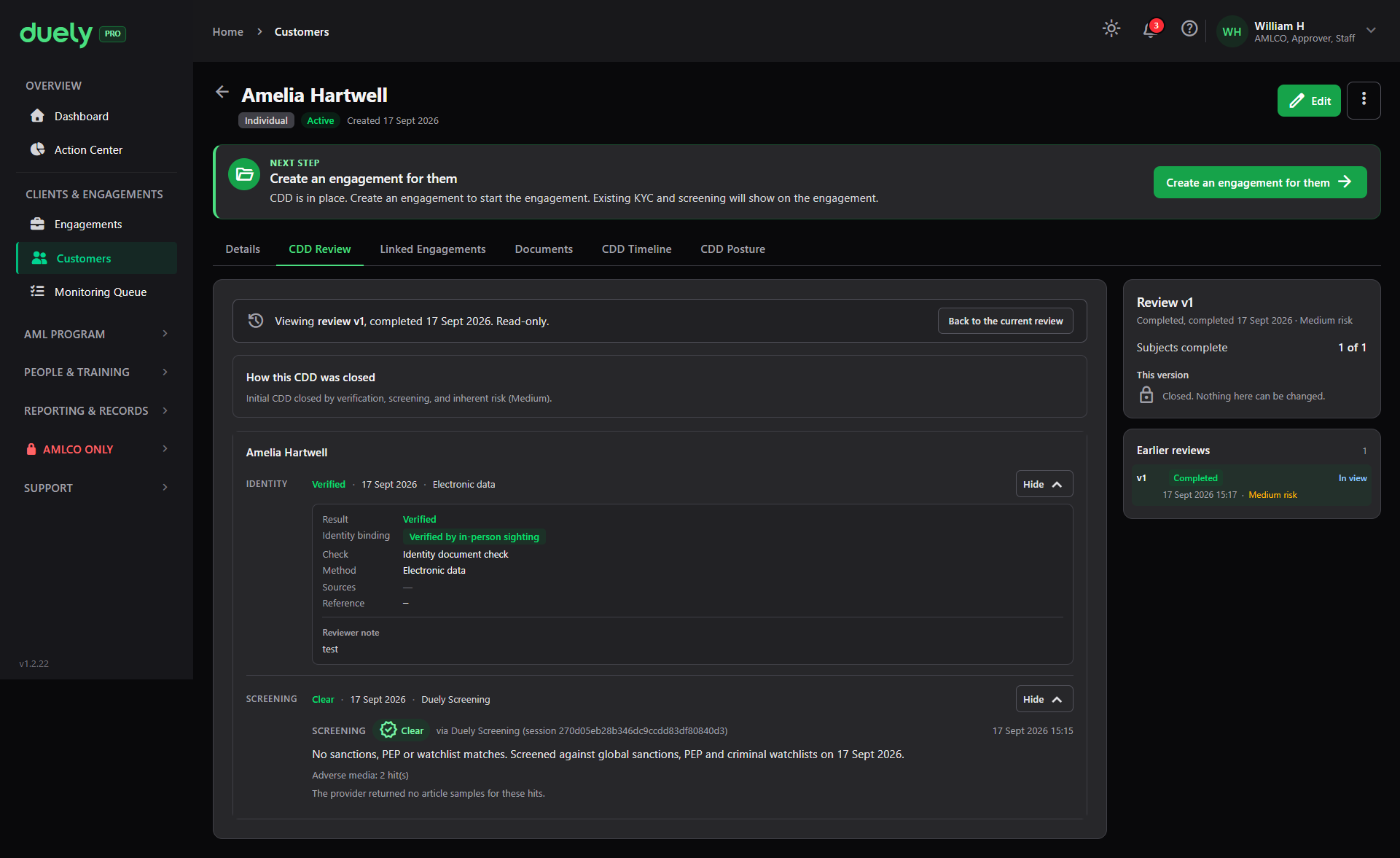
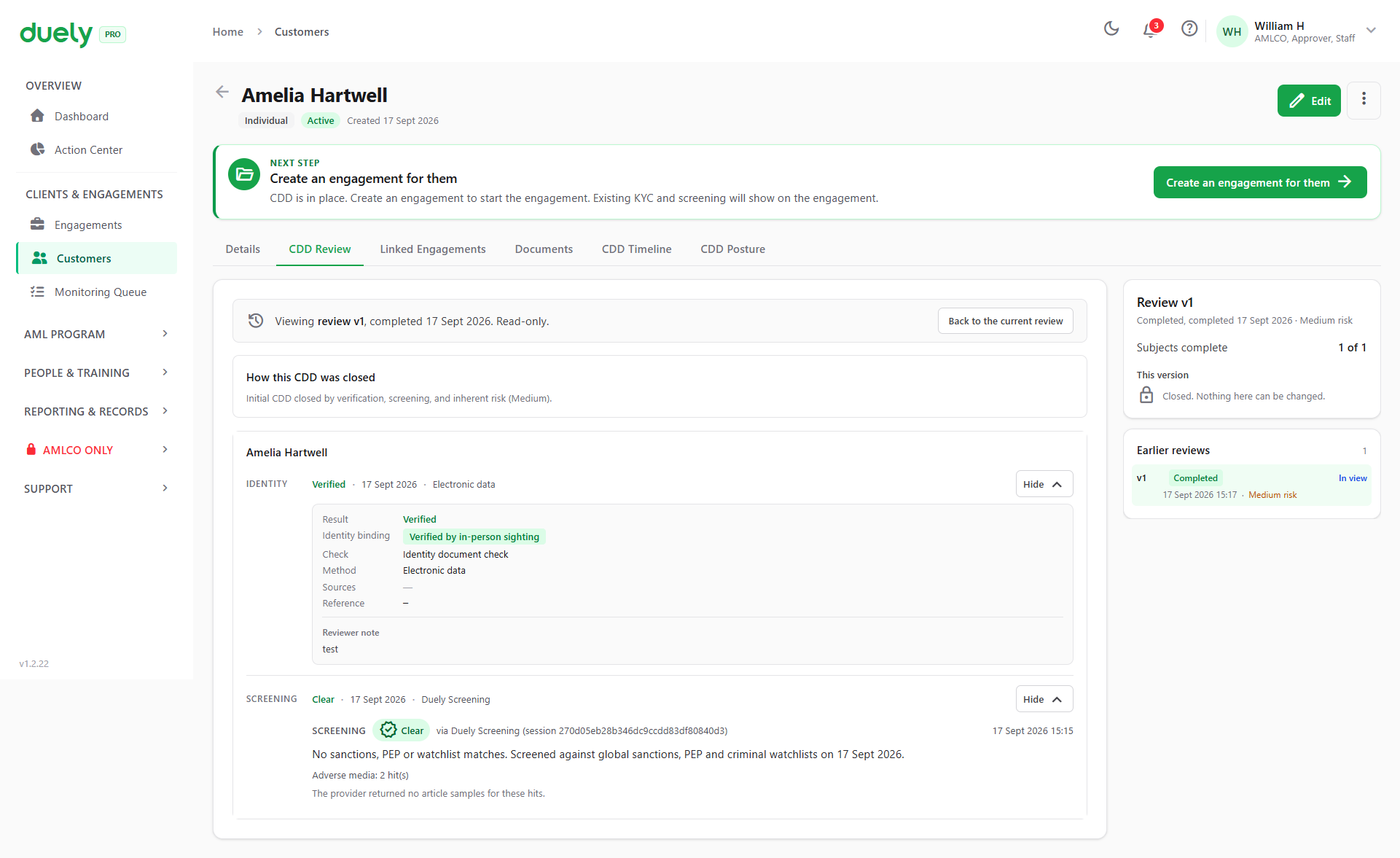
Once the checks are done, each subject shows its outcome and the step offers Sign off the review. Signing off is what records the risk rating, the country component and the next review date, so it is the action that creates the baseline.
Running a check
Each subject offers the same choices: send a verification link, record a check you already did, run a screening now, or enter a screening you already ran elsewhere. Recording a check yourself opens a form with the check type, the method path, the result, the identity binding basis, source types and reference IDs, and a rationale.
The mechanics of the verification itself, including what the identity binding basis means and what to do with a failed or inconclusive result, are on Verifying identity. Screening, and how to work a match, is on Screening.
Step 5: Risk and baseline
This step reports what the review recorded. It does not ask you for a rating.
When the review is signed off, the step shows the recorded outcome: the reviewer's rating, the country risk component, and the next review date. The step notes the higher of the two applies, and that country risk raises a rating but never lowers it.
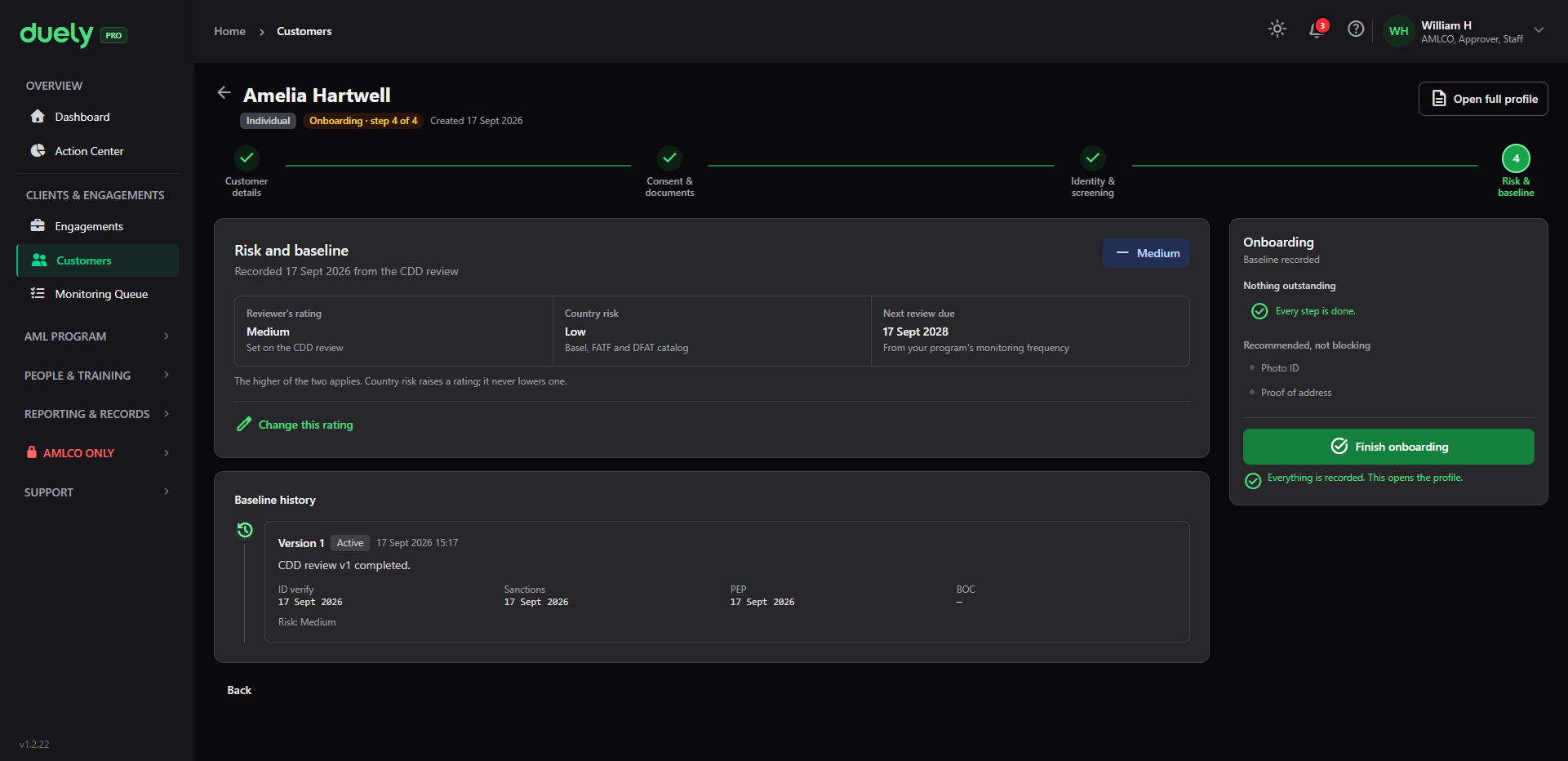
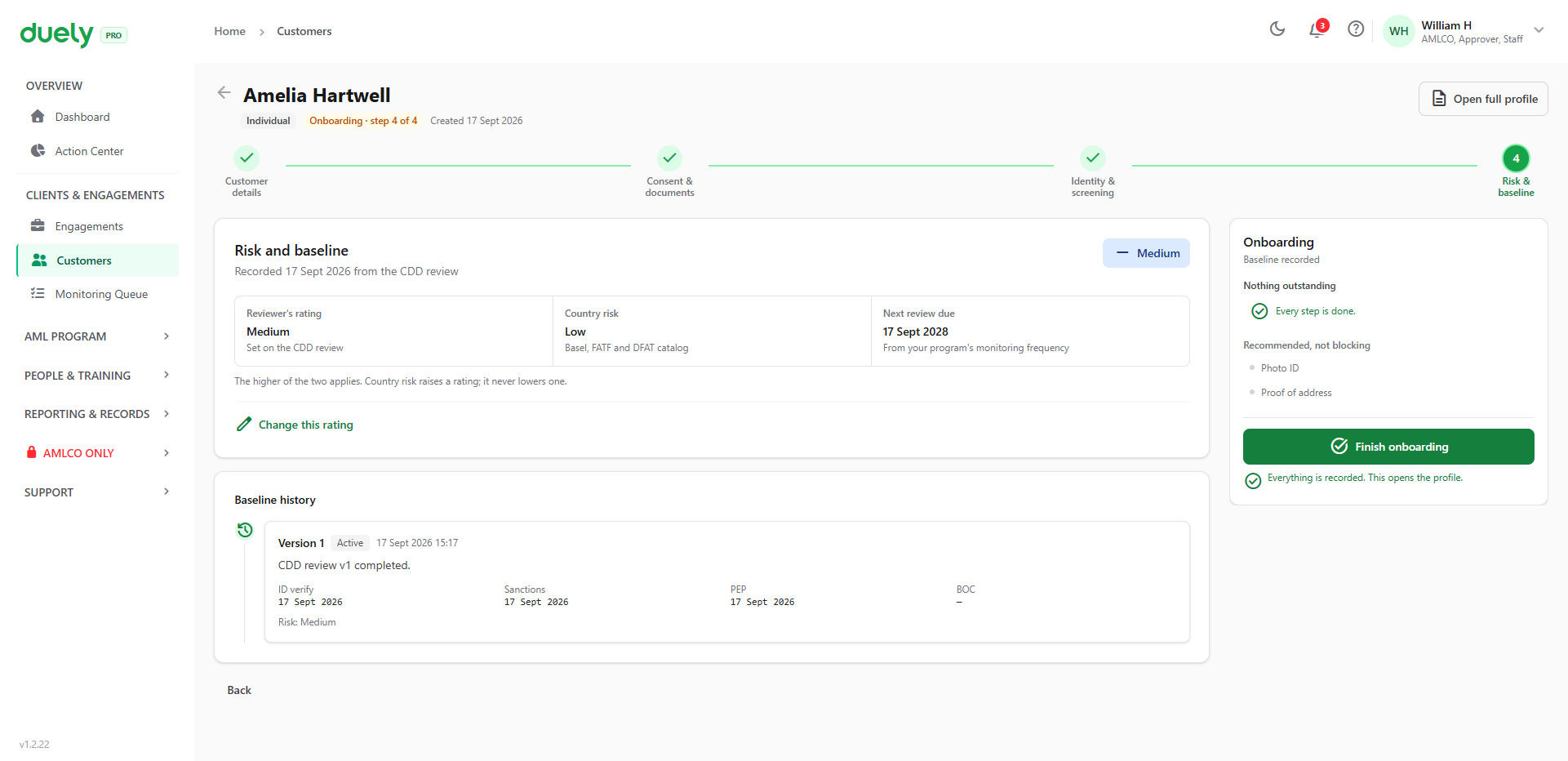
Below that is the Baseline history: version 1 marked Active, the date it was established, and the dates on which identity verification, sanctions screening and the politically exposed person check were completed. That history is what a later reviewer reads to see what was done and when.
Because the baseline is customer scoped rather than engagement scoped, it is reusable. The same customer can carry it into a later engagement without the work being repeated, provided it is still current.
When onboarding is finished
The customer is onboarded when the baseline exists and no review is left open.
A completed review that is still waiting on an AMLCO sign off is not finished. The baseline is written when the review completes, so gating on the baseline alone would report onboarding as done while a required approval was outstanding. The step tells you which of the two you are looking at.
Once finished, the record carries:
- The identity details, and for an entity the committed ownership structure
- The consent state for each person
- The verification and screening outcomes per subject
- The risk rating and its country component
- The next review date
- The due diligence baseline, reusable on later engagements
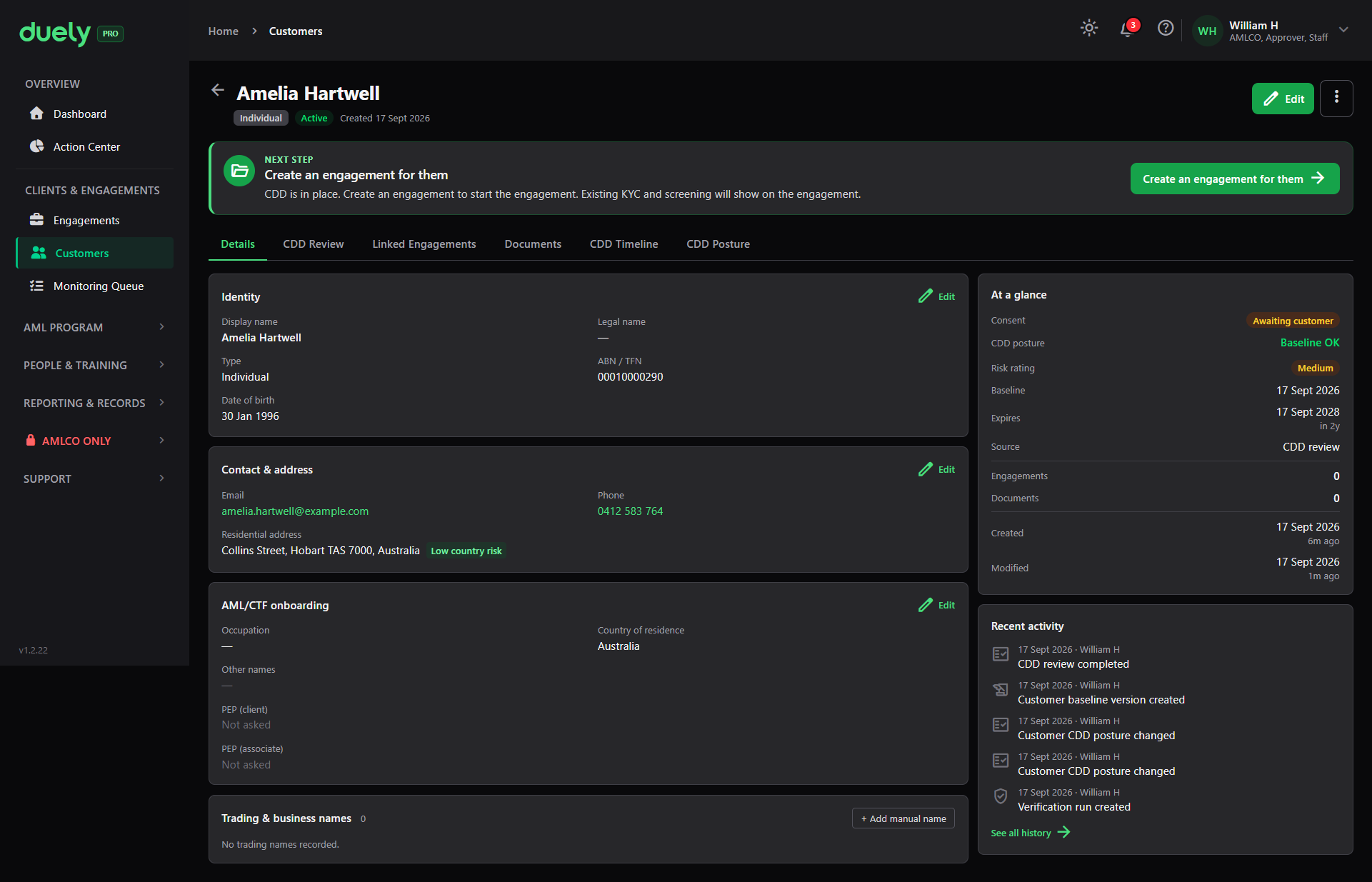
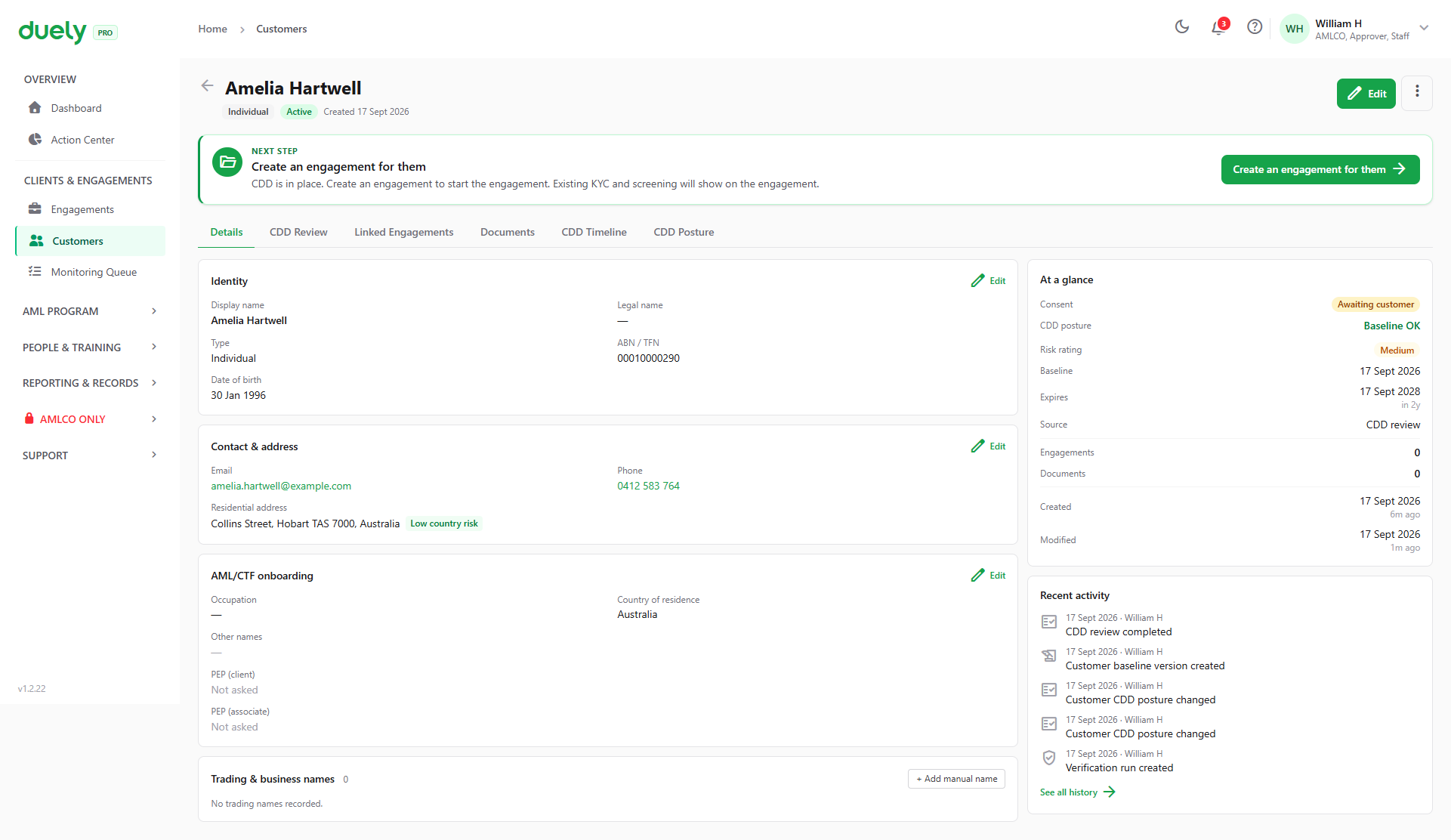
From here the record offers tabs for the rest of its history: CDD Review for the completed review, Linked Engagements for the matters this customer is on, Documents, CDD Timeline for the baseline and trigger event history, and CDD Posture for the current baseline status and the factors behind the rating.
Conditional steps, in one place
| Situation | What happens |
|---|---|
| Customer is a natural person | The ownership step is absent. Four steps, not five |
| Customer is an entity | The ownership step applies. Five steps |
| An entity has no natural person beneath it | Does not block on its own. You must add a person, record a CEO fallback, or record an evidence omission |
| Consent has not been sent | Blocks the consent step |
| Consent sent but unsigned | Does not block. It does gate the verification link |
| Documents not held | Never blocks. Recommended or Required, but not a gate |
| Review complete, AMLCO sign off outstanding | Onboarding is not finished |
| Company with a corporate owner and a person | Three review subjects, each checked separately |
Reusing a customer on a later engagement
A customer already in the register is linked to a new matter rather than recreated, which is described from the matter side in Creating a matter. The link carries the identity details and the baseline into the new engagement.
Whether the existing baseline is enough depends on its state. When a re-scope adds a designated service that was not previously in scope, the linked customers are assessed:
- If the customer's baseline is still valid, the existing due diligence is relied on and the trigger is recorded for audit
- If the baseline has expired or gone stale, the customer's CDD posture changes to Needs review, and the firm's admins and AMLCOs are notified
The next review date on the record decides whether new work is required or the existing baseline carries forward.
Ongoing monitoring
Ongoing customer monitoring raises a review when a customer's circumstances change, when a baseline expires, or when a trigger fires.
Those reviews arrive in the Monitoring Queue, which is where to look when you are unsure what needs attention on a customer. The obligation behind it is on Customer due diligence.
Related pages
- Customer due diligence, for the legal requirement to identify, verify and assess.
- Creating a matter, which links a matter to a customer from this register.
- Verifying identity, for the mechanics of the identity step.
- Screening, for working a screening match.
- Record keeping, for how long customer records are retained.