Firm Setup
Firm setup is the screen that determines what the rest of Duely offers you. The vertical packs you choose drive which policy templates the program builder uses, which designated services appear in your catalog, and which words the interface uses for your engagements. The reporting toggles set which report types your program covers and whether TTR and CBM effectiveness checks are scheduled.
It is at Firm Profile in the sidebar, under the Firm group. Only firm administrators can see and change it. For where that sits relative to the rest of setup, see the platform tour, and for the sequence, first 30 days.
Before anything else: the firm setup statements
Four statements must be accepted before Duely will run an identity or screening check for your firm. They are the criteria under which Duely may act as a verification intermediary for you, and the wording is fixed in the product so the interface, the API and the stored record cannot drift apart.
This is the first thing a new firm meets. The statements appear in a modal on every page of the product. For an admin the modal cannot be dismissed, so it shows on each page until the statements are accepted, either from the modal itself or from the inline section on Firm Profile. A staff member who is not an admin can close it with Continue to dashboard, and it stays closed until the page is fully reloaded.
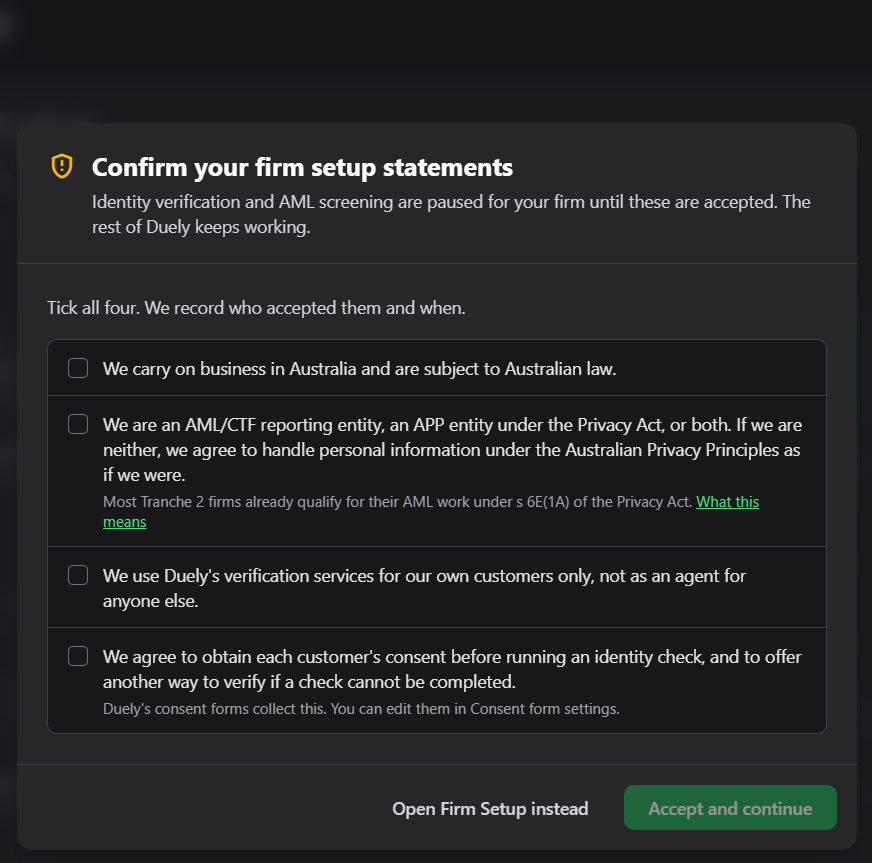
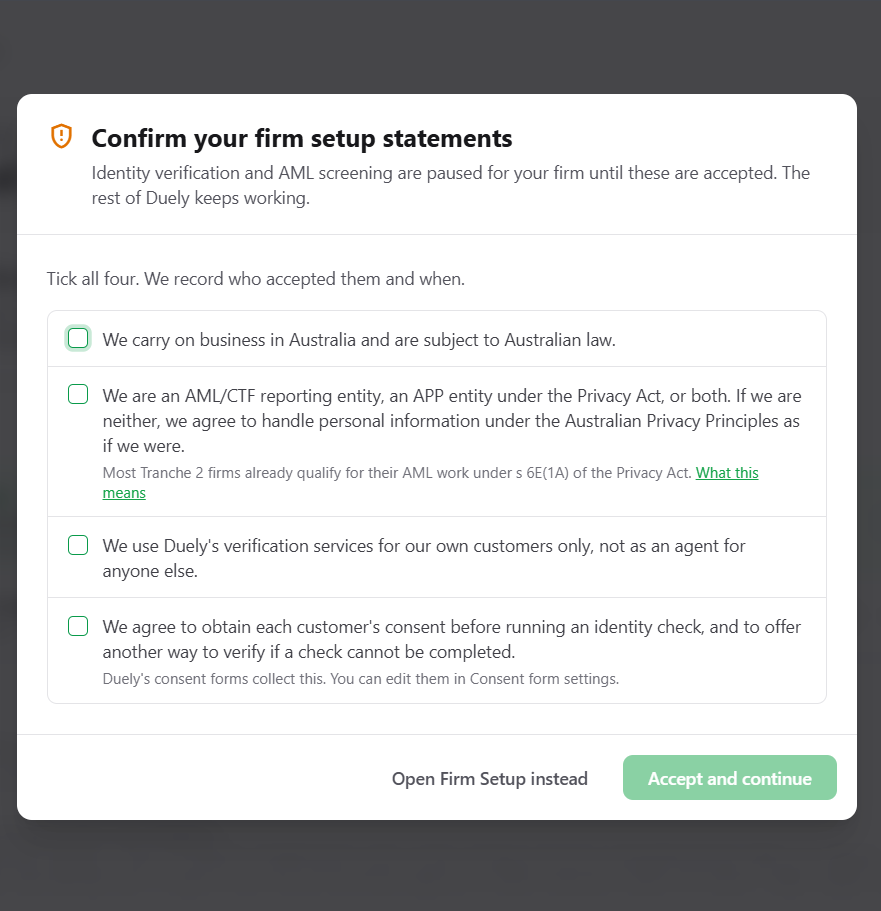
Reading it top to bottom:
- The intro states the scope: identity verification and AML screening are paused for your firm until these are accepted, and the rest of Duely keeps working. You can continue setting the firm up, building the program and registering customers while the statements sit unaccepted. What you cannot do is run a check.
- Tick all four. The product records who accepted them and when, so the acceptance is attributable rather than anonymous.
- Accept and continue records them, clears the modal and opens Firm Profile. Open Firm Setup instead takes you to the Firm Profile screen, where you can read the statements alongside the rest of your firm details.
An admin sees the four statements with the accept control. A staff member who is not an admin sees the explanation and who to ask instead, and the gate still blocks the checks.
The four statements
The wording is fixed in the product, so what you read here is what you will see.
| Statement | What you are confirming |
|---|---|
| We carry on business in Australia and are subject to Australian law. | That the firm is an Australian business, which is the basis on which Duely can act for it |
| We are an AML/CTF reporting entity, an APP entity under the Privacy Act, or both. If we are neither, we agree to handle personal information under the Australian Privacy Principles as if we were. | Your privacy position. The dialog notes that most Tranche 2 firms already qualify for their AML work under s 6E(1A) of the Privacy Act, with a link to more detail |
| We use Duely's verification services for our own customers only, not as an agent for anyone else. | That you are verifying your own customers rather than running checks on behalf of another business |
| We agree to obtain each customer's consent before running an identity check, and to offer another way to verify if a check cannot be completed. | That consent is collected, and that a customer who cannot complete a hosted check is offered an alternative rather than being turned away |
The last statement covers something the product does for you: the consent forms are Duely's, and you can edit them under Consent form settings. The dialog says so where the statement appears.
All four must be accepted. The product records them together, so a partial acceptance is not available.
What the statements apply to
The statements are a condition of running identity verification and AML screening for the firm. Until they are accepted, the product does not record any of the following:
- Starting a hosted verification session, where the customer completes the check themselves through Duely Verify.
- Running a screening check against sanctions, politically exposed person and adverse media sources.
- Recording a verification run, which covers every other way a check gets onto the record, including the manual path where you record a check your firm carried out itself and no provider is involved.
Recording a verification run is the firm stating that an identity check happened. The statements are the firm's account of the basis on which it verifies customers, so the product asks for them before it will hold that statement on the firm's behalf.
If someone attempts one of those three actions before the statements are accepted, the product does not carry it out and shows this message:
Your firm must accept the firm setup statements before running identity or screening checks. An admin can complete these in Firm Setup.
The parts of the page, in order
Firm Profile works through setup in order. The screen guides you through it rather than presenting one long form, and on arrival it scrolls to your first incomplete step.
- Acknowledgements: the four statements, shown inline on this page if they are not yet accepted, as covered above. The section is headed Acknowledgements and carries the same line as the modal: tick all four, and the product records who accepted them and when.
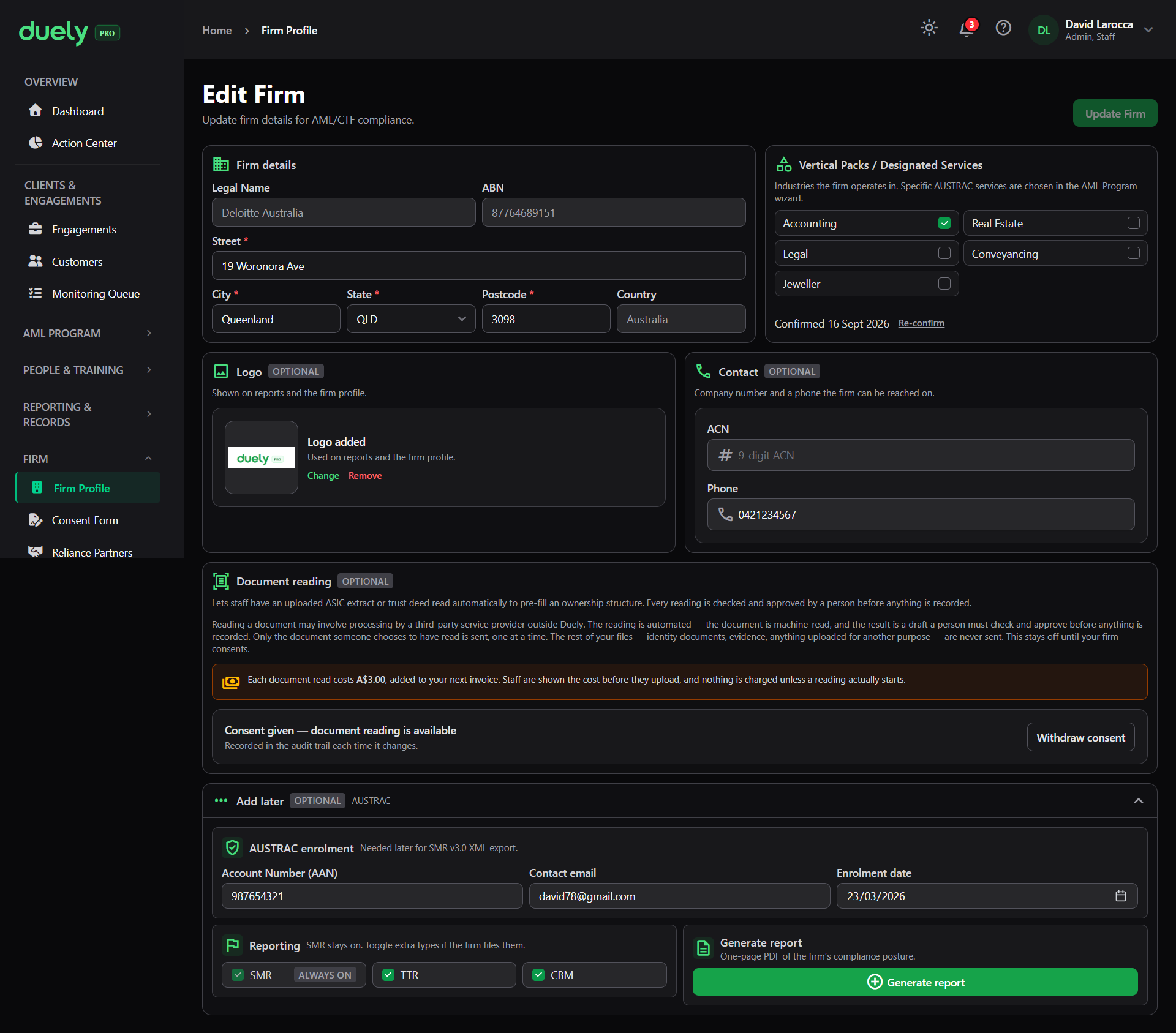
- Firm details: legal name, ABN, and address (street, suburb, state, postcode and country).
- Vertical Packs / Designated Services: the vertical packs your firm works in, and confirming which of their services you provide.
The address carries its own guidance state while you work through it, reading Address up next and then Address not saved yet, and only showing Address saved once the server has the address rather than when the form fields are filled in. If you fill the address in and then navigate away, the indicator will still say it is not saved, because it is not.
Legal name and ABN lock once they are saved. They print on your program, evidence packs and reports, so changing them later means a deliberate edit rather than an accidental one. Get them right first time.
What the profile holds
- Legal name: mandatory. It is printed on your AML/CTF program, evidence packs, and reports, so enter it as it should appear on a document handed to a regulator.
- ABN: found through an ABR lookup, where you search by ABN, ACN or business name. The ABN and legal name come from the ABR result and lock once saved. An ABN can belong to only one firm in Duely.
- Address: street, suburb, state, postcode, and country.
- Logo: optional, and rendered on generated PDFs.
- Contact: ACN and phone. The ACN is checked against the ASIC checksum, so a mistyped digit is rejected.
- AUSTRAC enrolment section: account number, contact email, and enrolment date. See Enrol with AUSTRAC for why these are recorded rather than validated.
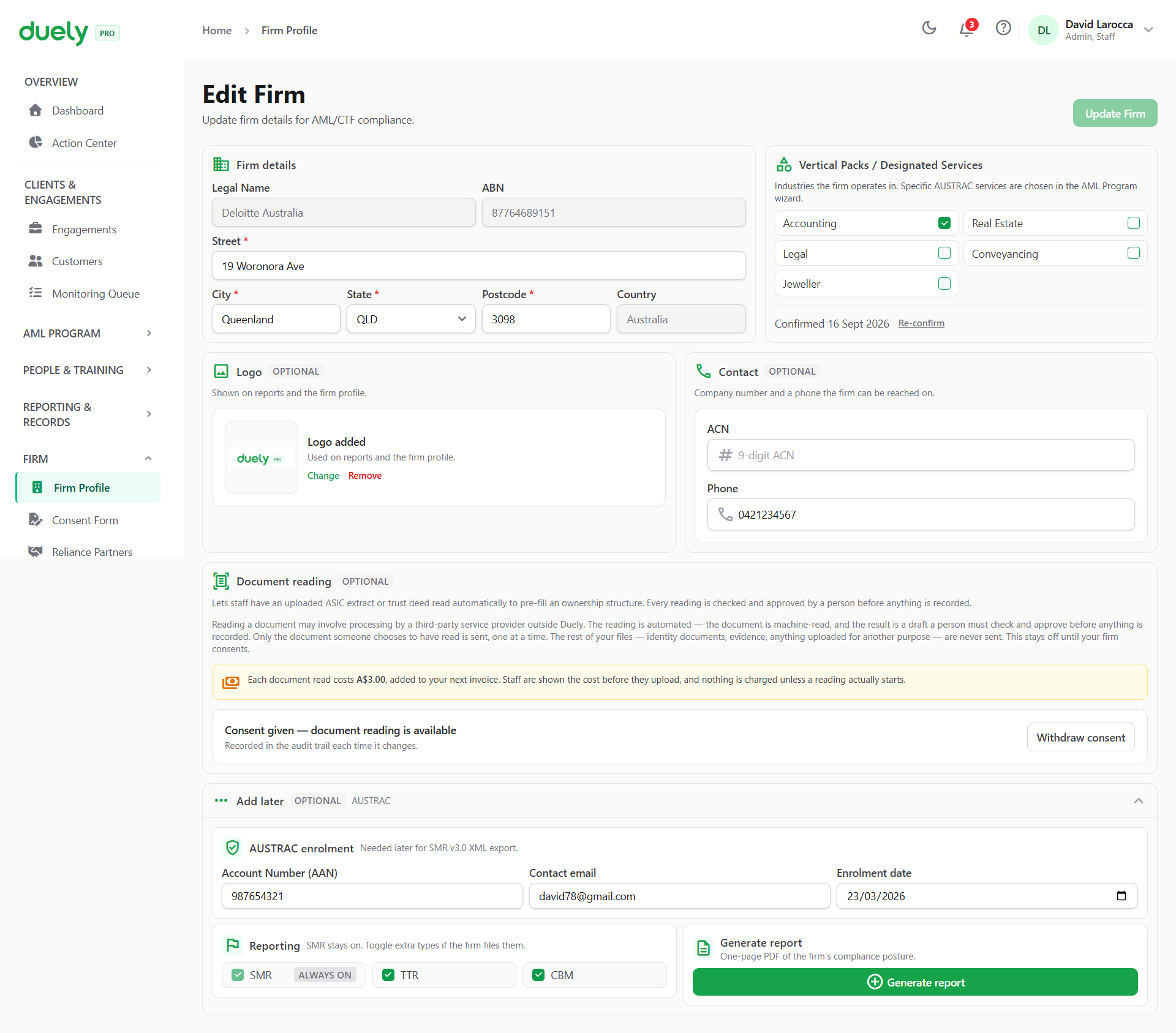
Choosing your vertical packs
Five vertical packs are available: Accounting, Real Estate, Legal, Conveyancing, and Jeweller. Each is a checkbox, so a firm that works in more than one vertical ticks each one that applies.
The vertical packs control three things:
- Policy templates: the program builder renders your program from the templates for your vertical.
- The designated service catalog: the services you can classify on a matter come from your vertical packs.
- Terminology: the interface calls a matter an Engagement in Accounting, a Matter in Legal and Conveyancing, and a Transaction in Real Estate and Jeweller.
Reporting type toggles
The Reporting section lists SMR, TTR and CBM, and new firms start with all three ticked. SMR is a disabled checkbox marked Always on. IFTI is never a default. It only appears, as IFTI (legacy), for a firm that already has it switched on.
Suspicious matter reporting is always on. This is enforced at the domain level as well as in the interface, so no combination of settings removes it. The reason is on Reporting: the obligation is not conditional, and Duely deliberately keeps suspicious matter reporting available even where a subscription has lapsed.
Untick TTR or CBM only if it does not apply to your firm. A jeweller handling physical currency at or above the threshold will want TTR. CBM applies to monetary instruments crossing the border, and applies even where the movement is unrelated to a designated service, which is covered on Reporting. IFTI falls on financial institutions, which is why it is not offered to new firms.
The rest of the Firm group
Three more screens sit under Firm in the sidebar alongside Firm Profile. They are covered here because they are firm level settings rather than day to day work.
Consent form
Consent Form is where the consent your customers sign is set up. It opens on a notice that you are using Duely's default template, that it is already live, and that customers you add today receive that wording. You only edit it if your firm needs different terms.
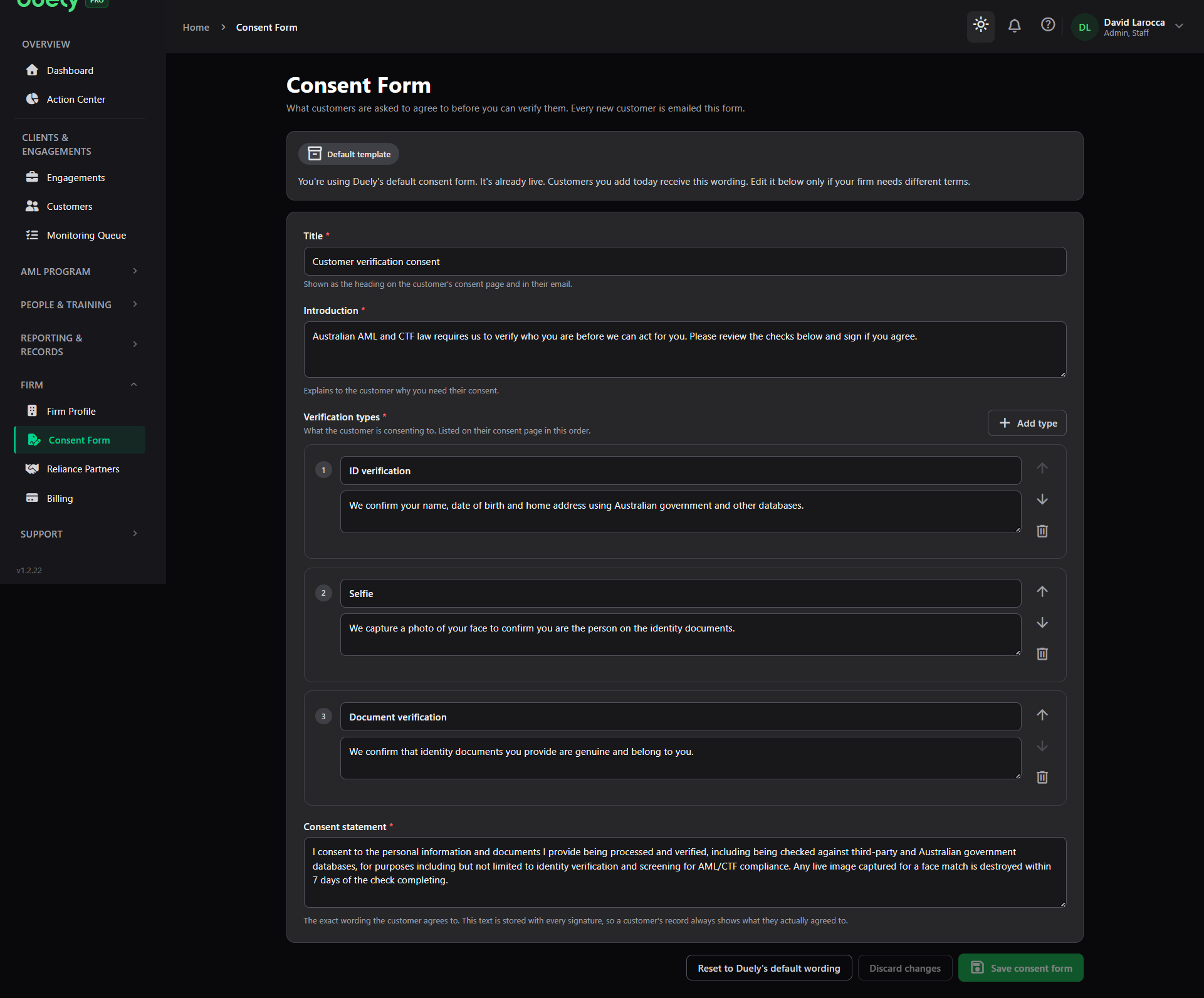
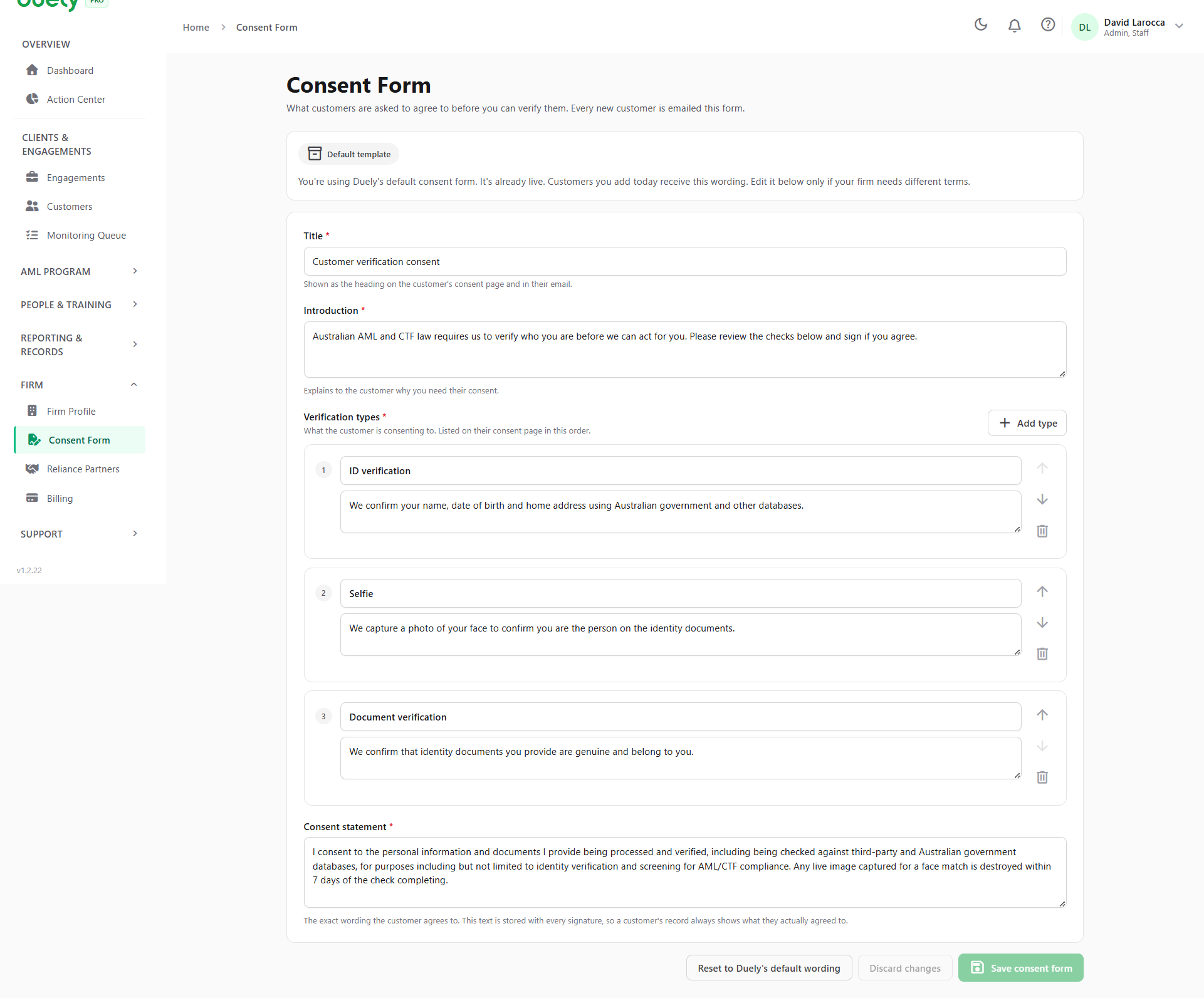
The form is editable in four parts:
- Title, which is the heading on the customer's consent page and in their email
- Introduction, which explains why you need their consent
- Verification types, the list the customer is consenting to, in the order shown on their page. Each entry has its own description, and you can reorder them or add a type. The default set is ID verification, Selfie, and Document verification
- Consent statement, the exact wording the customer agrees to
At the foot are Reset to Duely's default wording, Discard changes, and Save consent form.
Reliance partners
Reliance Partners manages third party arrangements where someone else performs customer due diligence, and your firm relies on it. The screen is a register with four counters across the top: Total partners, Active, Reviews due, and Overdue.
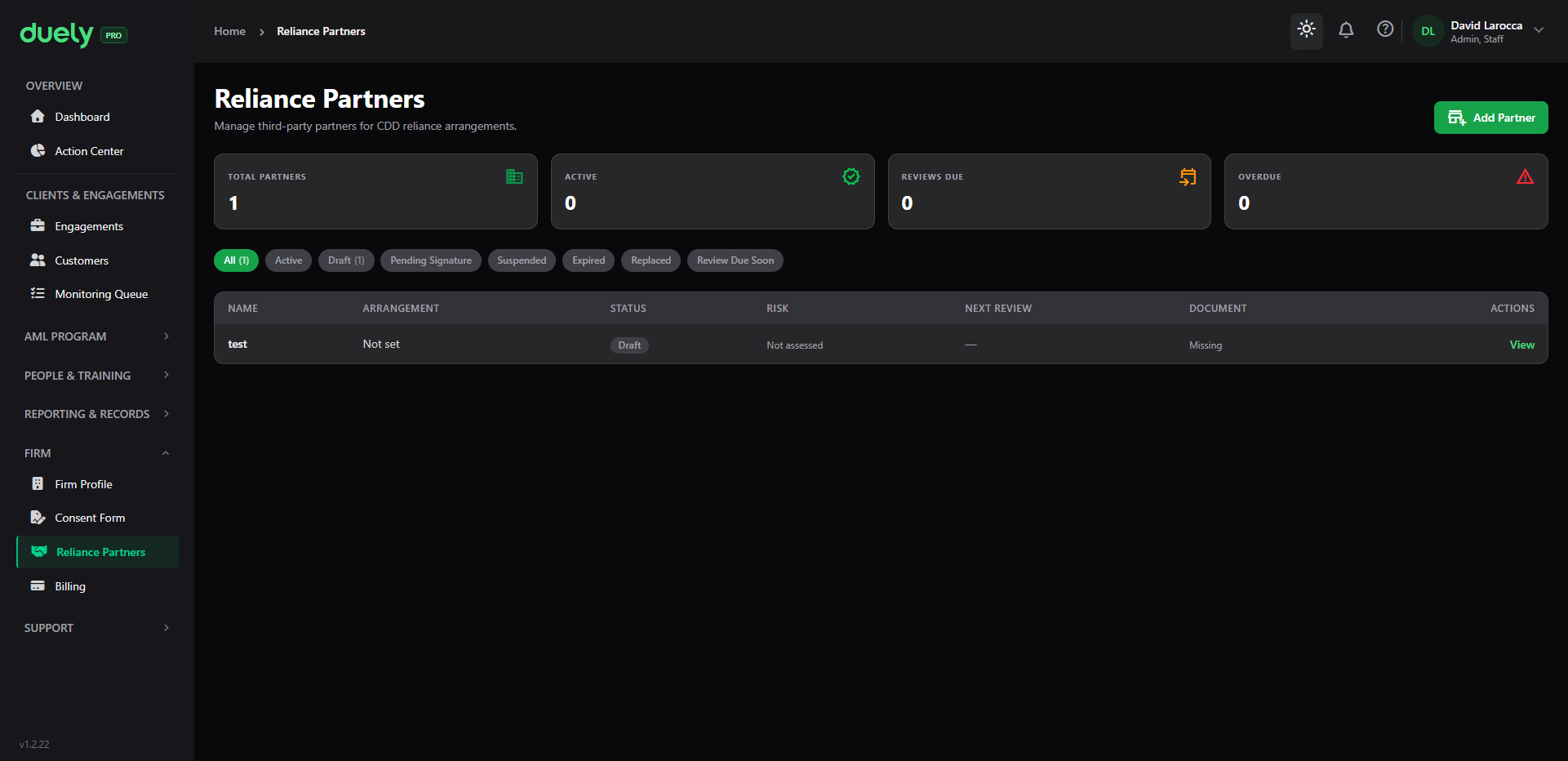
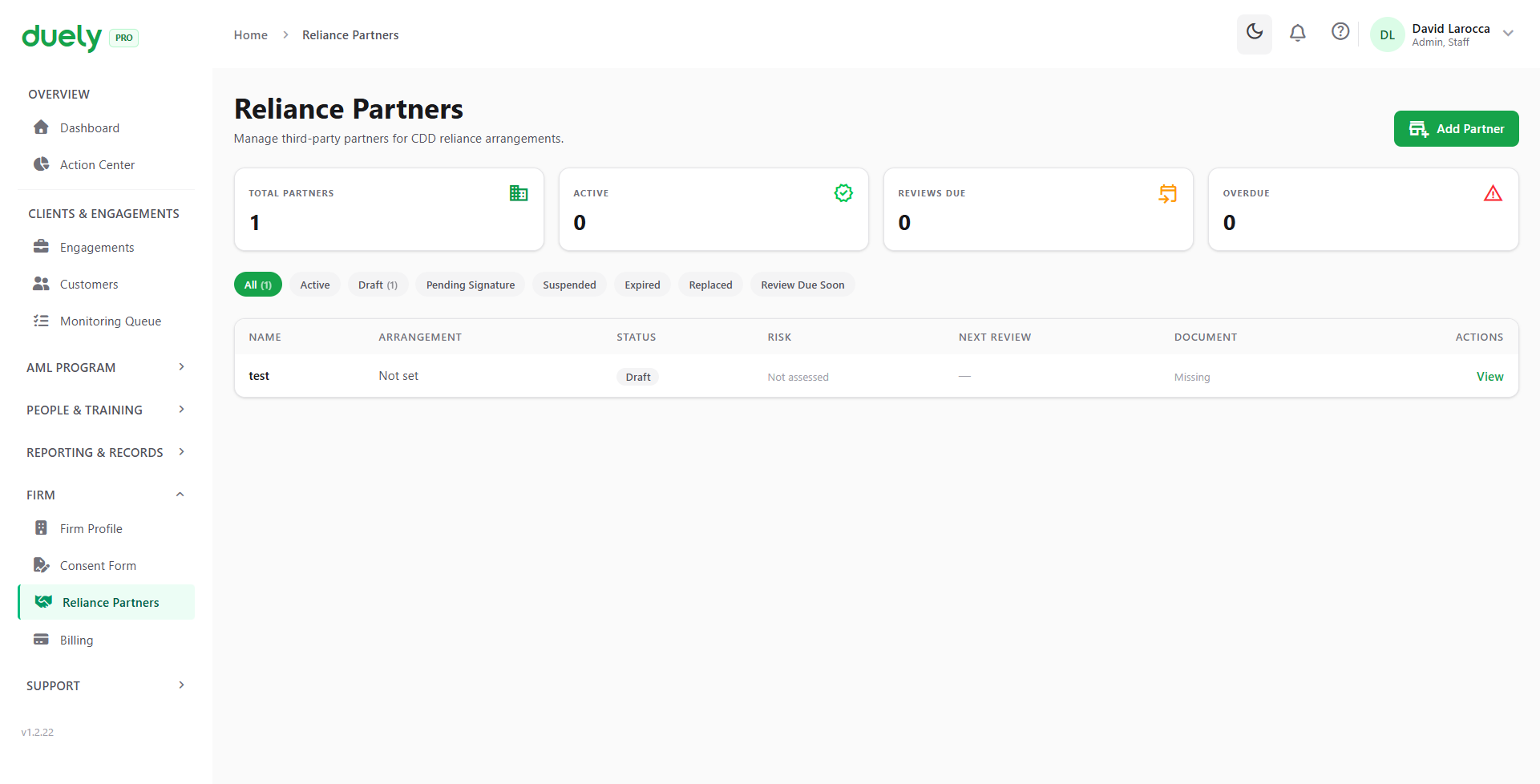
A row of status tabs filters the register: All, Active, Draft, Pending Signature, Suspended, Expired, Replaced, and Review Due Soon. Each row then carries the partner's name, the arrangement type, its status, its risk rating, the next review date, whether the agreement document is held, and a View action.
The two arrangement types put legal responsibility in different places:
| Arrangement | What it means |
|---|---|
| Section 38, reliance | The partner is a separate reporting entity that has already done the customer due diligence, and your firm relies on it. Both parties stay individually accountable, and your firm keeps residual responsibility for the customer's overall risk |
| Section 37, agent | The partner acts as your firm's agent, so the firm remains primarily responsible and the partner's procedures are treated as your own |
Add Partner starts a new record. Where a partner is later used as the basis for a customer's due diligence on a matter, the matter records the partner reference, who signed it off, an outcome summary and a rationale.
Billing
Billing is the Subscription screen. It is administrative rather than compliance work, but the plan limits affect what the firm can do.
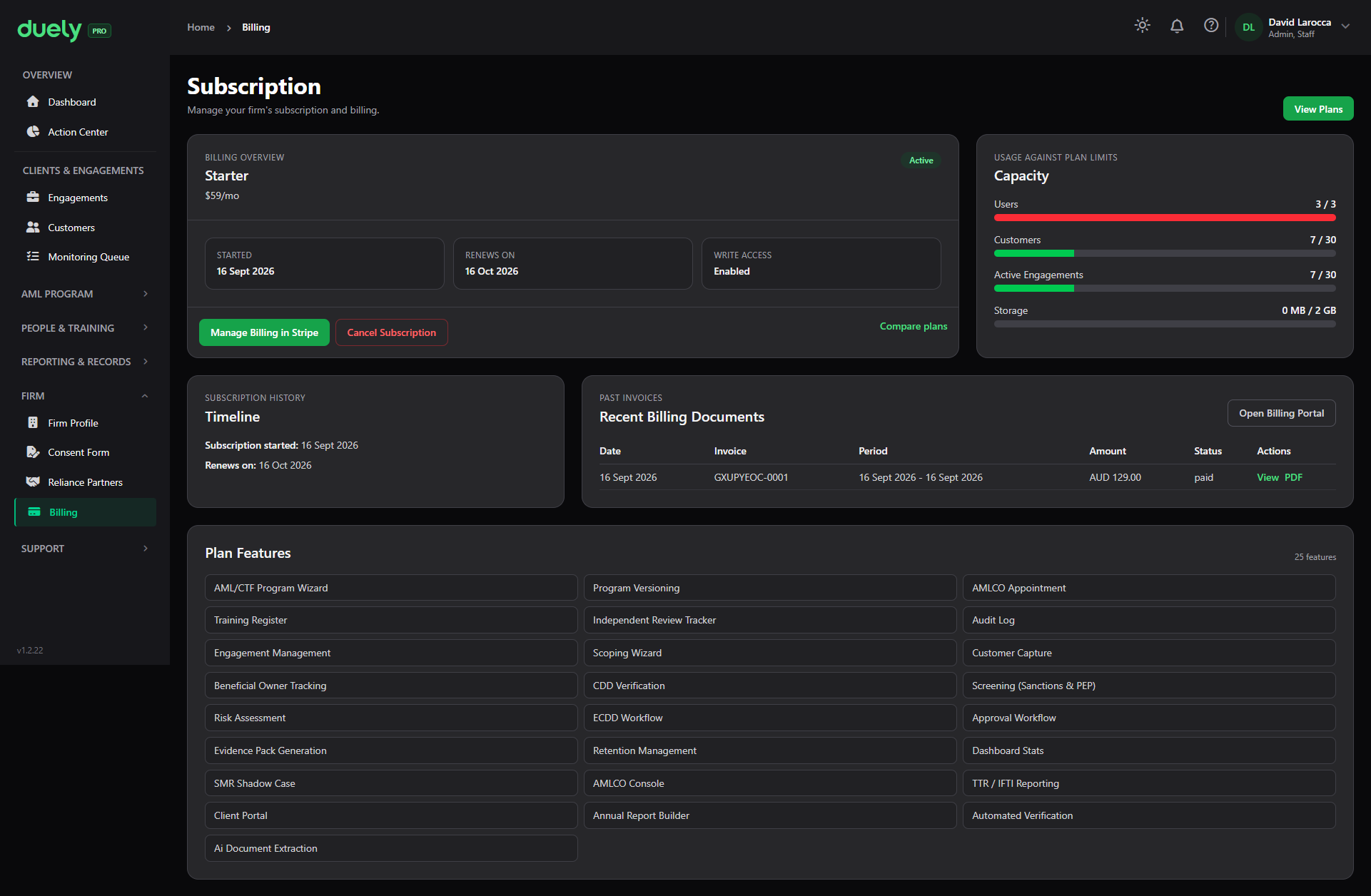
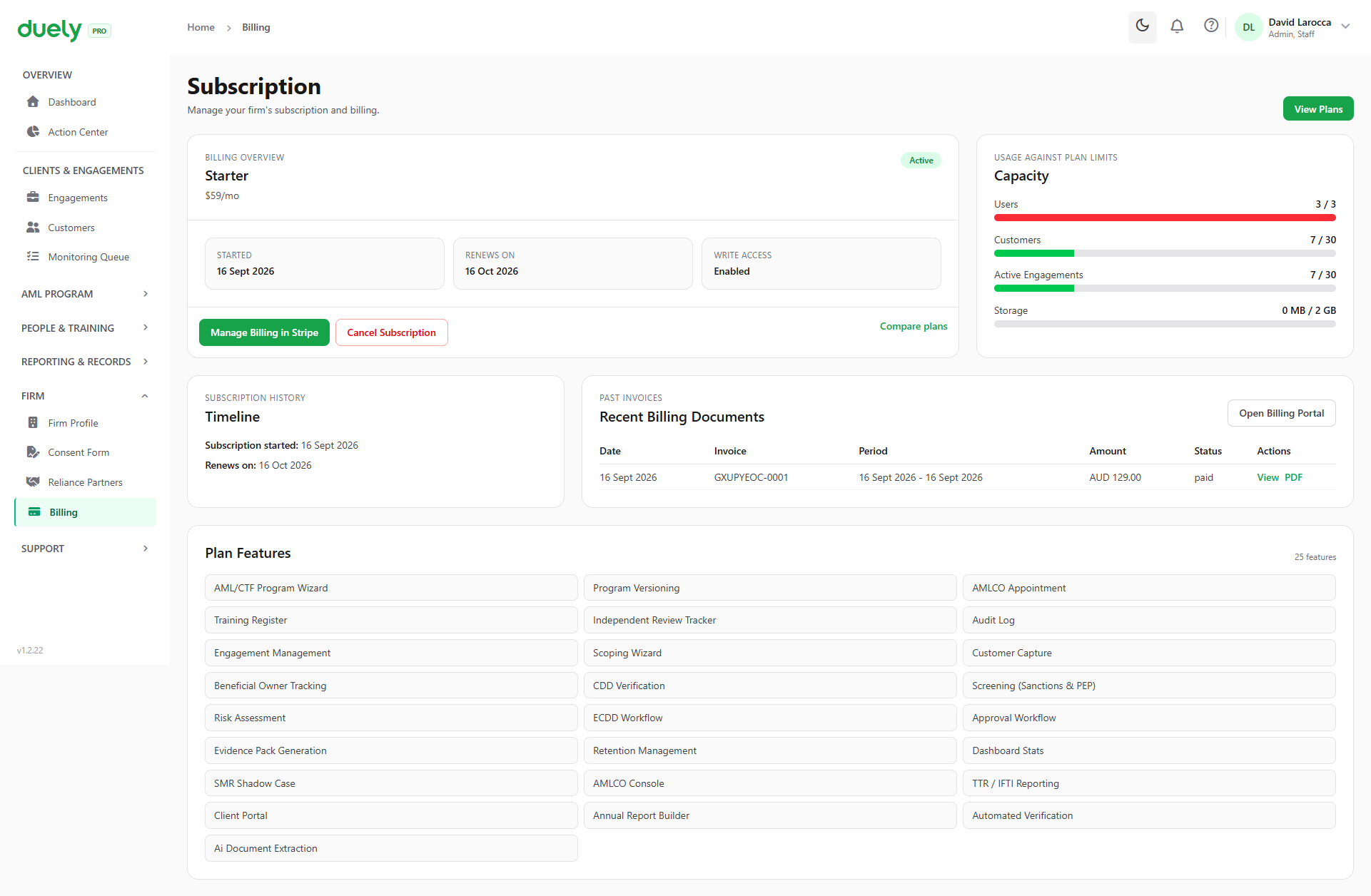
It shows the current plan and its status, when it started and when it renews, and whether write access is enabled. Alongside that, Usage against plan limits shows how much of each allowance is in use, across users, customers, active engagements and storage. Bars turn red as a limit is approached, so a firm near its ceiling can see that before it reaches the limit.
Below the overview are the Timeline, Past Invoices, where each invoice has separate View and PDF links, and the plan features list.
After setup
Three things follow, in this order:
- Build and approve your program. Until a program version is published, you cannot scope a matter. See Program builder.
- Invite your team and assign roles. Use the narrowest role that lets each person do their job. See Roles and permissions.
- Start working. Open a matter and bring in a customer.
Related pages
- Enrol with AUSTRAC, for the enrolment obligation these fields record.
- Program builder, which uses your vertical templates.
- Roles and permissions, for who can change firm settings.
- Platform Tour, for where Firm Profile sits in the navigation.