Creating a Matter
This page walks the matter flow from opening the register through to a scoped engagement and the record it leaves behind. It describes what you see and click at each point.
For the legal requirement behind the scoping decision, see Customer due diligence. This page is the product walkthrough.
What a matter is
A matter is one engagement. Obligations attach to the engagement rather than to the customer, because the same customer can have several engagements with different risk profiles. That is why the register and the matter are separate records, and why a customer is onboarded once but scoped separately for each engagement.
Matters live in the sidebar under the Clients and Engagements group. The label depends on your firm's vertical: Engagements for accounting, Matters for legal and conveyancing, and Transactions for real estate and jewellers.
What you see on the register
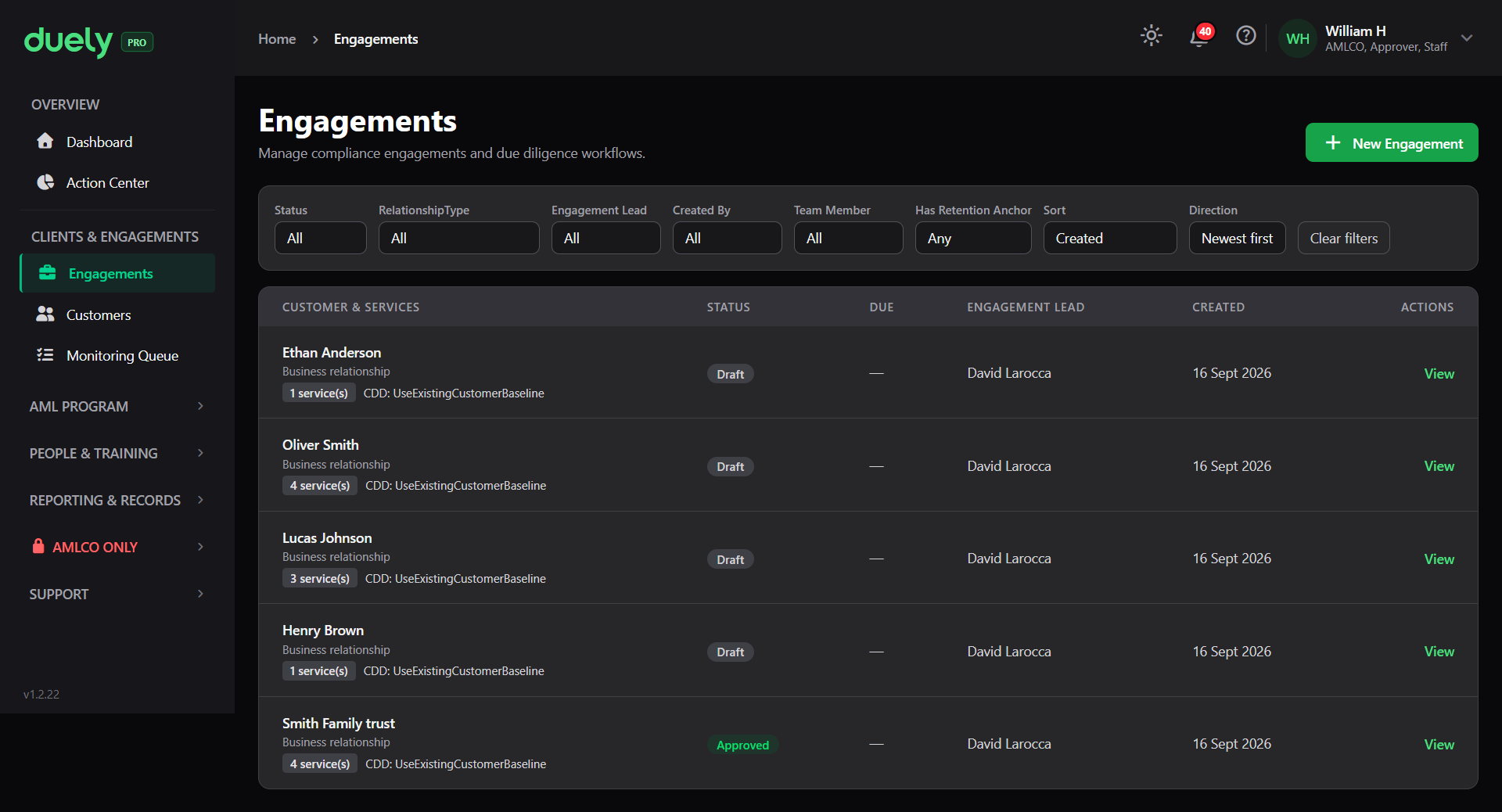
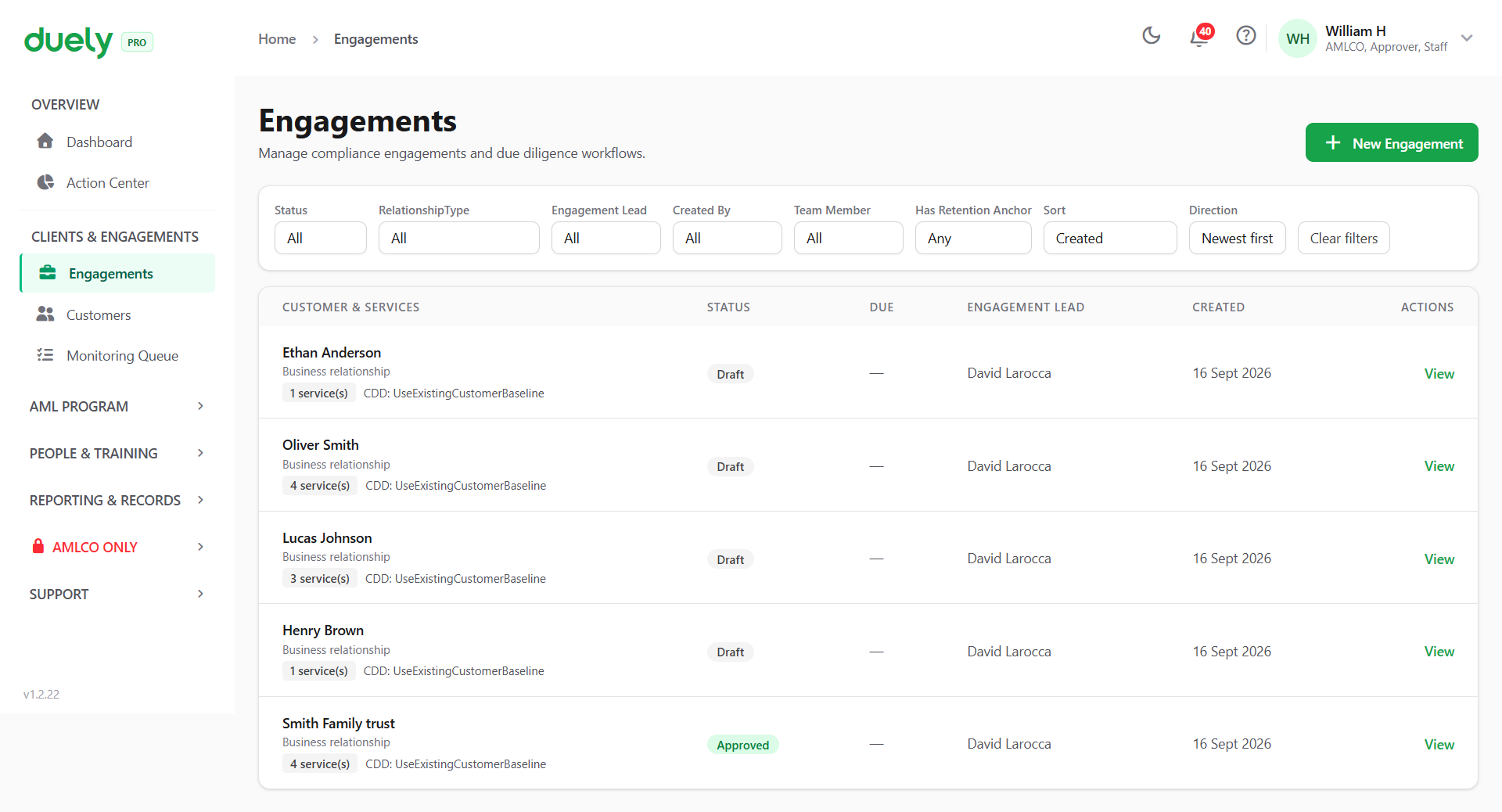
The register opens on a table with a filter row above it. The filter is how you find work rather than scrolling for it, and it offers Status, RelationshipType, Engagement Lead, Created By, Team Member, Has Retention Anchor, Sort and Direction.
Each row carries:
| Column | What it tells you |
|---|---|
| Customer & services | The customer, the relationship type, how many services the engagement covers, and the baseline it was scoped against |
| Status | Where the engagement is, such as Draft or Approved |
| Due | A due date, where one applies |
| Engagement Lead | Who owns the work |
| Created | When the engagement was opened |
| Actions | View to open it |
Creation starts at New Engagement in the top right.
The creation wizard has three steps
The interface names the steps as:
- Who it's for
- What you're doing
- Review
A step rail runs down the left, and the header reads "Step 1 of 3" with the step name. You can click back to a step you have already passed, but you cannot jump ahead of the current one.
Step 1: Who it's for
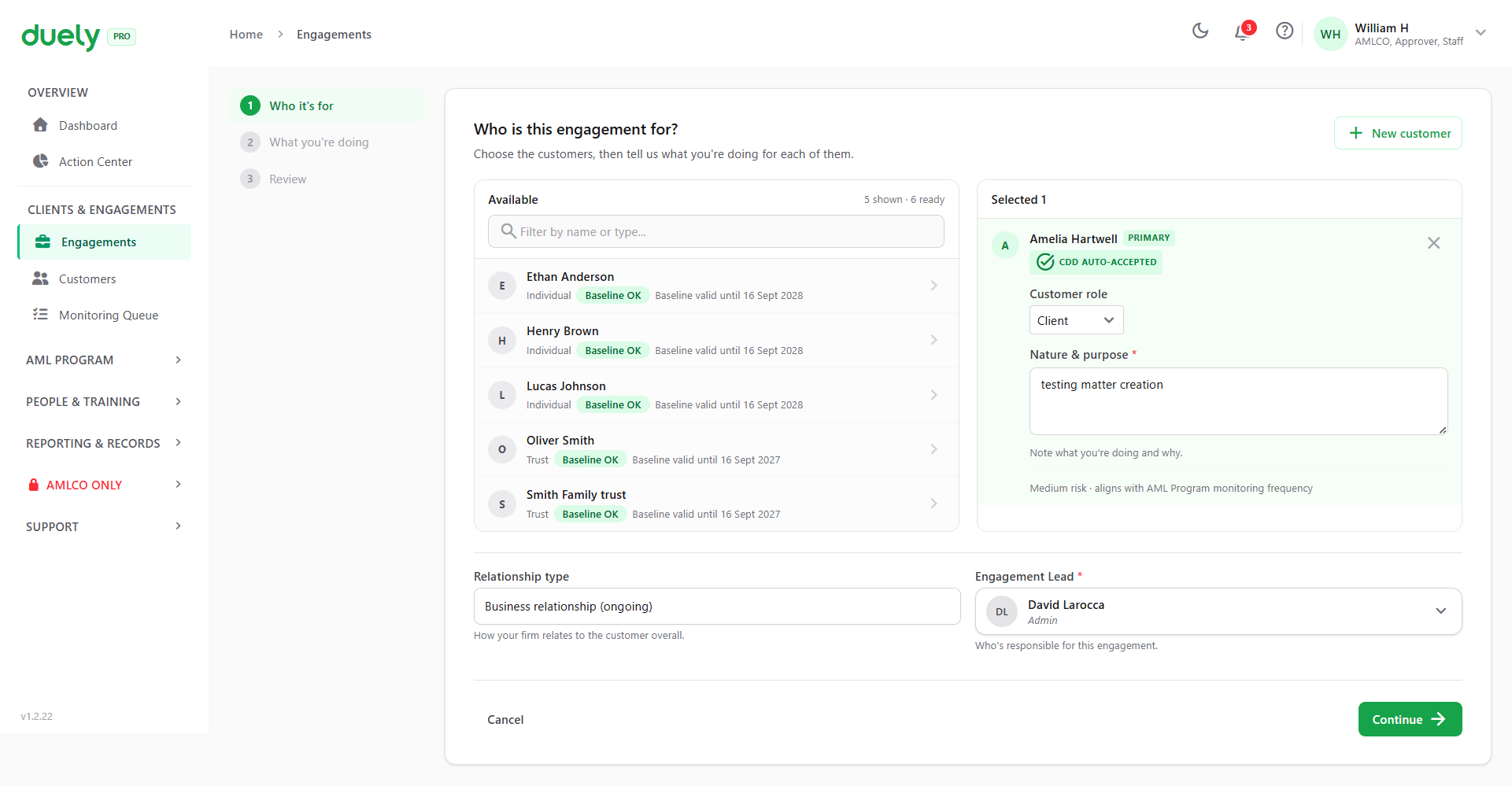
The step asks which customers the engagement is for, and it shows two panels: Available customers on the left with a filter box, and the ones you have selected on the right.
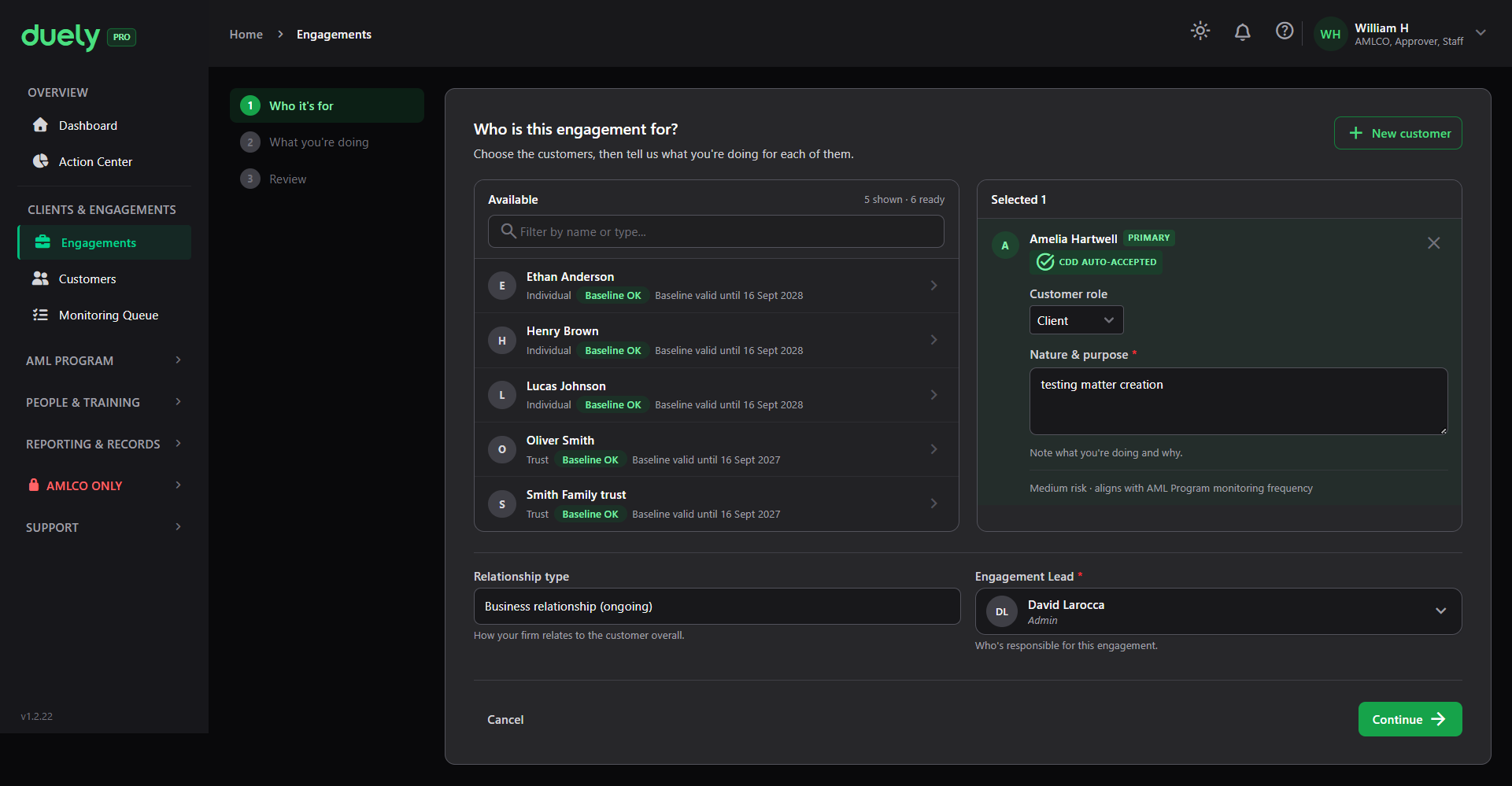
Each customer in the available list shows their type, whether their due diligence baseline is Baseline OK, and the date that baseline runs to. For each customer you add, you then record:
- Customer role, such as Client, which is the part they play in this engagement
- Nature and purpose, a free text field for what you are doing for them and why. The screen notes whether this aligns with your program's monitoring frequency
One customer is marked Primary, and you can remove a customer from the engagement.
Two further fields sit at the bottom of the step:
- Relationship type, which describes how your firm relates to the customer overall, such as a business relationship
- Engagement Lead, the person responsible for the work
What can block a customer
The customer picker applies eligibility rules, so a customer who cannot be added yet is still listed, with the reason. The picker groups customers by what applies to them:
- Baseline OK: the customer has a current baseline and can be added. The step marks them CDD auto-accepted.
- Other CDD basis applies: the customer has no baseline yet but is on a pre-commencement basis (s 36) or a delayed CDD basis (s 29). They can be added, and the basis is recorded on the engagement.
- CDD review needed first: the baseline is flagged for review or has expired, or the identity check came back not verified. The customer cannot be added, and the row carries a Complete CDD review link to their profile.
- CDD not started: there is no usable due diligence yet. The customer cannot be added, and the row carries a Start CDD link.
One further condition applies to entities:
- Ownership structure required: an entity customer must have its beneficial ownership structure committed before it can be added. Where that is missing, the step shows a banner naming the customer and a Set up structure link that takes you straight to the structure screen. See Onboarding a customer for that flow.
Where you need a customer who is not in the register yet, New customer in the top right of this step opens the customer form. It does not bring you back to the wizard, so start the engagement again once the customer is set up.
Step 2: What you're doing
This is the scoping step. It decides whether this engagement involves a designated service.
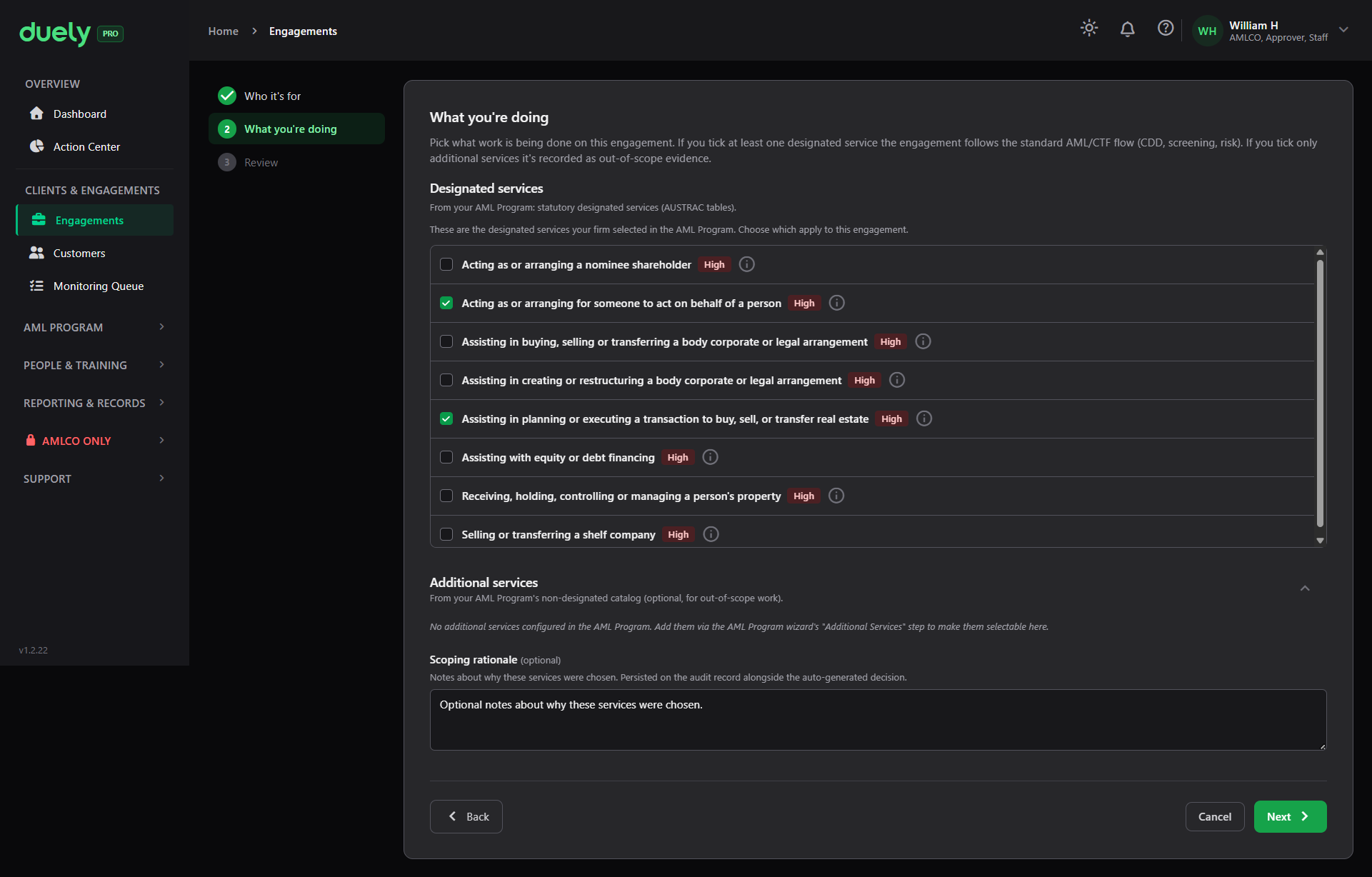
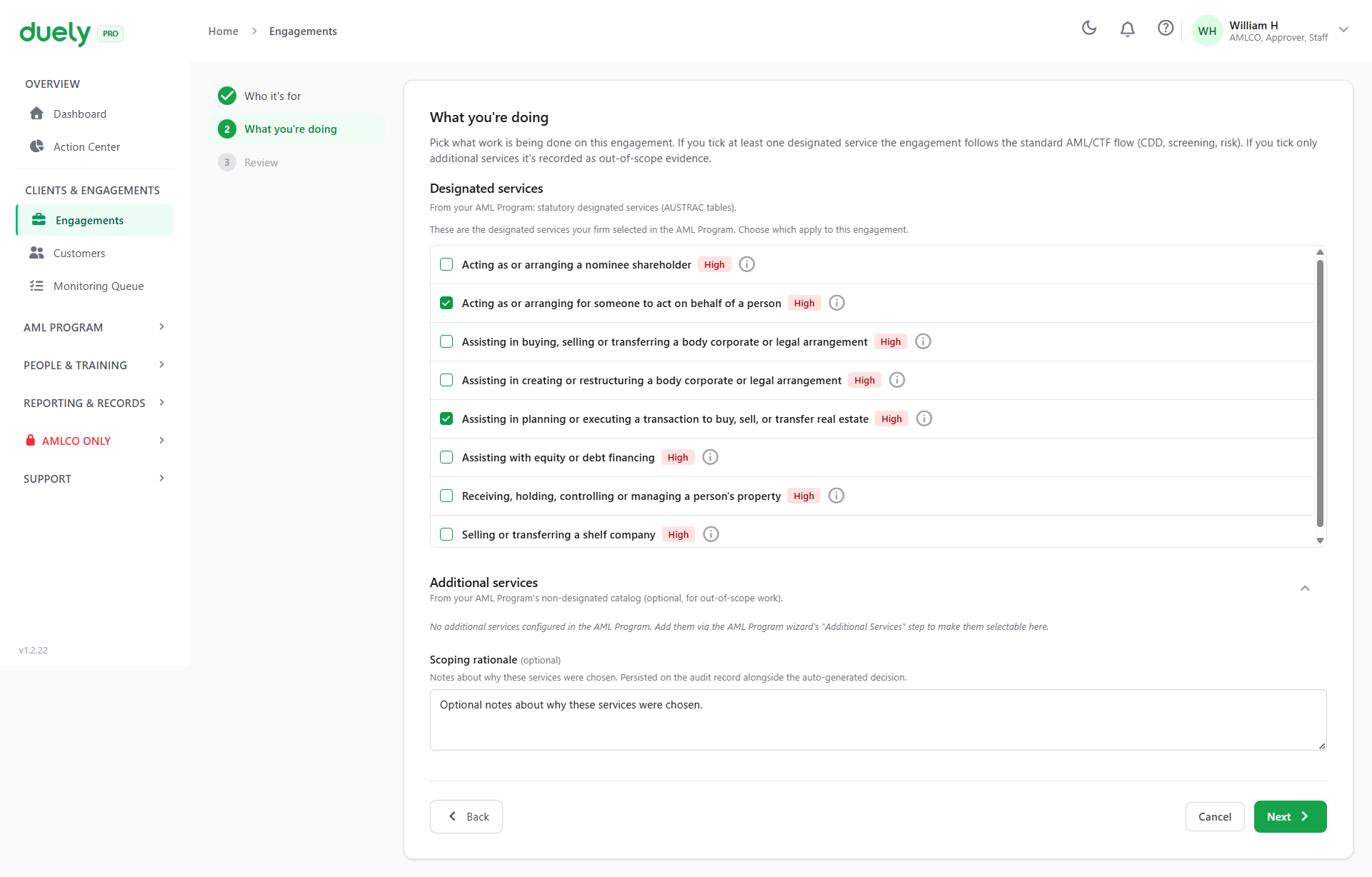
The step has three parts.
Designated services: a checklist of the designated services your firm selected in its AML/CTF program, drawn from the AUSTRAC tables. Each entry carries a risk tag, such as High, and an information control explaining what the service covers. Tick every service this engagement involves.
Additional services: services your firm offers that are not designated services. Anything here stays out of scope and is recorded so the audit trail shows it was considered rather than missed.
Scoping rationale: notes about why these services were chosen, saved on the audit record alongside the auto-generated decision. It is optional for an in-scope engagement. When only additional services are ticked it becomes required, and the prompt changes to "Why is this engagement out of AML/CTF scope?"
The product derives the conclusion
You tick the services, and the product derives "in scope" or "out of scope" from them:
- If any ticked service is designated, the engagement is in scope, and the standard compliance flow follows.
- If only additional services are ticked, the engagement is out of scope, and it is recorded as out-of-scope evidence.
The step says this on screen before you answer it.
What this step gates on
At least one service must be selected. Continue is refused with no services chosen, because a scoping decision with nothing in it records nothing. When only additional services are ticked, Continue is also refused until you write a scoping rationale.
Two further things follow from the selection:
- A designated service requires a code from the taxonomy. You select from the list rather than typing free text, so a service cannot be entered in a way that avoids the identifier list.
- The figures and the classification have to agree. A non-designated service whose recorded value crossed the threshold in physical currency is refused, because the classification and the figures contradict each other.
Step 3: Review and create
The final step shows what you are about to create, with a status banner across the top. For an engagement with designated services it reads In scope for AML/CTF, with chips for CDD, Verification, Screening and Risk showing which parts of the compliance flow will follow.
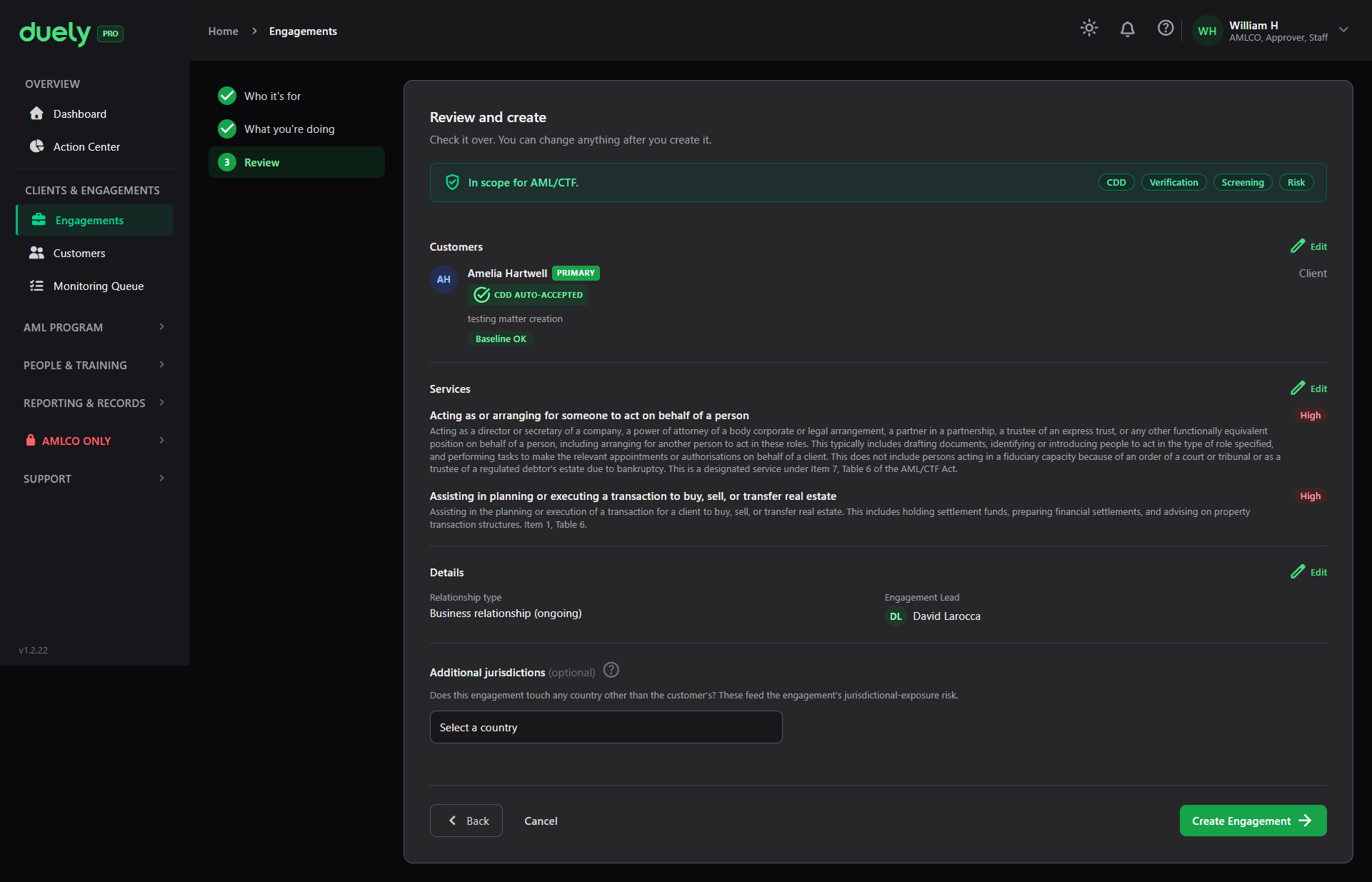
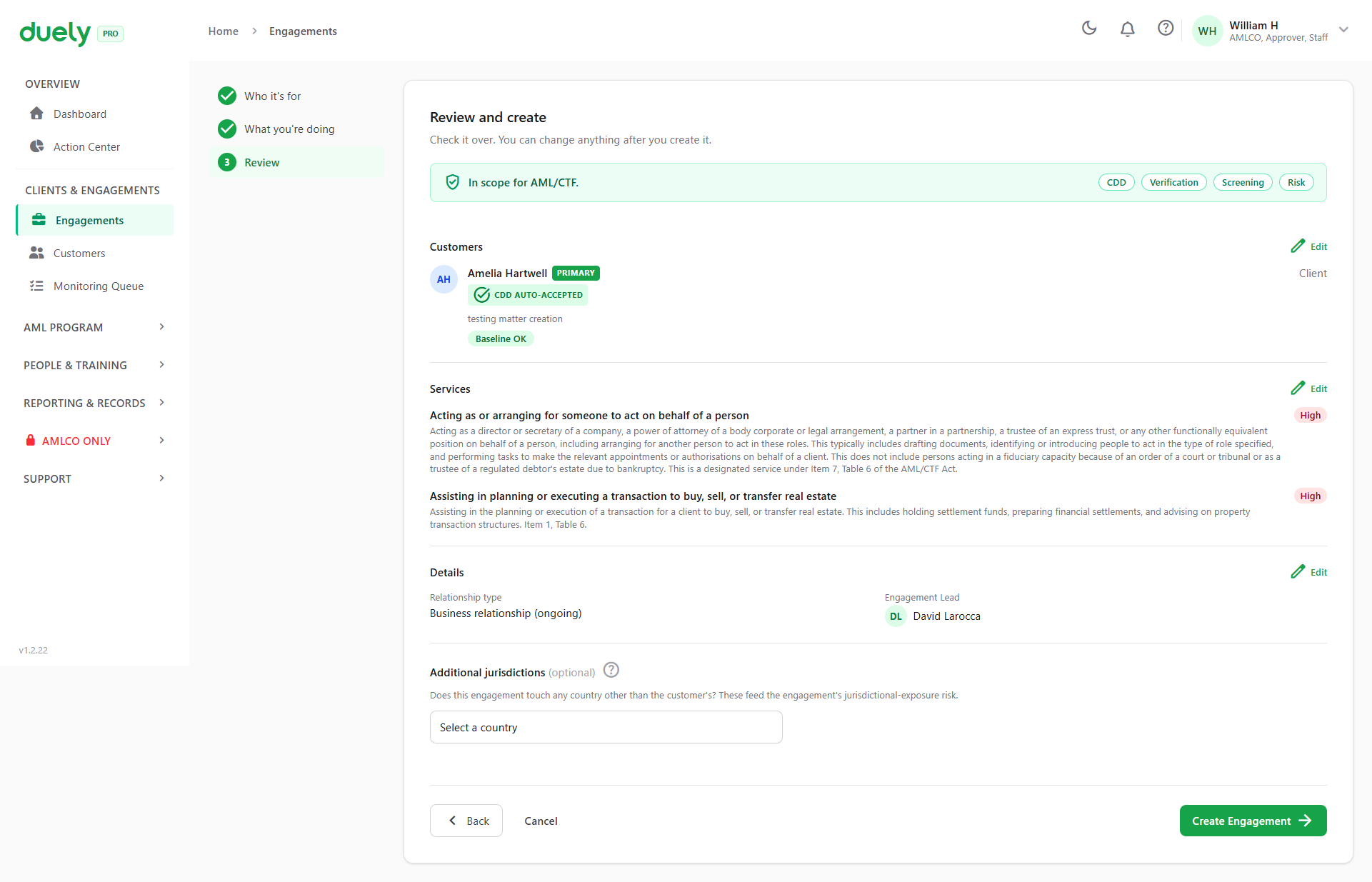
The step lists:
- Customers, with the role, the nature and purpose, and the baseline state
- Services, each with its description, its item reference from the tables, and its risk tag. Each has an Edit action back to step 2
- Details, meaning the relationship type and the engagement lead
- Additional jurisdictions, an optional field for whether the engagement touches any country other than the customer's. The screen explains that these feed the engagement's jurisdictional exposure risk
Create Engagement records the decision. The step notes that you can change things after creating it, and that is true for most of the engagement, but the scoping decision itself is appended rather than overwritten.
What happens after creation
The scoping decision is written as an audit entry carrying the conclusion, the program version, the rationale, the person who decided, and the service classifications behind it. An out-of-scope decision is recorded just as fully.
If a firm is asked months later why an engagement was not treated as regulated, this audit record is the answer.
The matter record afterwards
The engagement opens on its own page, organised into tabs across the top. The tabs are where the rest of the compliance work happens.
Overview
The Overview tab is the engagement at a glance: its status, the engagement lead, the services with their classifications, the assigned team, a compliance progress bar, and an approval panel.
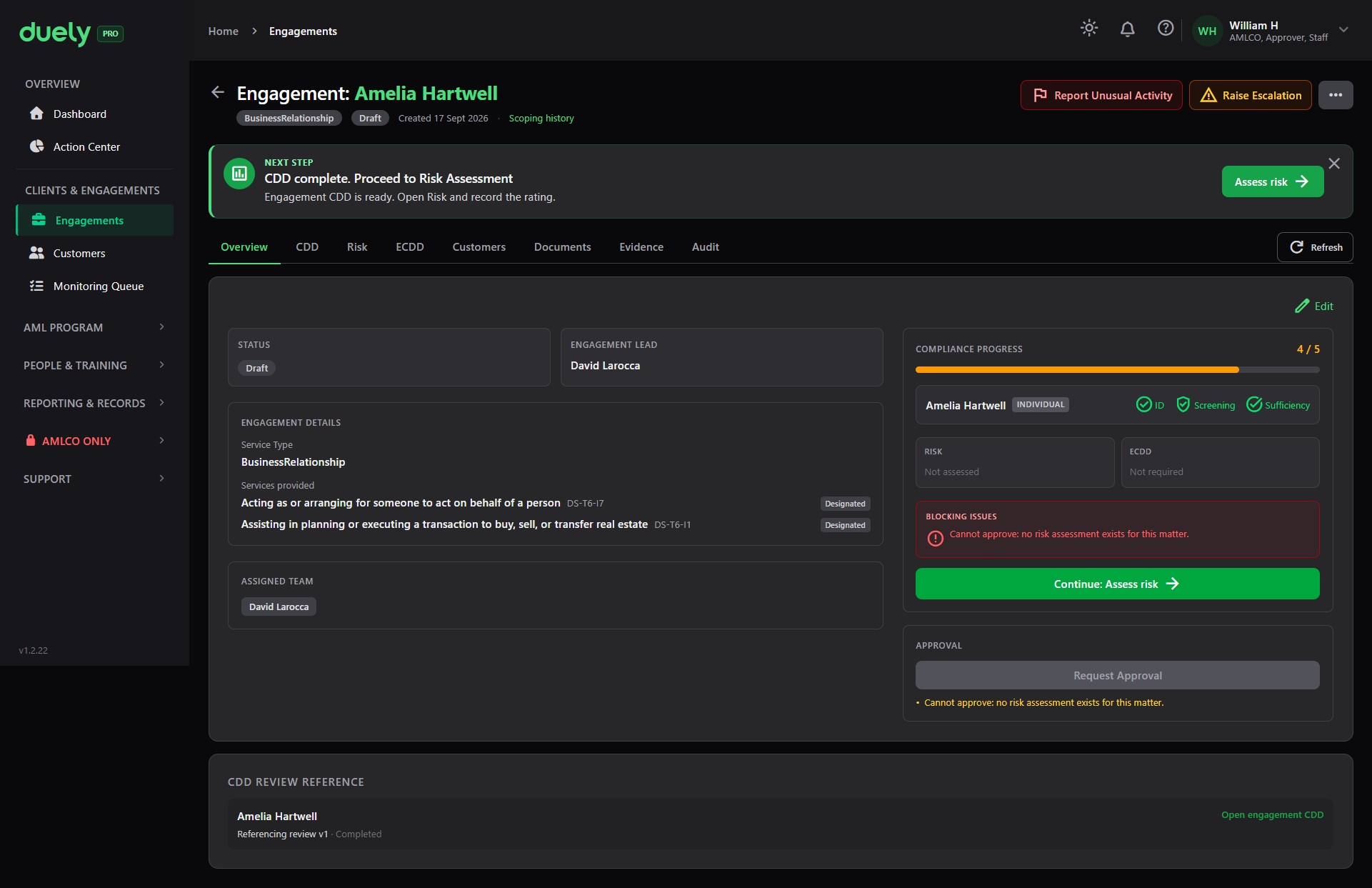
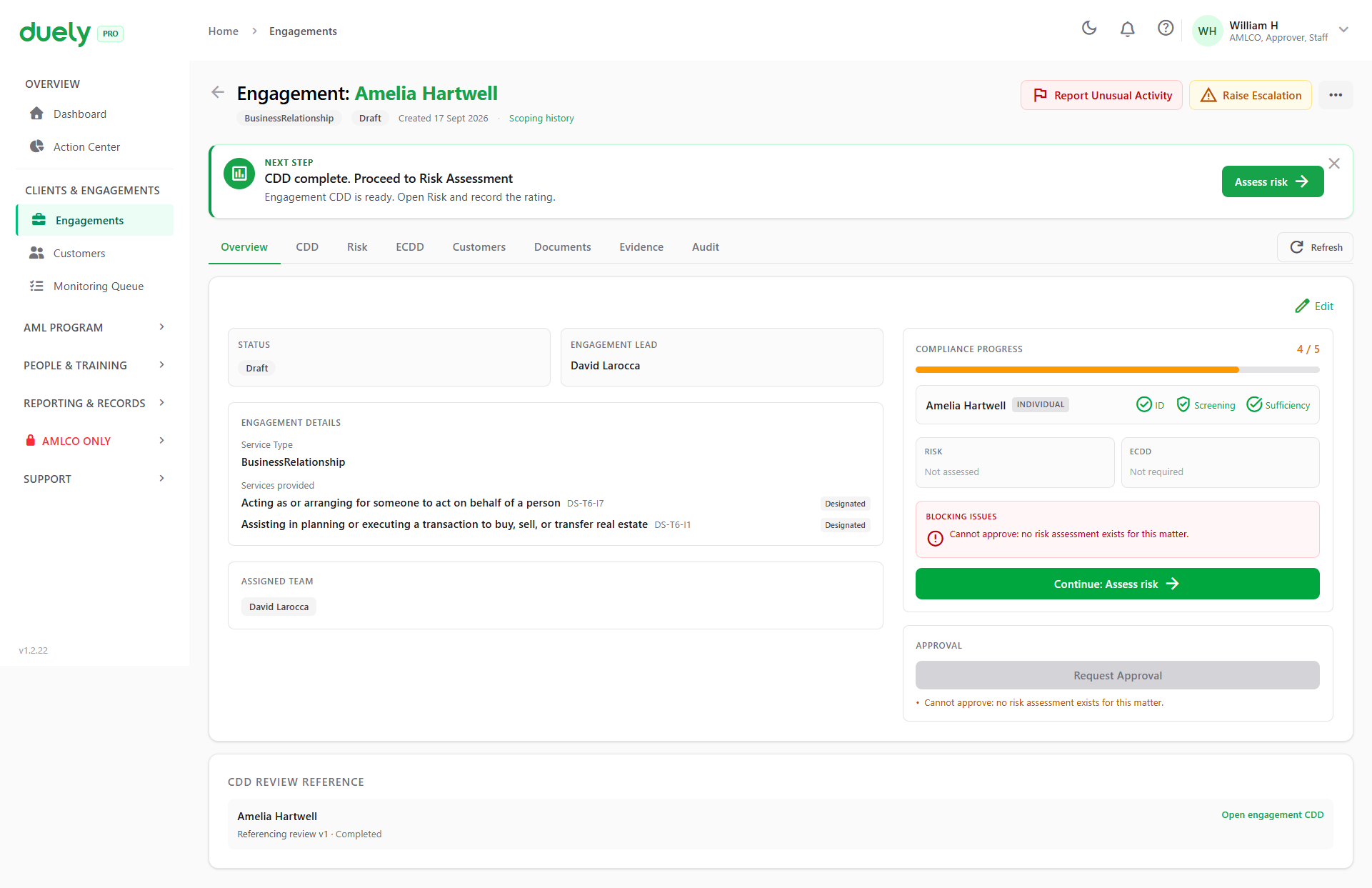
The progress bar shows where the engagement stands. For a simple customer the bar counts five items: scope, customers, verification, screening and risk. On a newly created matter of that kind it reads four of five, with risk outstanding. Beneficial owners and an ECDD case add further items. Under it, Blocking issues names the reason: that approval cannot proceed without a risk assessment. Request Approval sits disabled until that clears.
A Next step banner above the tabs gives the same instruction without you having to read the panel.
CDD
The CDD tab shows the due diligence behind the engagement. Where the customer was onboarded already, the engagement does not redo that work: it links the review and shows the outcome.
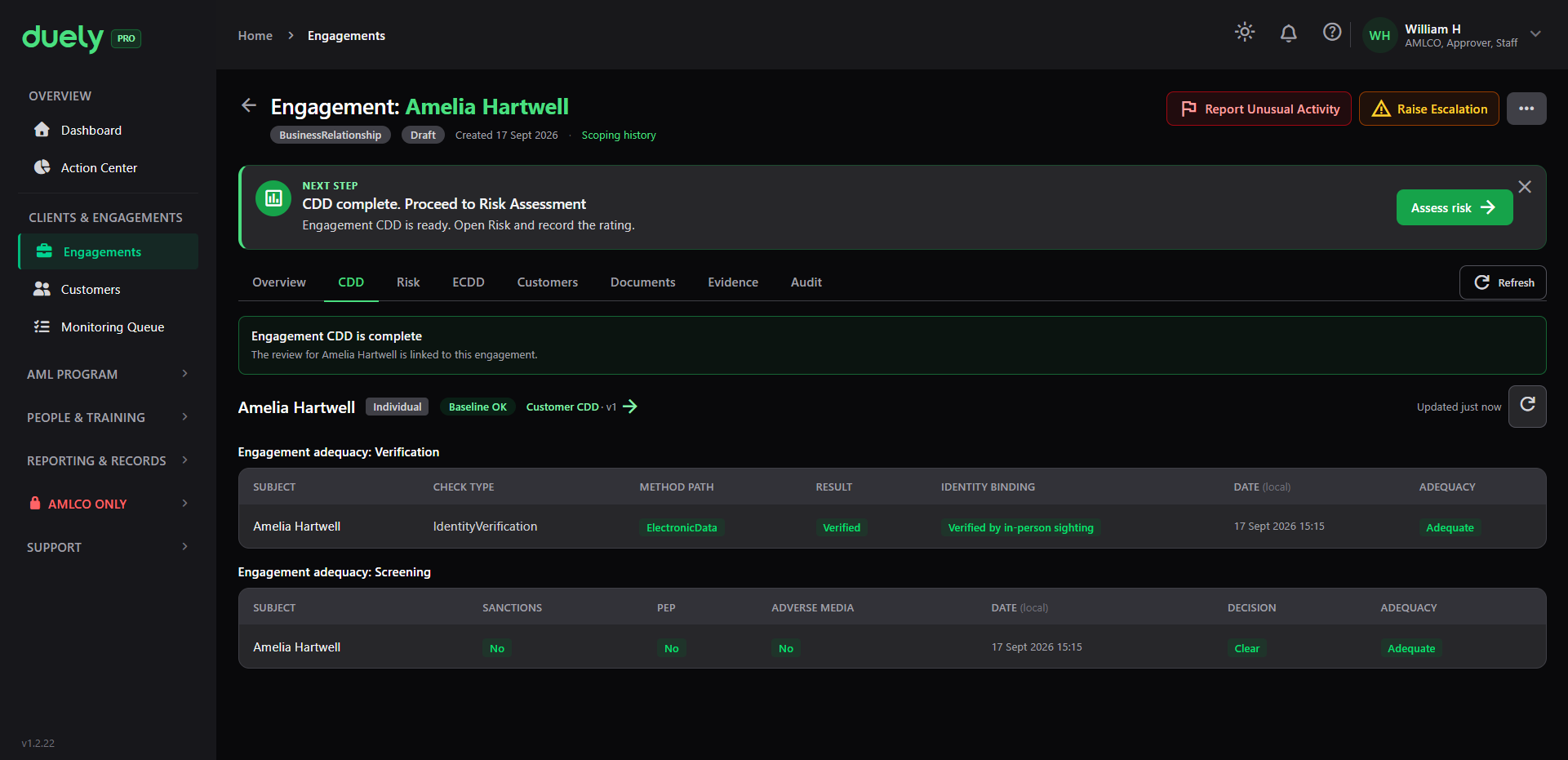
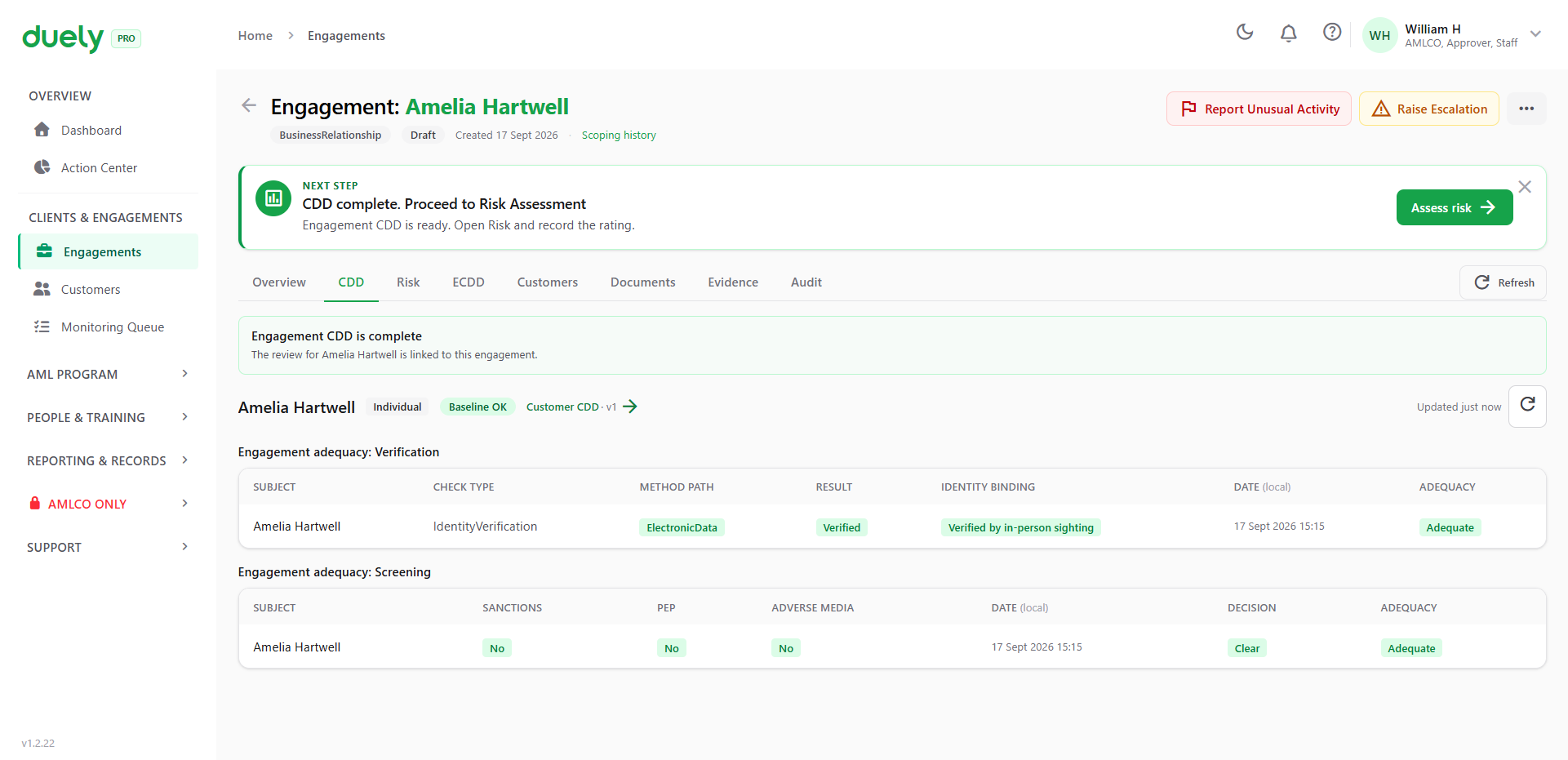
The tab carries two tables, both assessed per subject:
- Engagement adequacy: Verification, showing the subject, check type, method path, result, identity binding, date, and whether it is Adequate
- Engagement adequacy: Screening, showing the subject, whether sanctions, PEP and adverse media returned a hit, the date, the decision, and whether it is Adequate
Where the engagement reuses a current baseline, adequacy is accepted automatically when the engagement is created, and the screen marks it CDD auto-accepted.
Risk
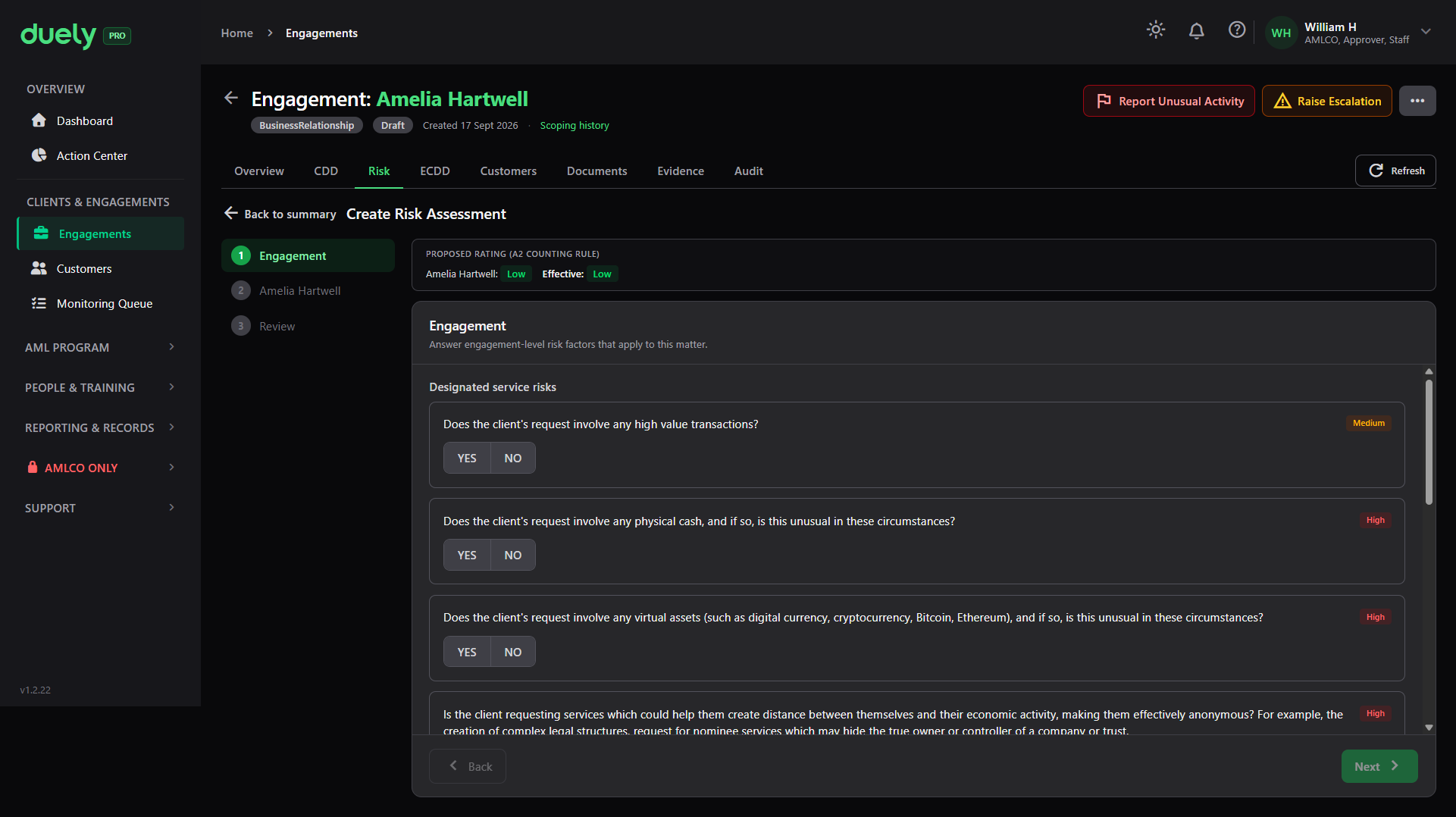
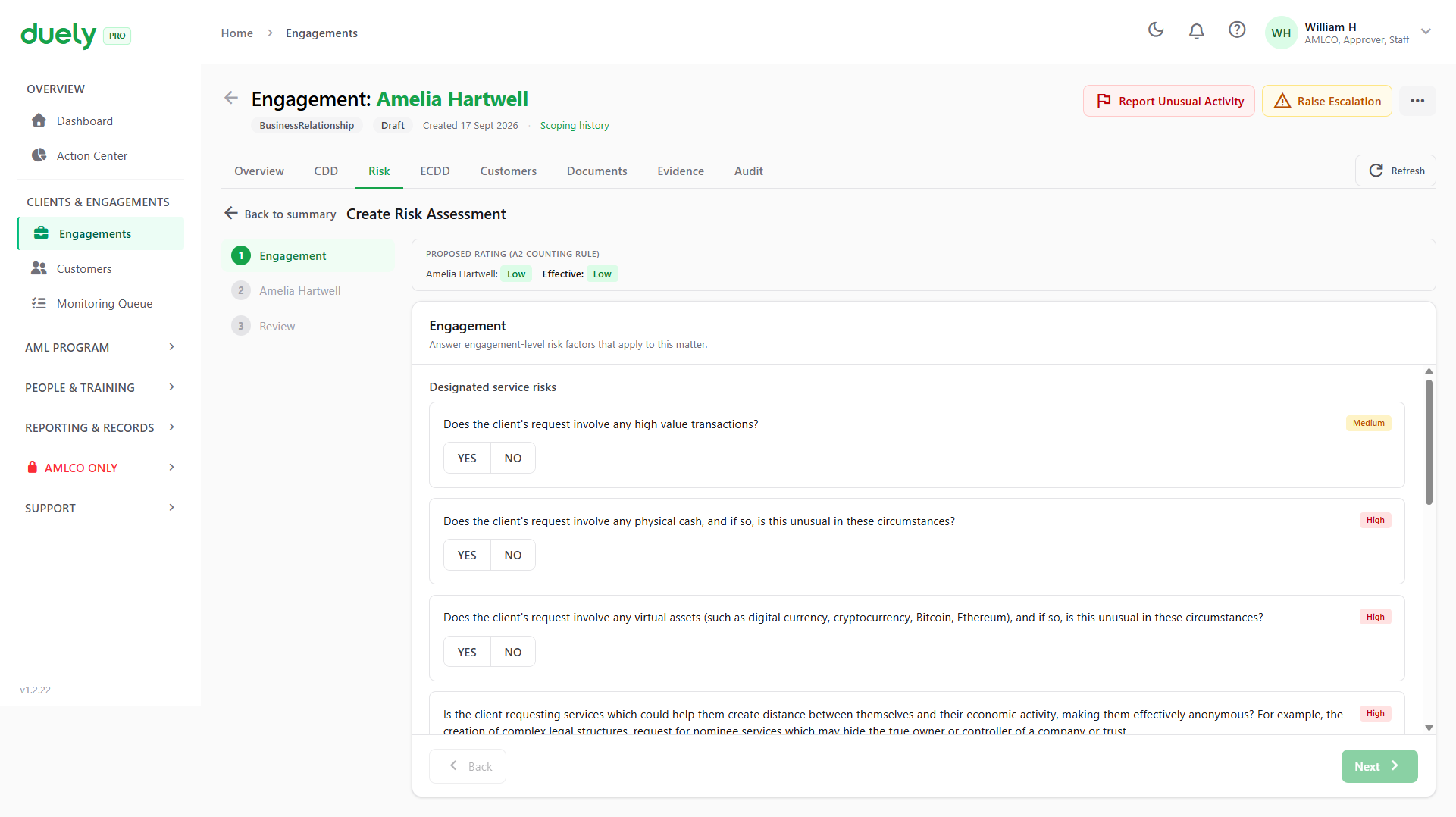
The Risk tab shows the risk signals the product has gathered and the proposed rating.
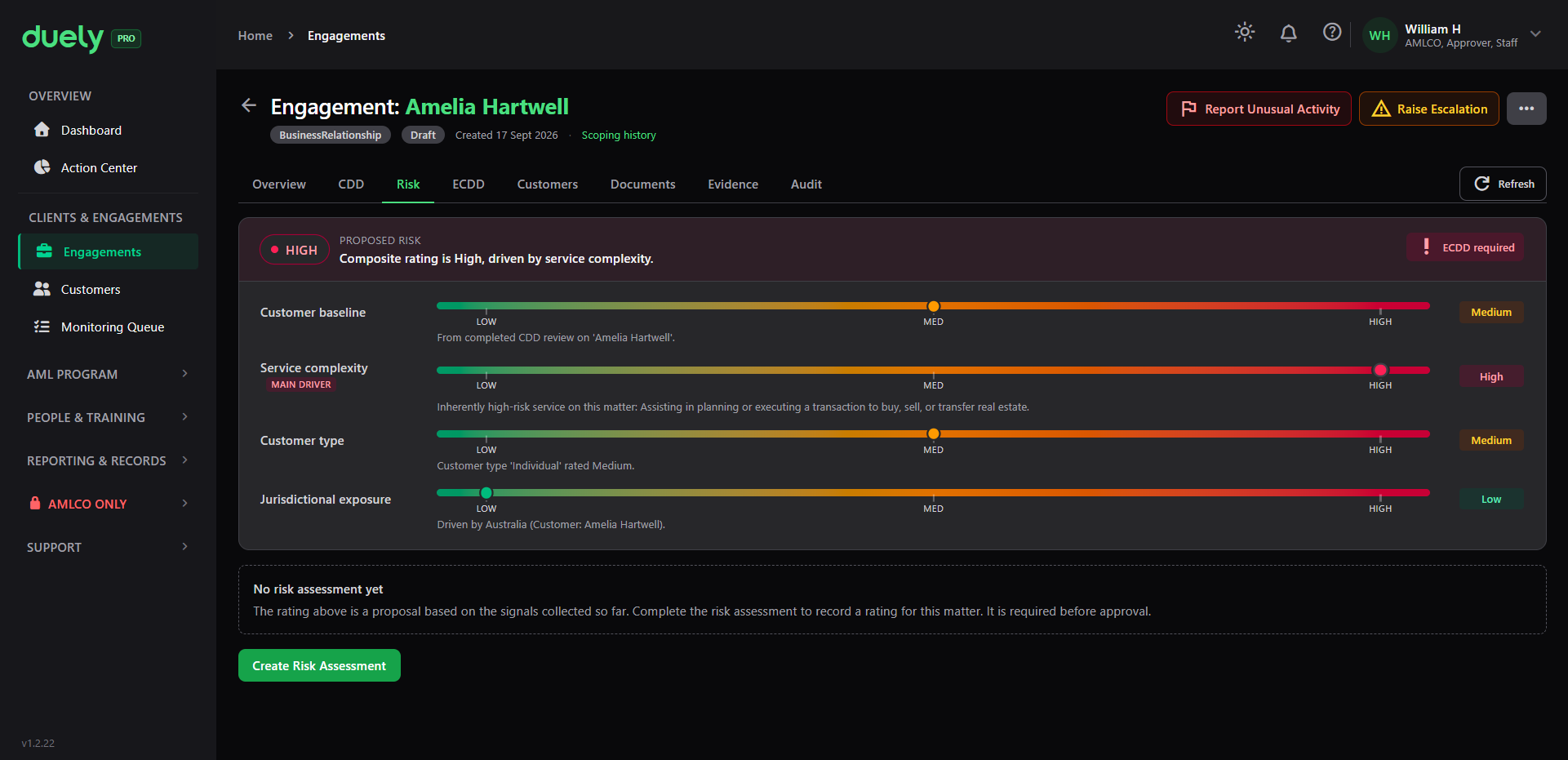
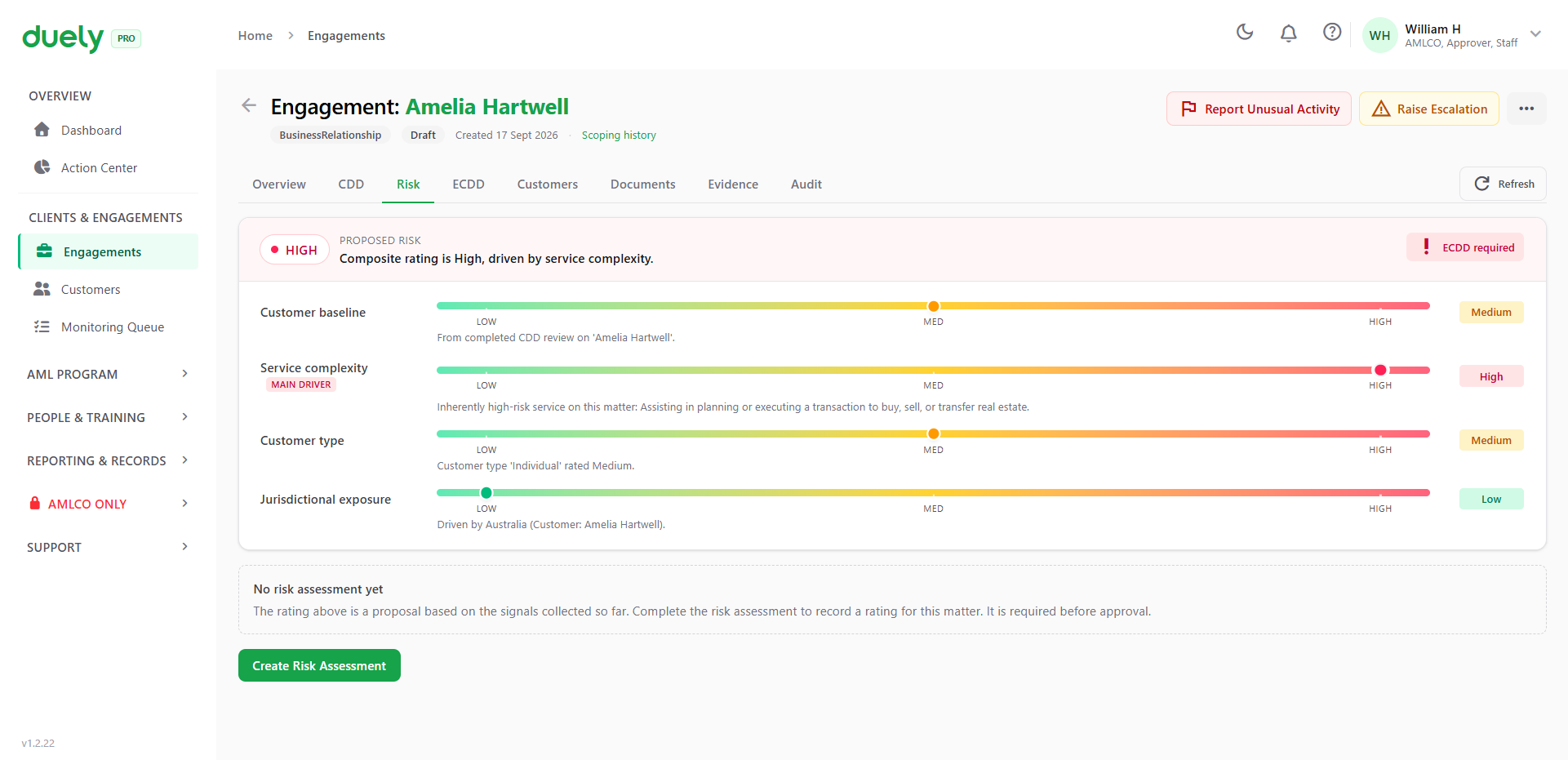
Four signals are scored separately and shown as bars from low to high:
| Signal | What drives it |
|---|---|
| Customer baseline | Taken from the completed CDD review of the customer |
| Service complexity | Driven by the services the engagement provides. Where this is the highest signal it is labelled the main driver |
| Customer type | From the customer's own rated type |
| Jurisdictional exposure | Driven by the country the customer is in, and by any additional jurisdictions recorded on the engagement |
The proposed rating is the highest of these signals. A confirmed screening hit also raises it: a PEP or sanctions match takes it to High. An ECDD required marker appears and a case is raised where the rating is High, or where there is a confirmed PEP or sanctions match.
Until you complete the assessment, the tab says so, and approval stays blocked.
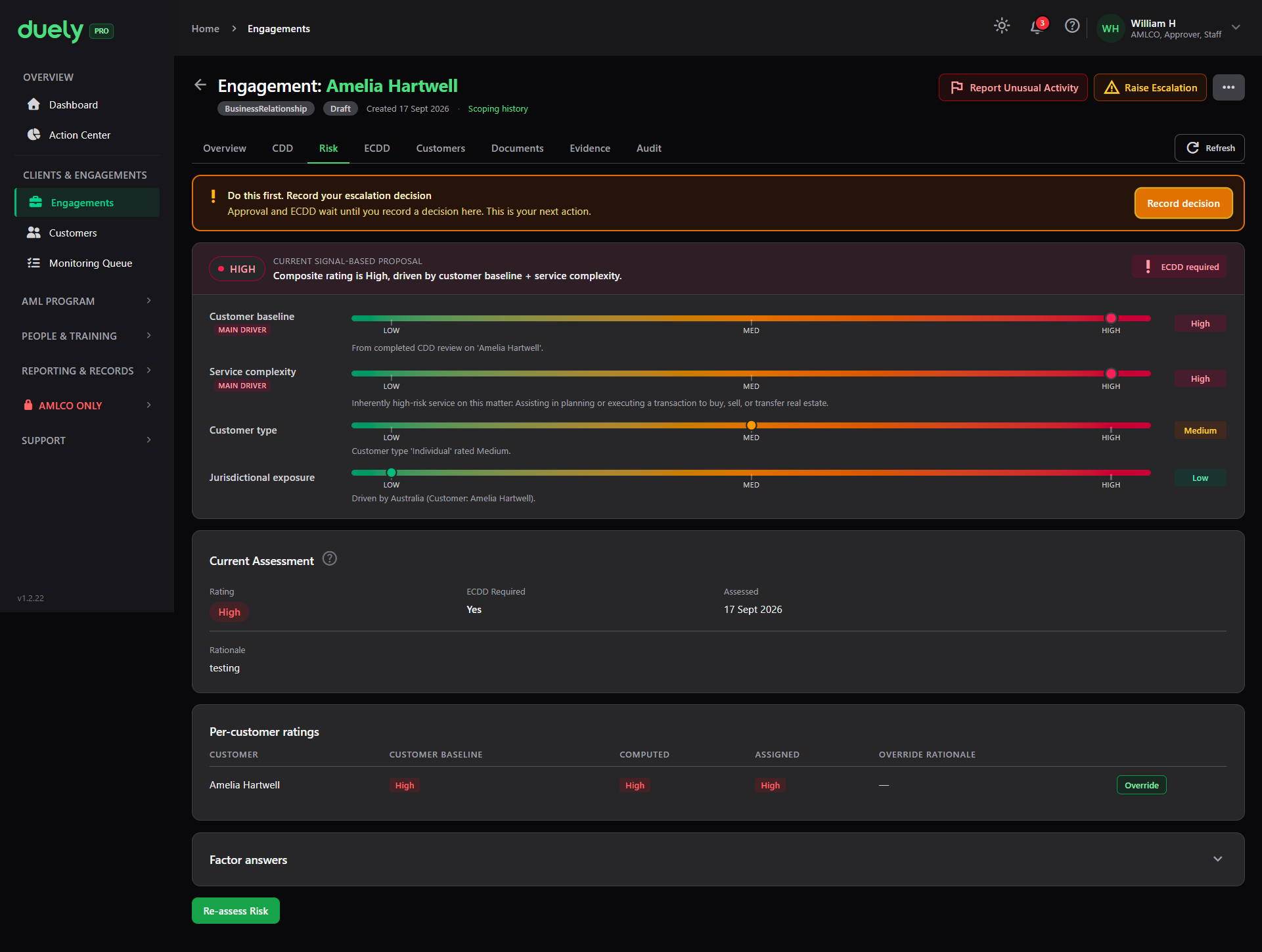
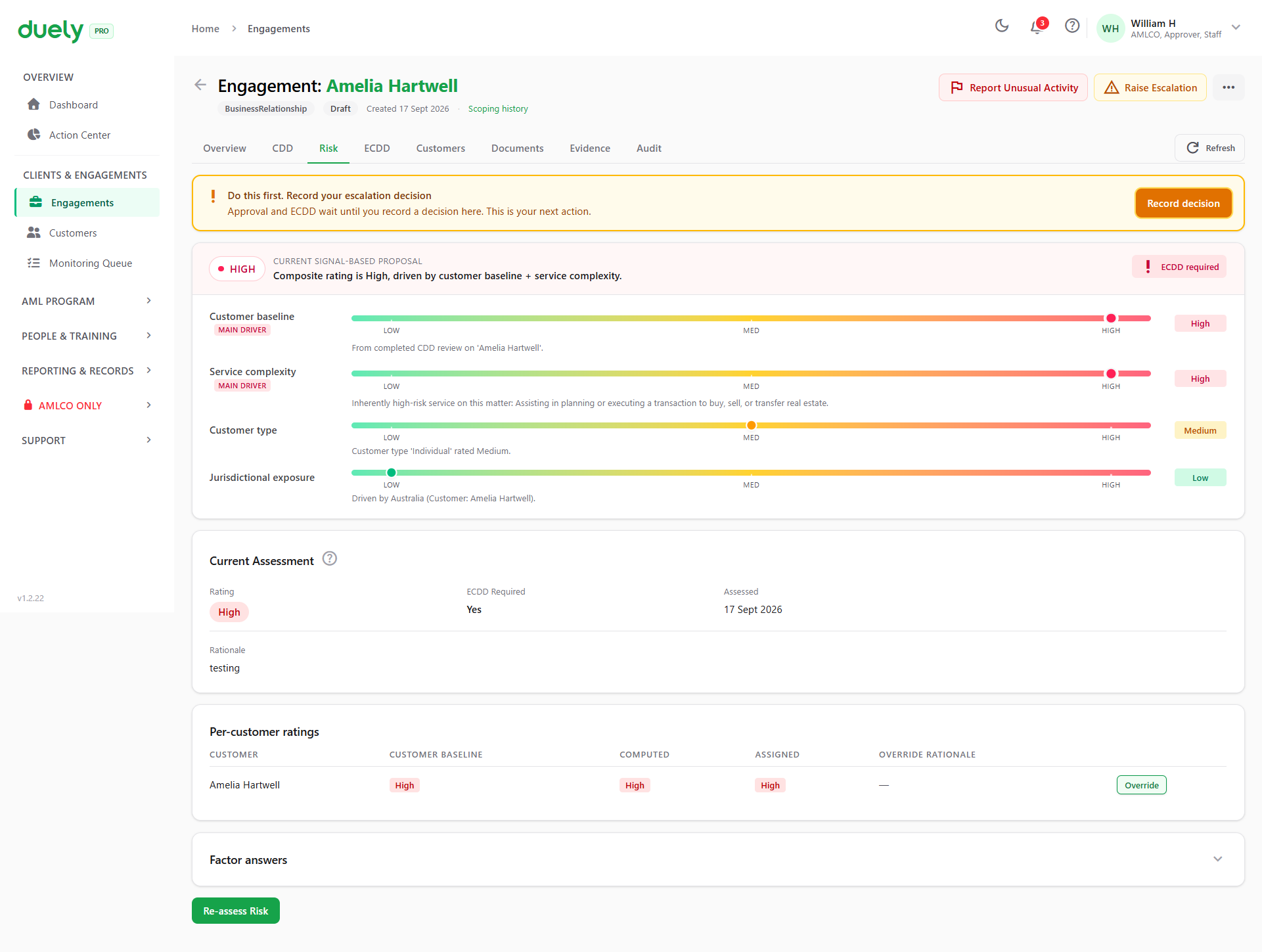
How the scoping answers drive the risk
The services you ticked in step 2 also feed the service complexity signal. Ticking a service with a high risk tag pushes that signal up, and a High rating triggers enhanced due diligence.
ECDD
Where ECDD is required, the ECDD tab carries the case.
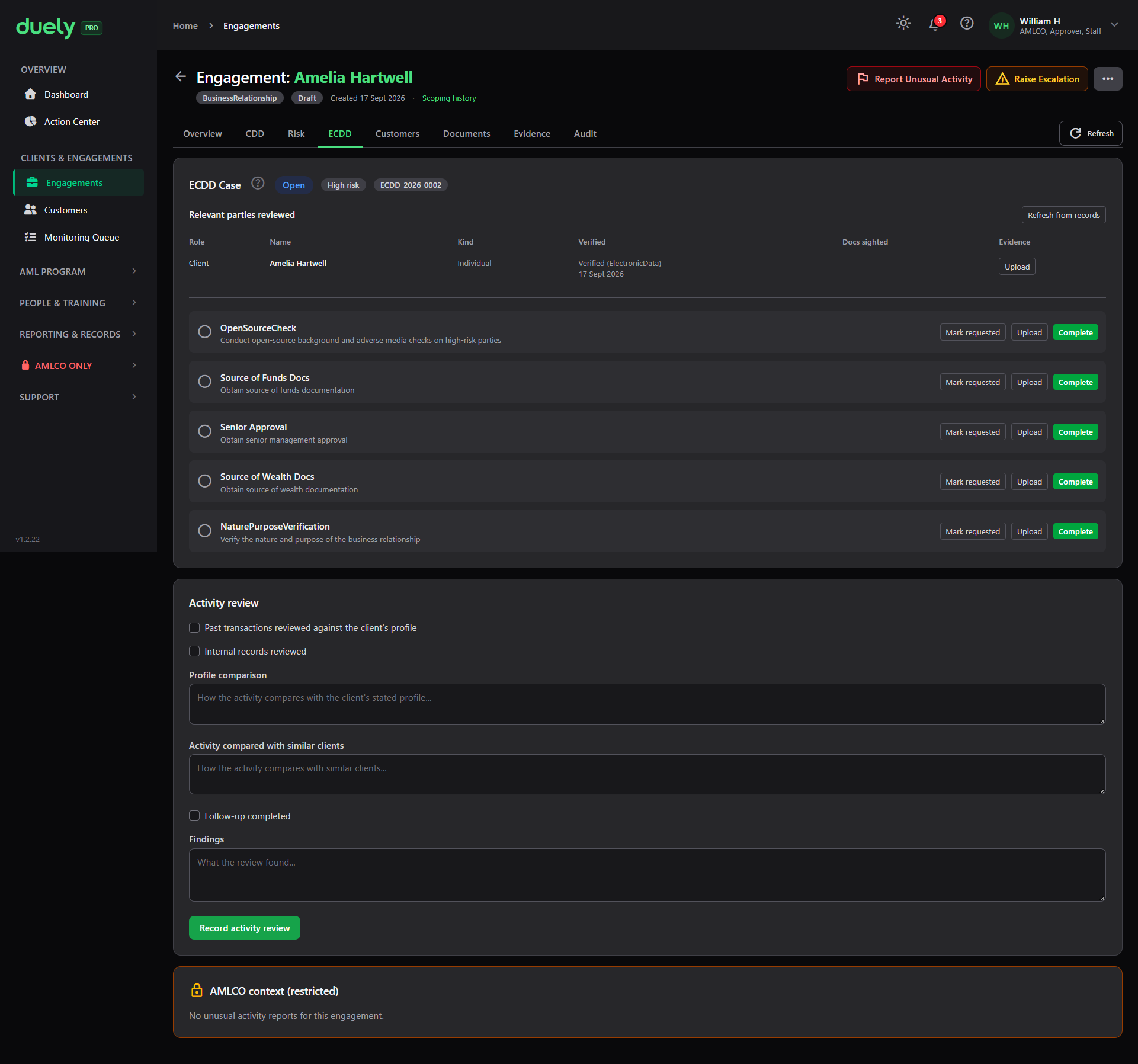
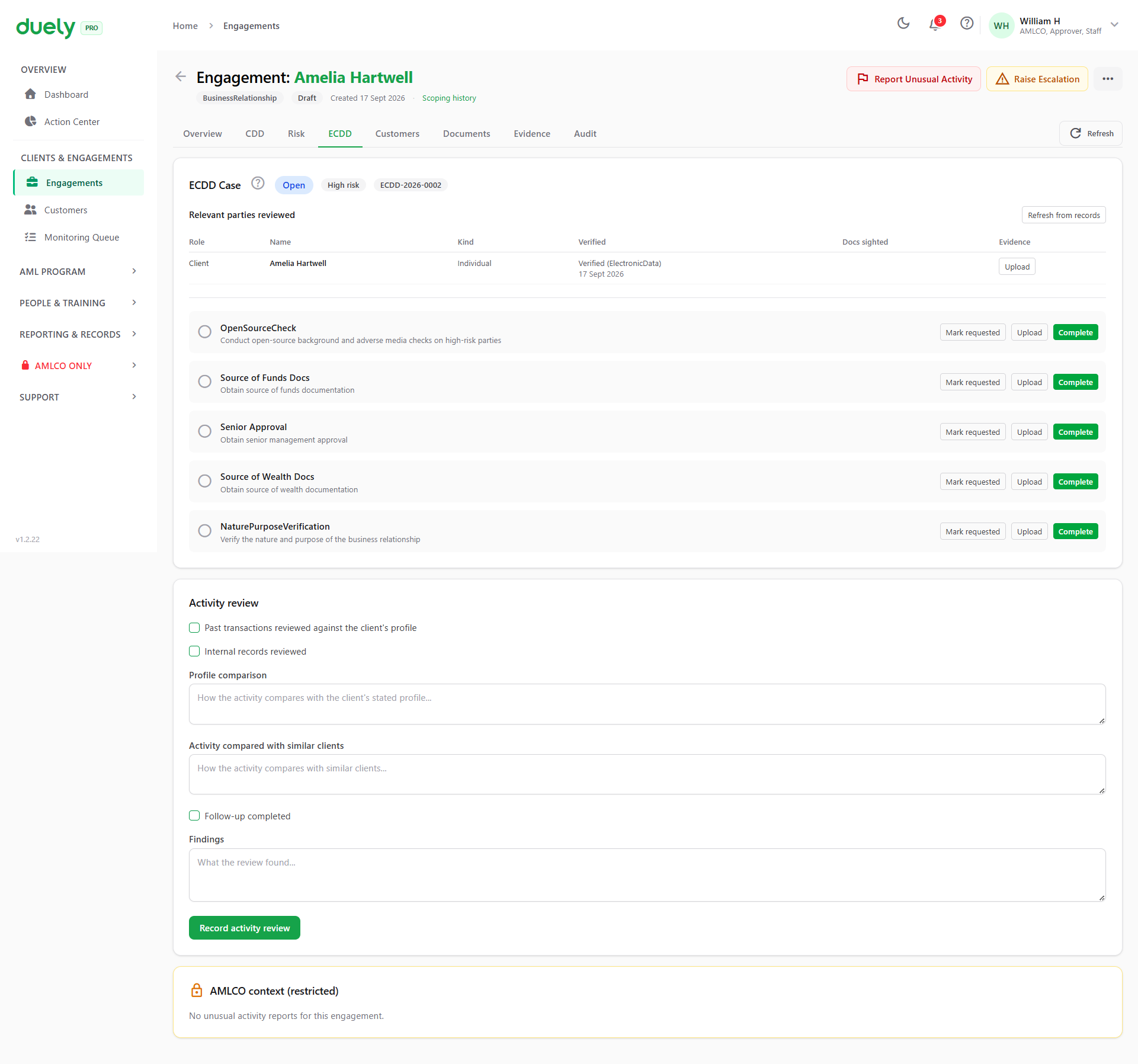
The case lists the required actions for this engagement. For a high risk engagement these can include an open source check, source of funds documentation, source of wealth documentation, senior management approval, and verification of the nature and purpose of the business relationship. Each row has an upload control so the evidence attaches to the action.
Below that is an Activity review section: whether the customer's past transactions were reviewed against their profile, whether internal records were reviewed, how the activity compares with the customer's stated profile and with similar clients, and what the review found.
An AMLCO context panel at the bottom is marked restricted, and shows whether any unusual activity reports relate to the engagement.
Where an ECDD case exists, it has to be resolved before the approval path opens.
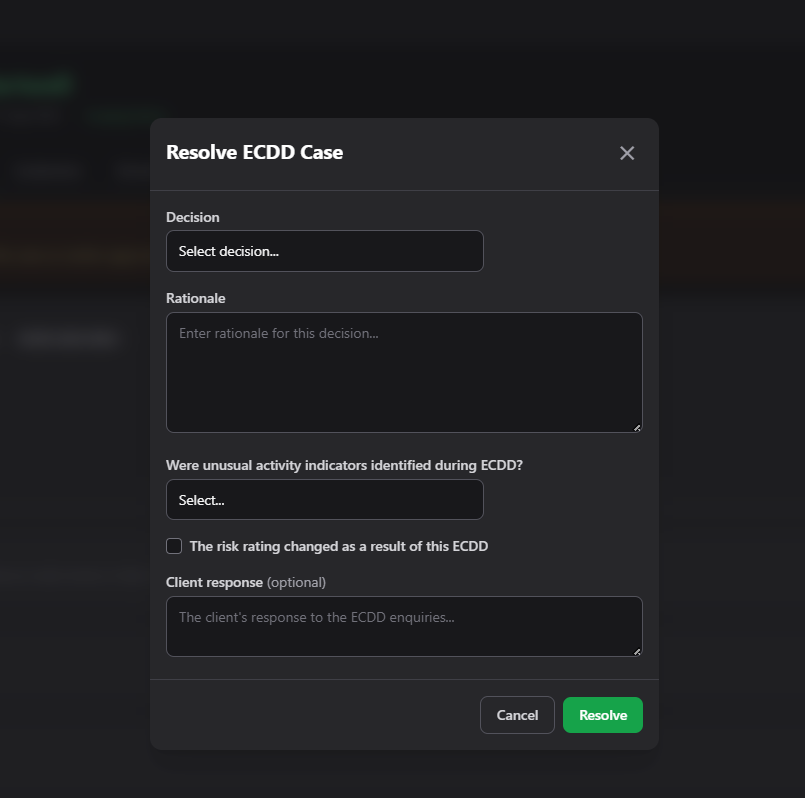
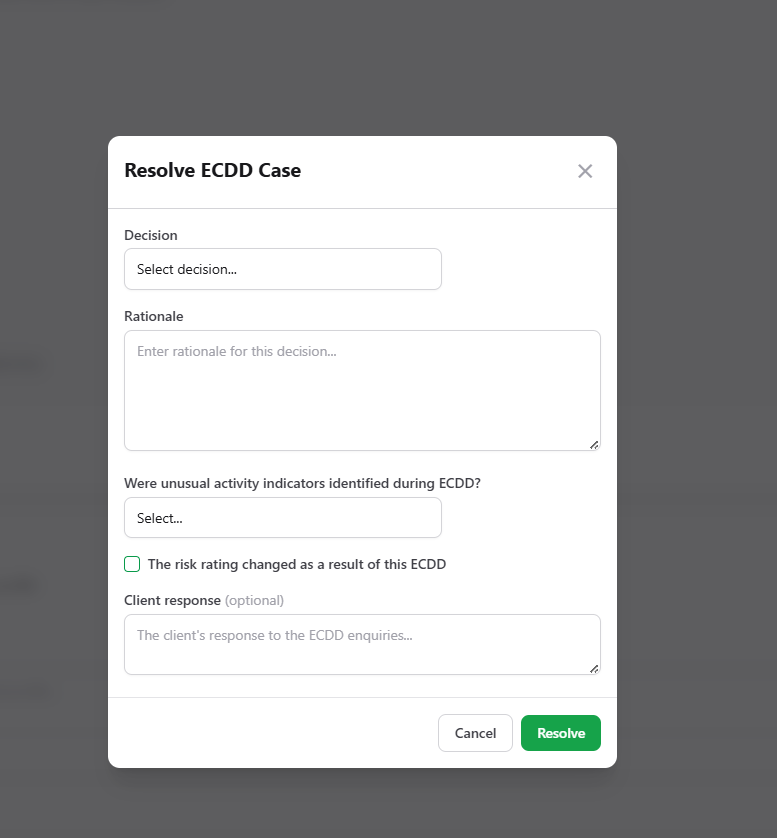
Resolving the case captures the decision and its rationale, whether unusual activity indicators were identified during the enhanced due diligence, whether the risk rating changed as a result, and optionally what the client said in response. Fill in that last field: a regulator reading the record later will want to know the customer was asked.
Customers
The Customers tab lists the parties on the engagement and their settings.
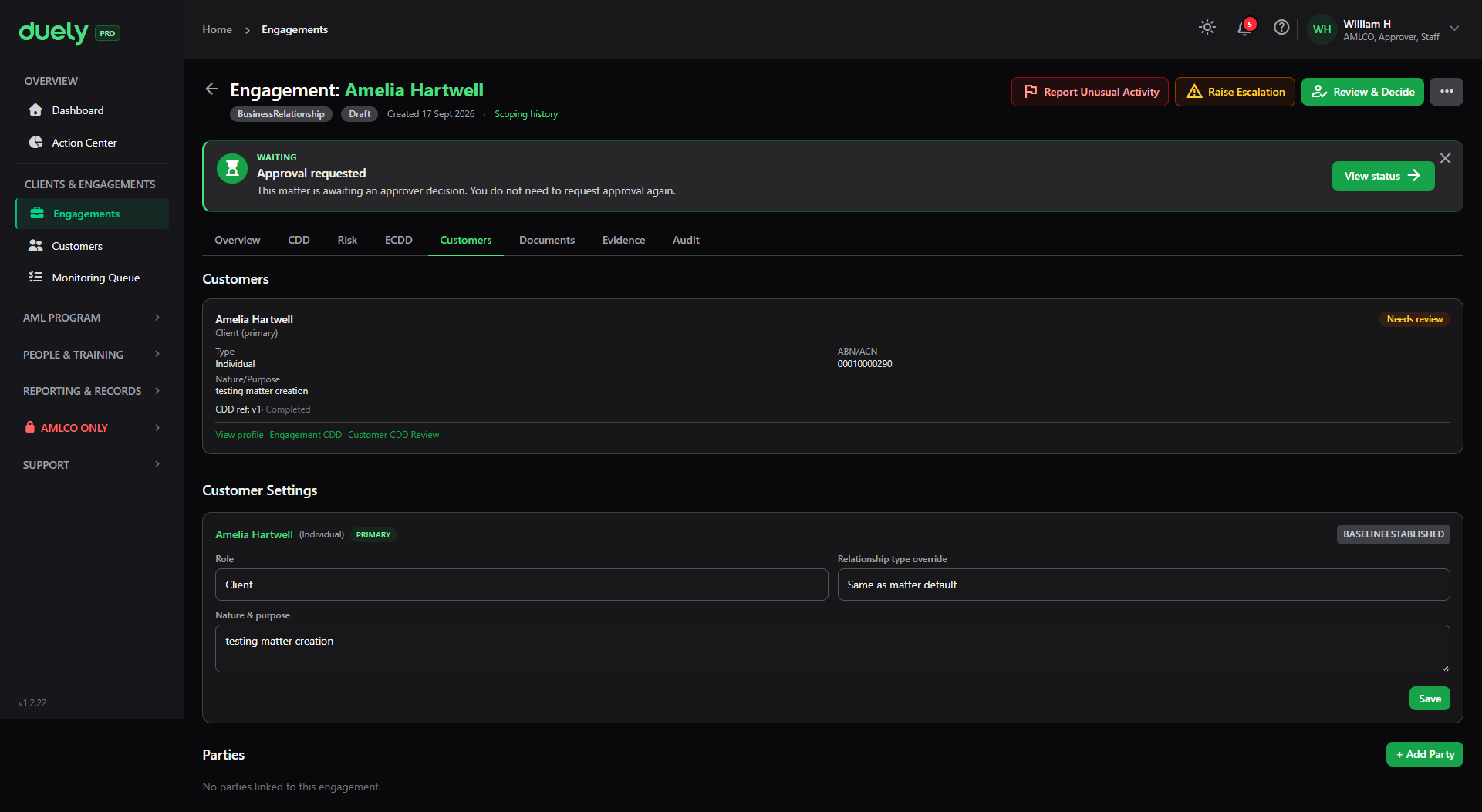
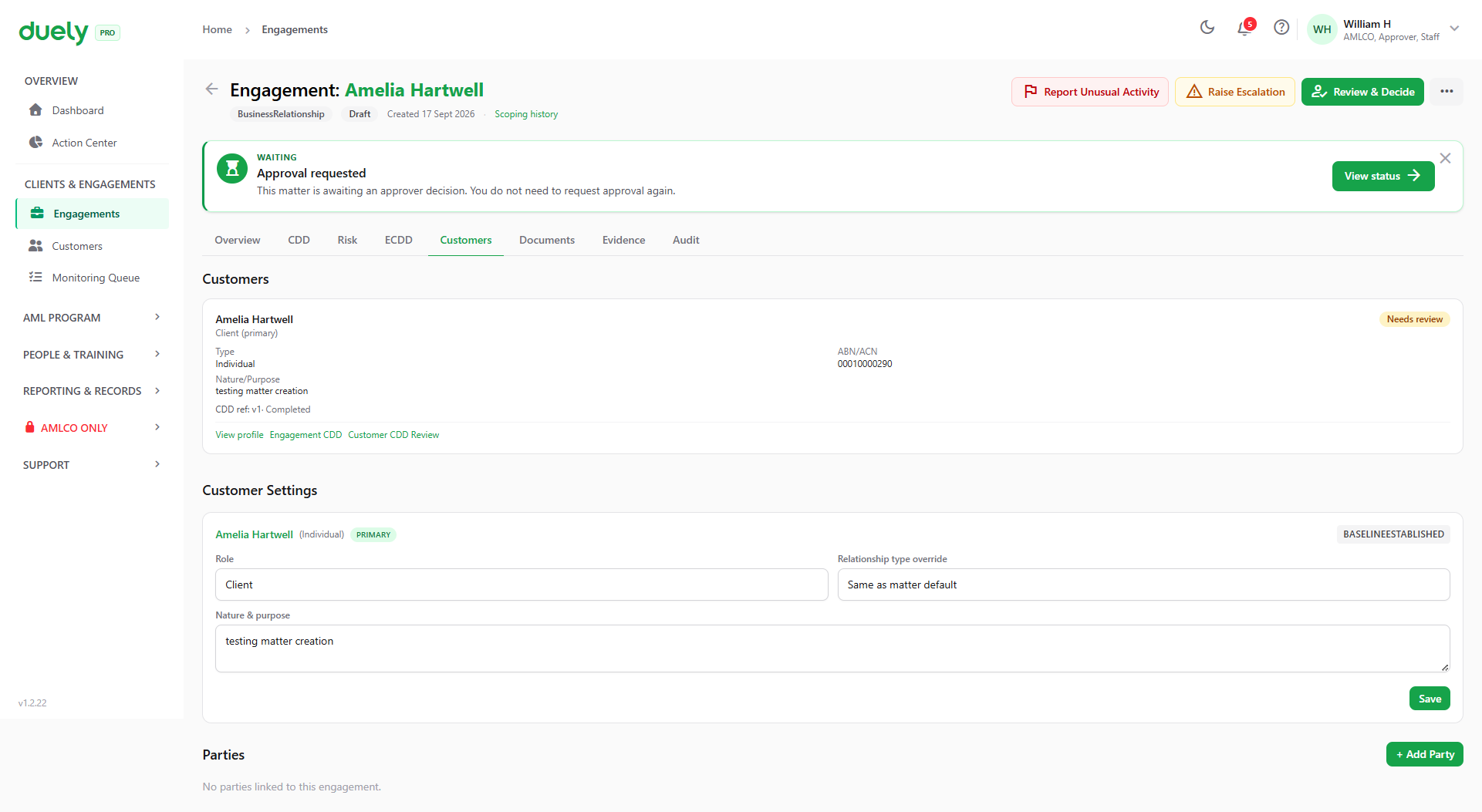
Each customer carries a baseline state, in this case Baseline established, plus the role, a relationship type override for this engagement, and the nature and purpose recorded in step 1. There is a Save action for changes and an Add Party action for adding someone else.
Documents
The Documents tab holds the supporting documents for the engagement, grouped by party in the same way as the customer record.
Uploading directly and requesting from the customer are both offered. As on the customer record, documents are marked Required or Recommended and do not block the engagement by themselves.
Evidence
The Evidence tab holds the generated packs.
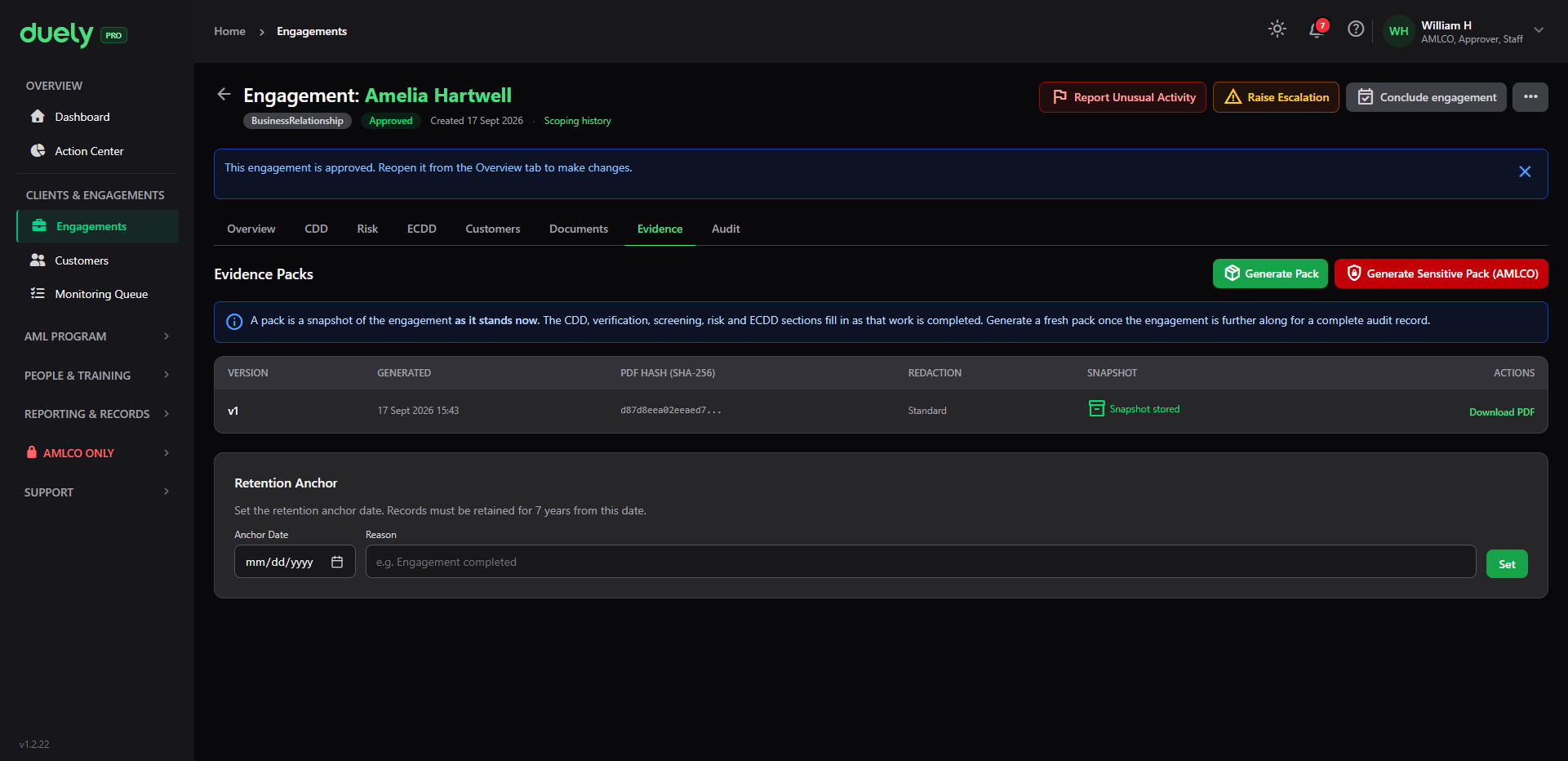
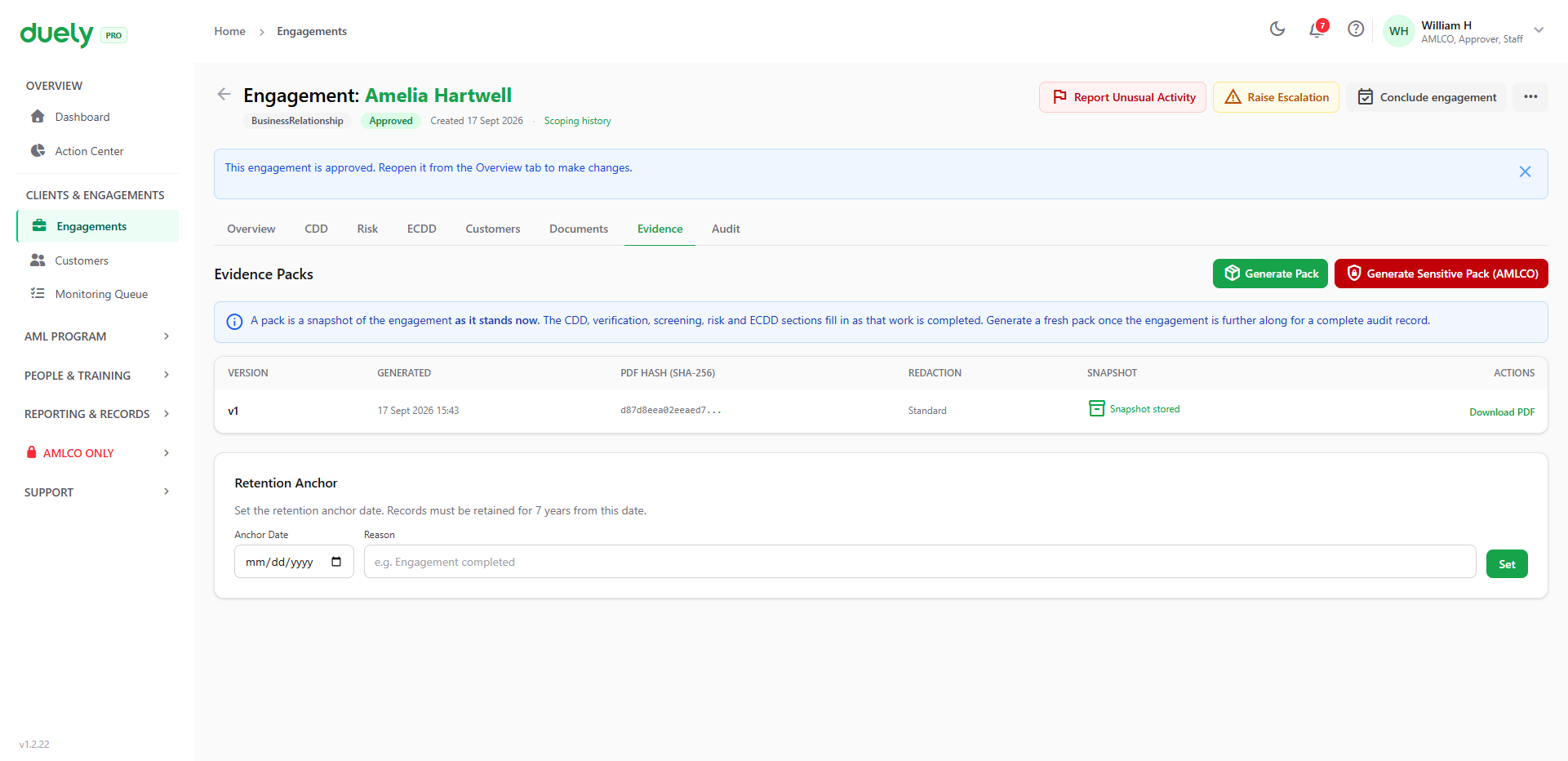
A pack is a snapshot of the engagement as it stands, so generating one early gives you a thinner record than generating it at the end. The Retention Anchor at the bottom of the tab is where you set the date the seven year retention period runs from, with the reason recorded alongside it.
On an approved engagement the tab also carries a banner noting that the engagement is approved and has to be reopened from the Overview tab to make changes.
Audit
The Audit tab is the append-only event stream for the engagement.
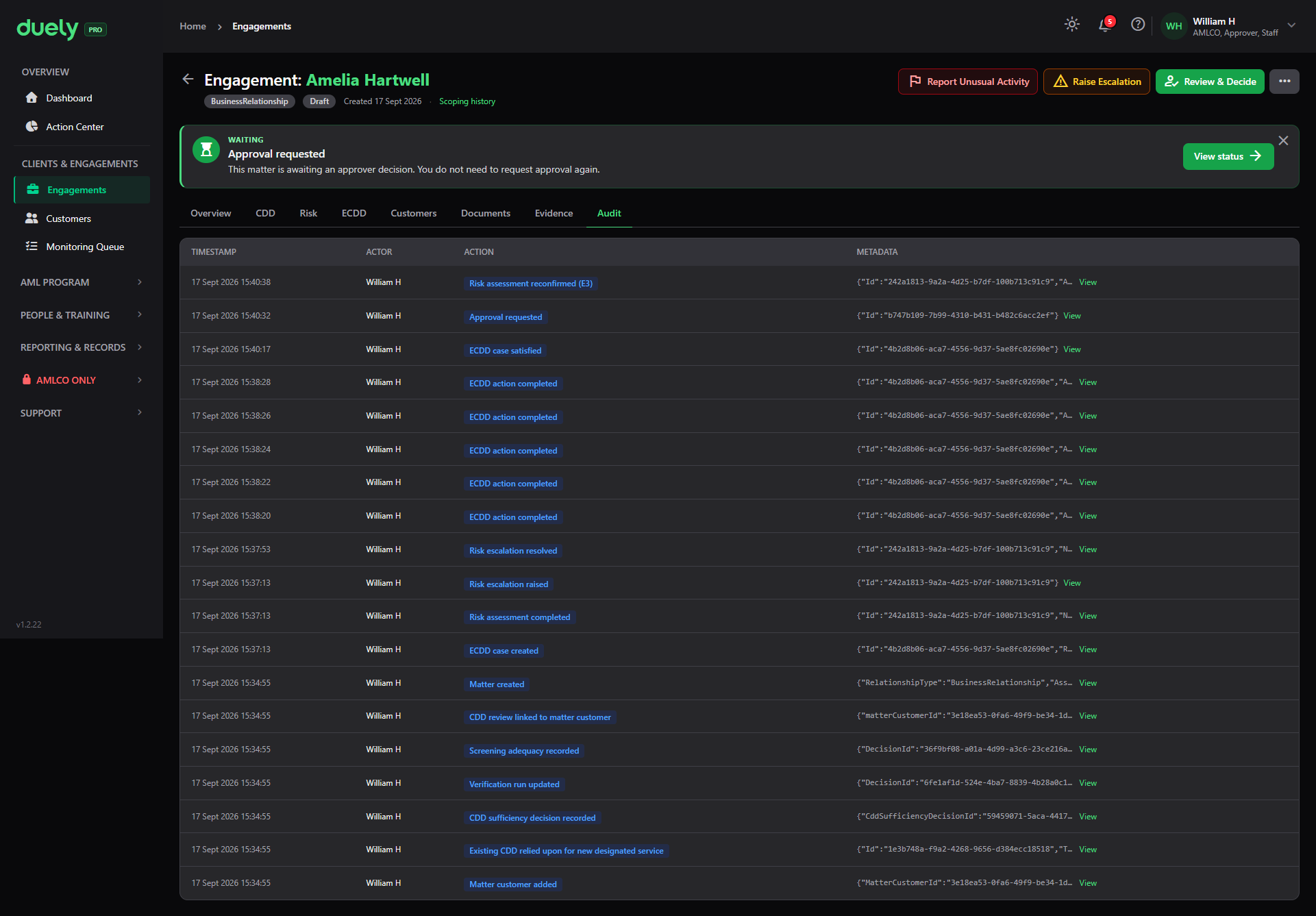
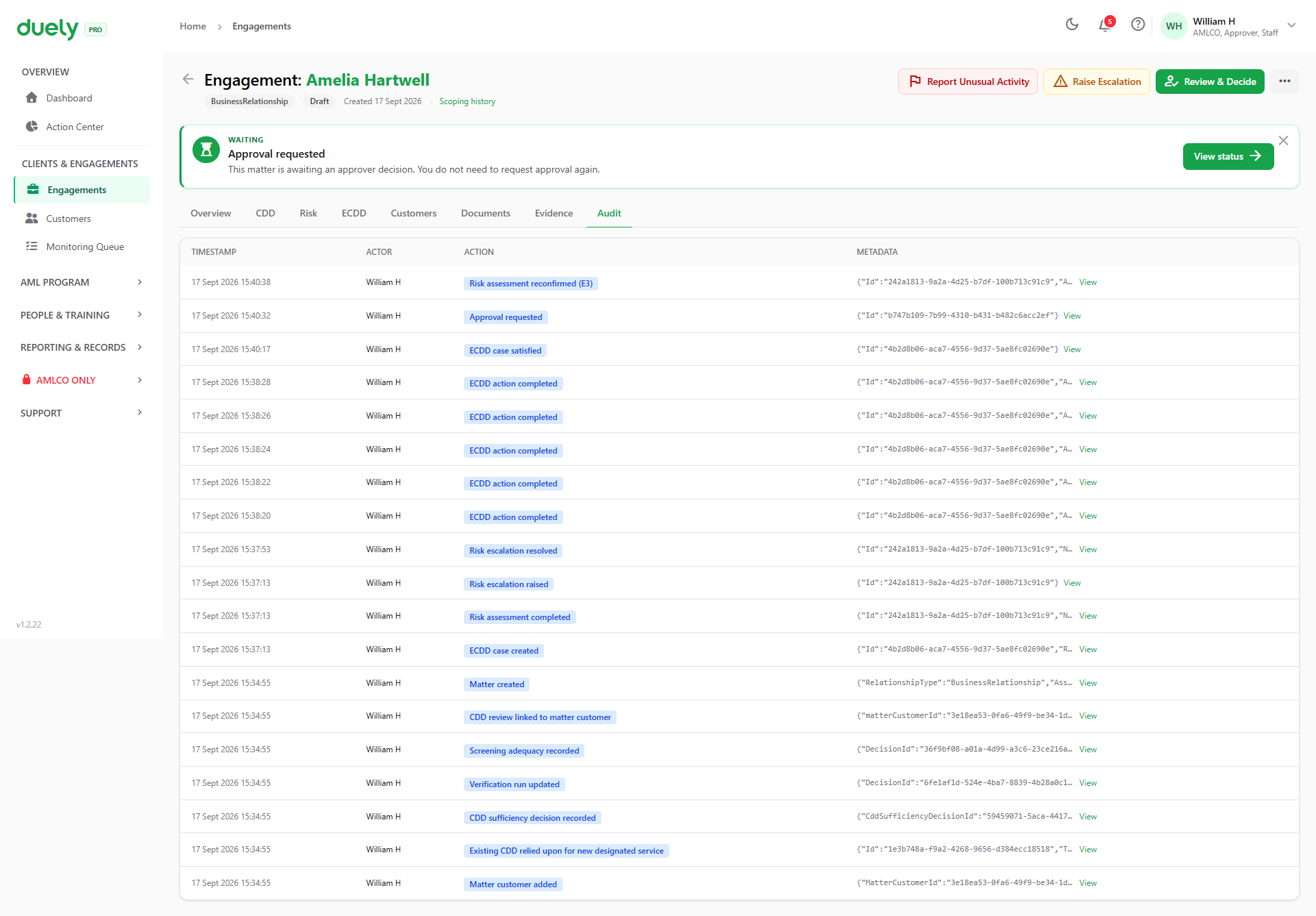
Every step of the flow above appears here in order: the matter created, the customer added, the CDD review linked and its verification and screening recorded, the risk assessment triggered, the ECDD case created and each action completed, and the approval requested. It shows the sequence as well as the end state.
Approval
Request Approval sits on the Overview tab. It is refused while anything downstream is outstanding, and the screen names what:
| Condition | What you see |
|---|---|
| No risk assessment | Blocking issue on the Overview tab, Request Approval disabled |
| ECDD case unresolved | The case must be resolved before approval |
| A party needs review | The customer shows Needs review on the Customers tab |
Once requested, the engagement moves to a waiting state: the banner reads Approval requested and tells you that you do not need to request it again. The Review & Decide action then belongs to the approver, not to you.
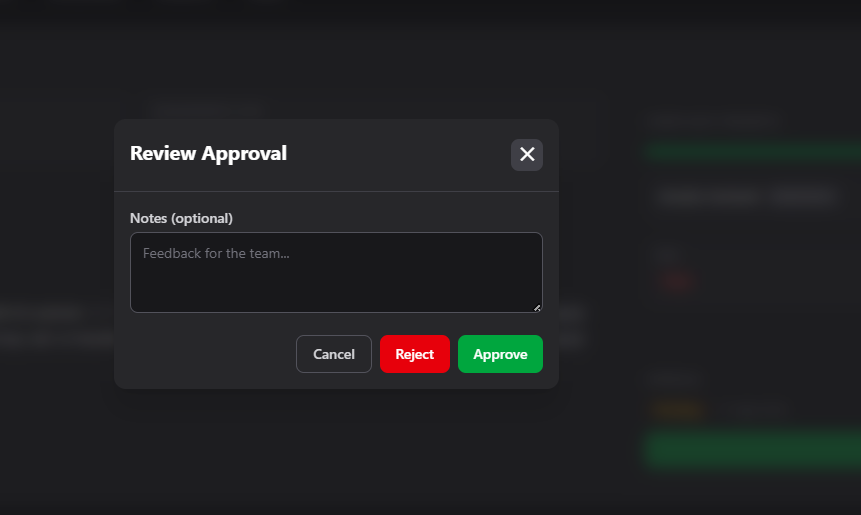
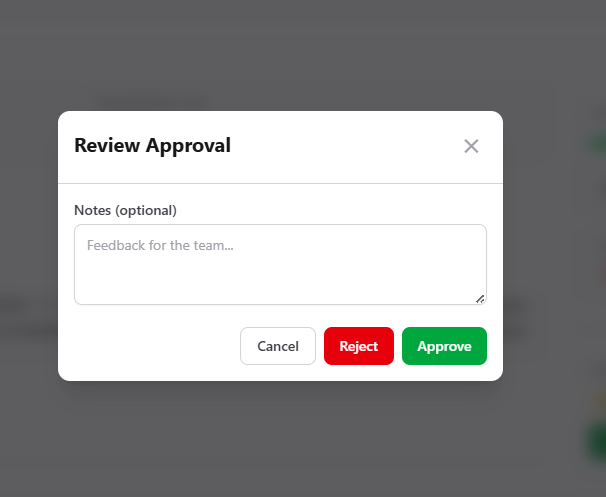
An approver approves or rejects, and rejection is a review outcome rather than an error. The notes field is where the reason goes. Use it on a rejection.
Approval locks the engagement
An approved engagement is locked. The record shows Approved and locked, and the header carries a banner explaining that it has to be Reopen for Update to make changes. The completion panel states the engagement is ready for its evidence pack.
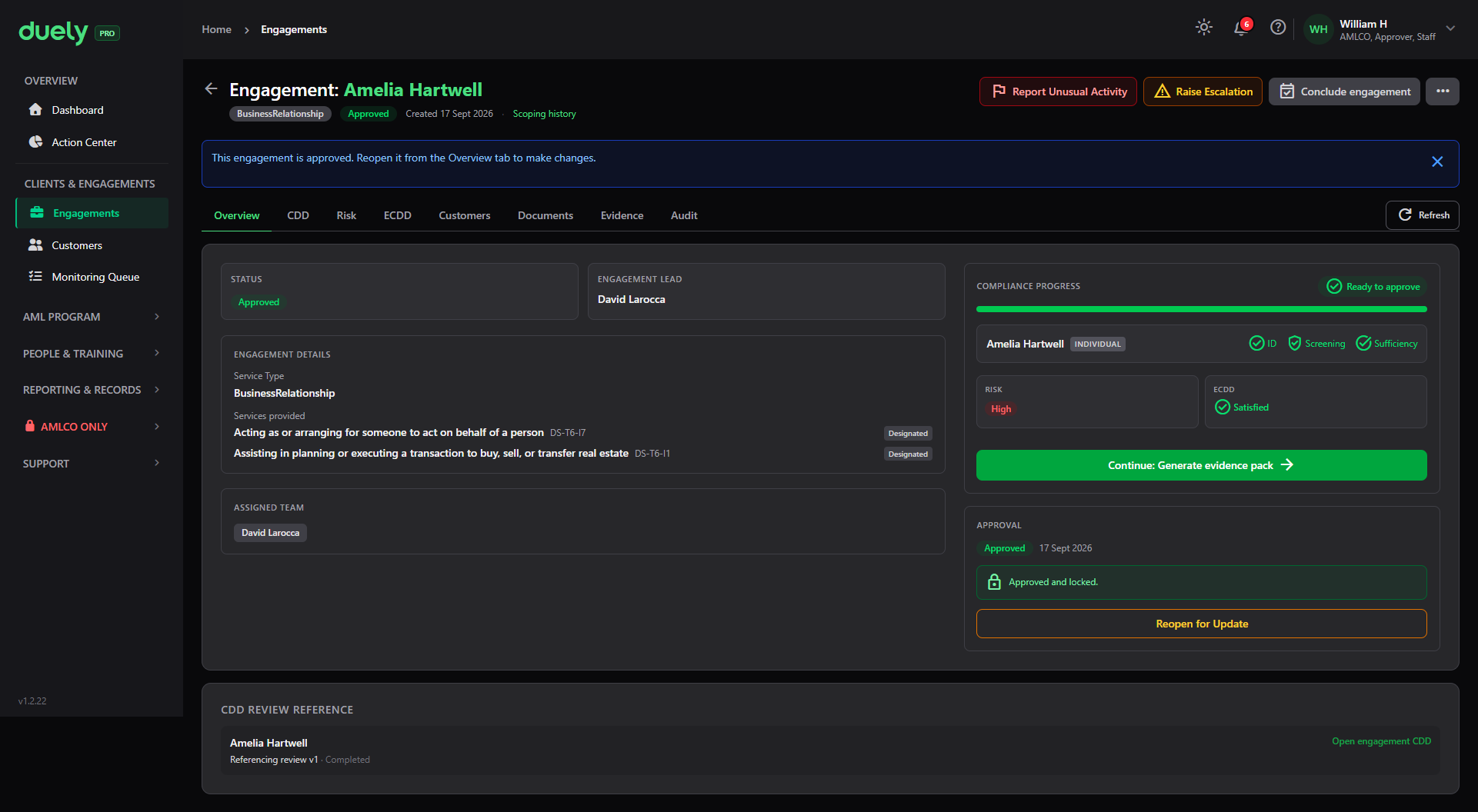
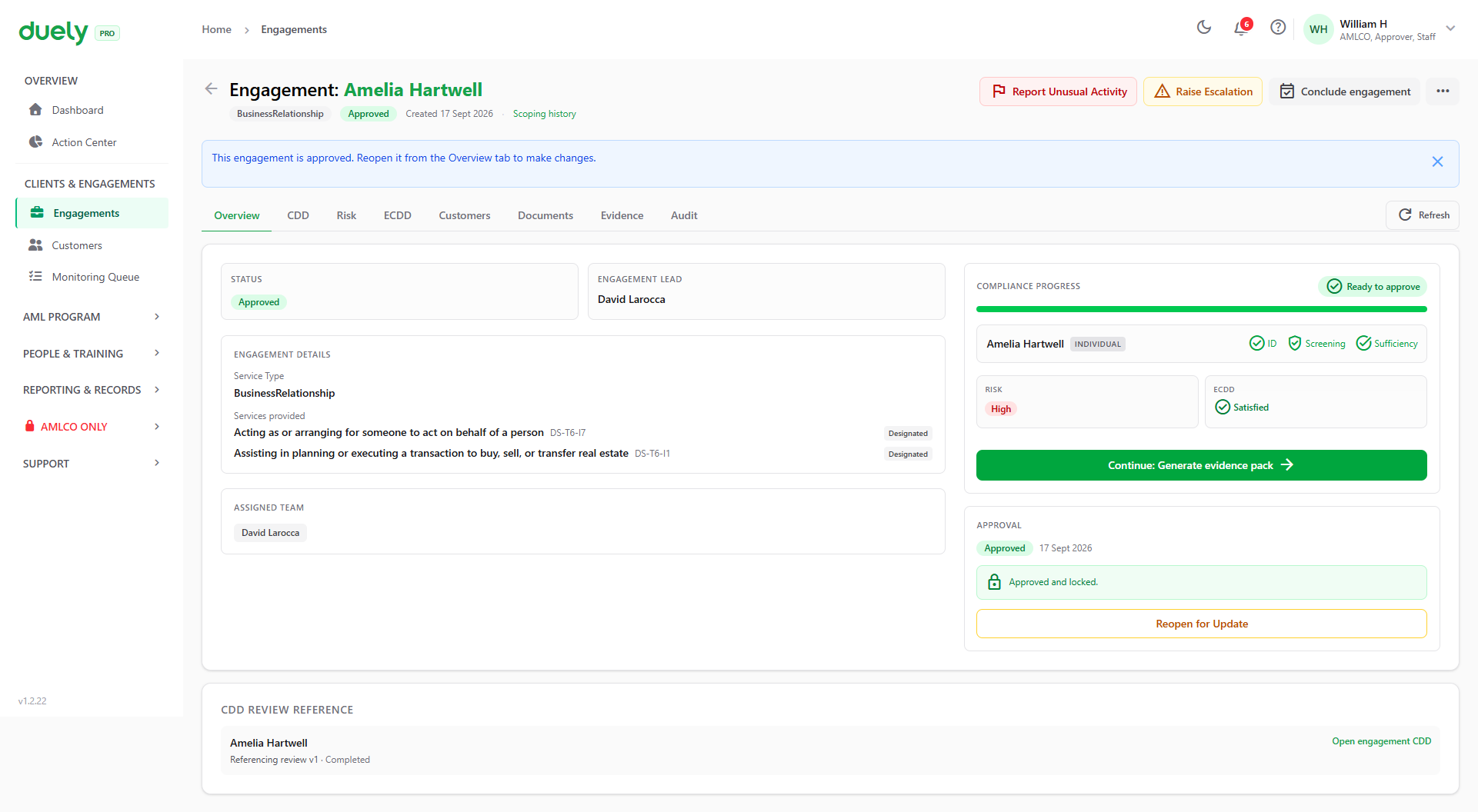
Reopening is a deliberate act, and it is recorded.
Conditional logic, in one place
| Situation | What happens |
|---|---|
| Customer's baseline is flagged or expired, CDD is not started, or identity is not verified | Cannot be selected at step 1. The row links to Complete CDD review or Start CDD |
| Customer is on a pre-commencement (s 36) or delayed CDD (s 29) basis | Can be selected under Other CDD basis applies. The basis is recorded on the engagement |
| Customer is an entity without a committed ownership structure | Cannot be selected until the structure is committed. The step links straight to it |
| Customer baseline is current | Marked auto-accepted, and the CDD does not need redoing on this engagement |
| No service ticked at step 2 | Continue is refused |
| Only non-designated services ticked | Engagement is out of scope, recorded as out-of-scope evidence. A scoping rationale is required |
| Any designated service ticked | Engagement is in scope, and the standard compliance flow follows |
| Non-designated service with a transaction above the threshold in physical currency | Decision refused. The classification and the figures contradict each other |
| Risk rating is High, or a PEP or sanctions match is confirmed | ECDD required, and a case is raised |
| Risk assessment missing | Approval blocked, and the screen names it |
| ECDD case open | Approval blocked until the case is resolved |
| Approval requested | Waiting on the approver, and the request does not need repeating |
| Engagement approved | Locked. Reopen from the Overview tab to change anything |
Changing a scoping decision later
Re-scoping appends a new decision rather than editing the old one, and the history is at Scoping history in the engagement header. It is refused in three situations, each naming its own remedy:
- The engagement is Approved. Reopen it first.
- The engagement is Declined or Withdrawn. Reactivate it first.
- The firm has no published program version. Publish the program first.
What re-scoping can set off
Where a re-scope adds a designated service that was not in the previous decision, that is treated as a trigger event for the customers linked to the engagement. Whether it causes a full review depends on the customer's baseline:
- If the baseline is still valid, the existing due diligence is relied on and the trigger is recorded for audit
- If the baseline has expired or gone stale, the customer's CDD posture changes to Needs review, and the firm's admins and AMLCOs are notified
A re-scope can therefore put review work on someone's desk, by design.
Related pages
- Onboarding a customer, which is where the customer comes from. Most firms add the customer before opening the engagement.
- Customer due diligence, for the legal requirement behind the scoping decision and the CDD timing rule.
- Program builder, which must be approved before scoping, and which supplies the designated services in step 2.
- Verifying identity and Screening, for the checks the CDD tab reports on.
- Evidence packs, for the pack the engagement produces once approved.