Contacting Support
Support runs on tickets raised inside Duely, under Support in the sidebar. There are two entries: Help Center and My Tickets, which is where your tickets and their replies live.
The ticket form opens from Submit a Ticket in the Help section's sidebar, or from the Submit Ticket shortcut on the Help Center page.
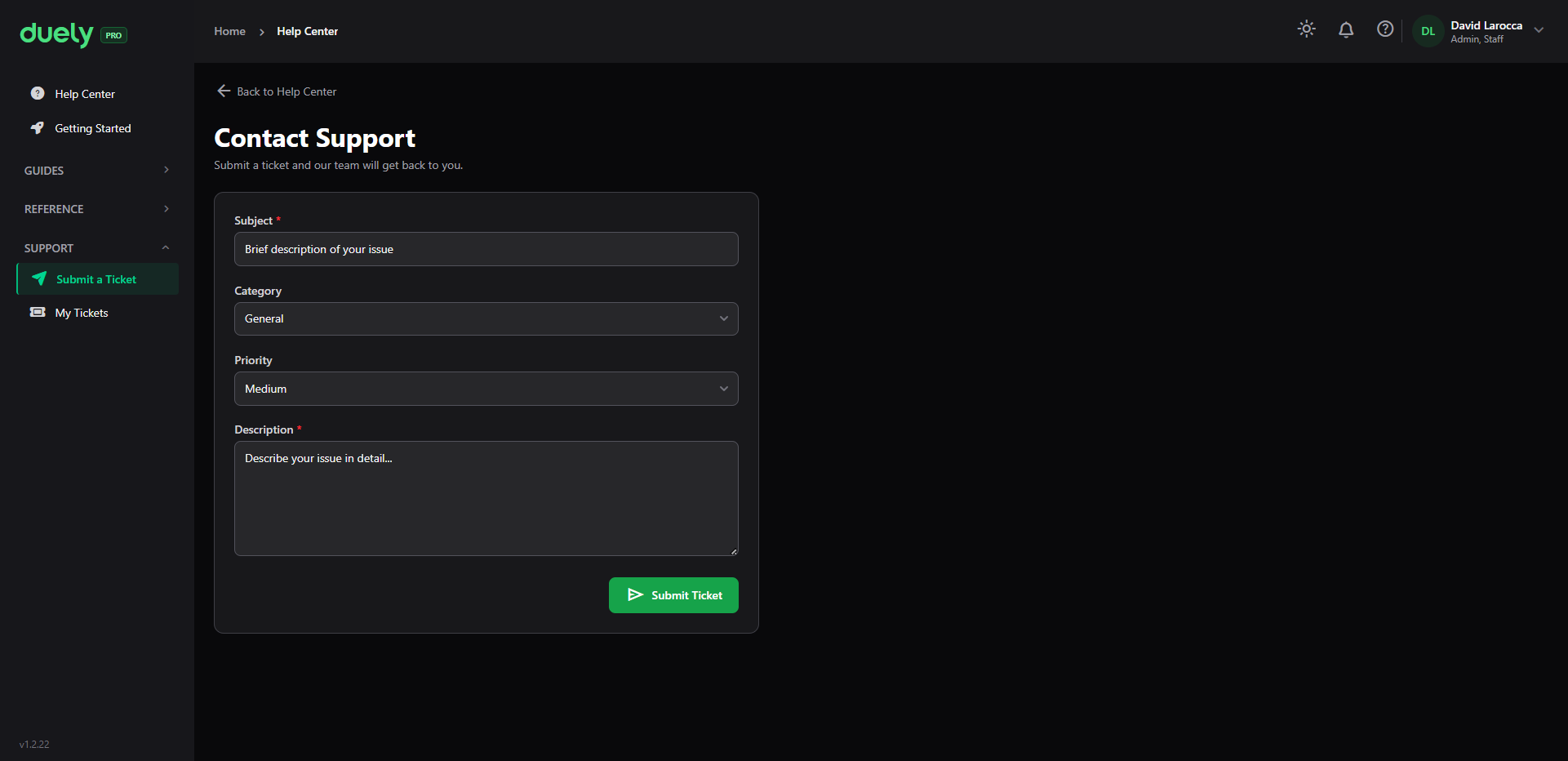
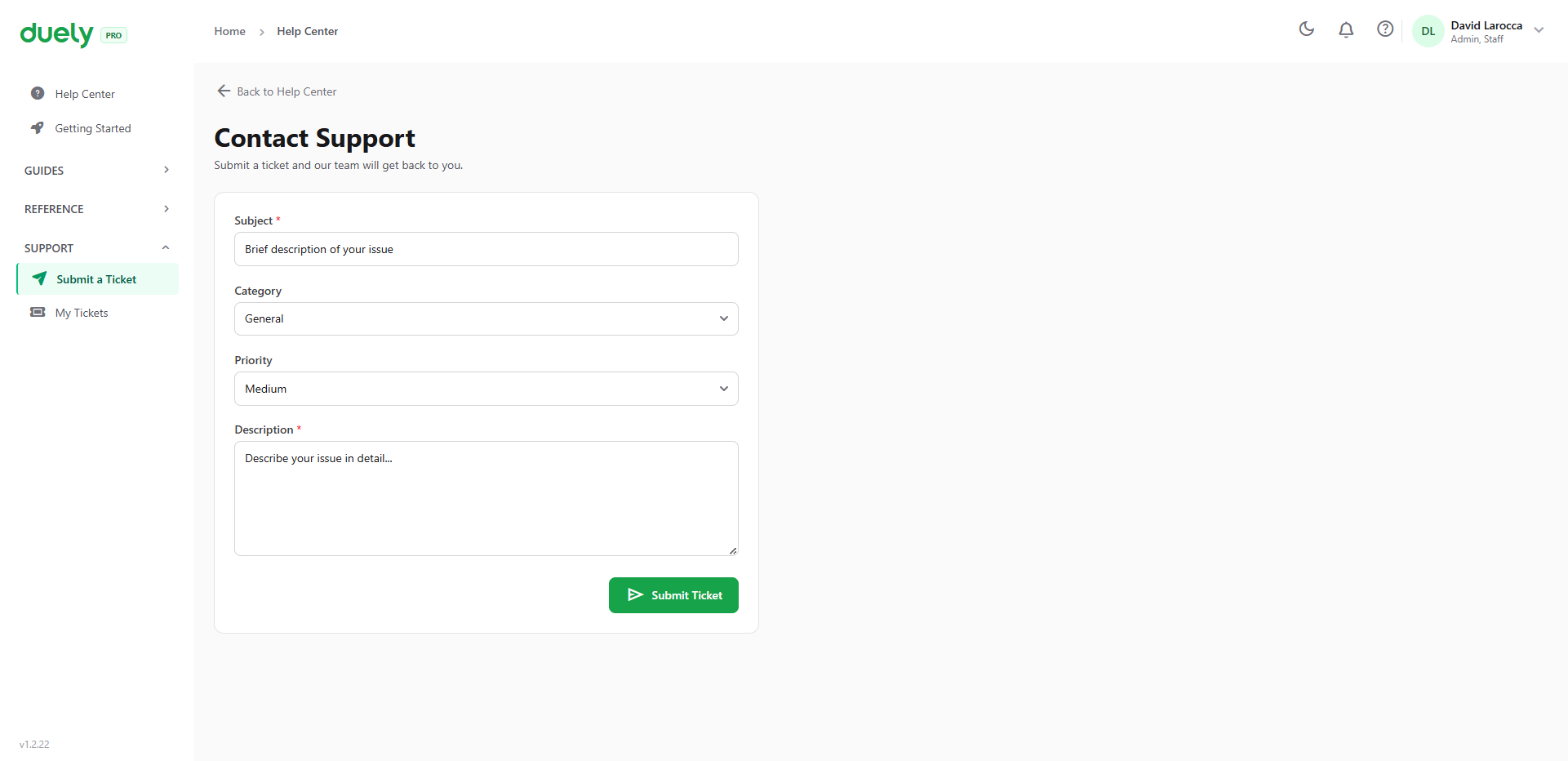
Raising a ticket
The form is headed Contact Support and asks for four things.
Subject is required, and the field placeholder says "Brief description of your issue". Write the problem in the subject rather than the word "Help", because the subject is what the support team scans first.
Category defaults to General. The options are:
| Category | Use it for |
|---|---|
| General | Anything that does not fit the others |
| Technical | Something broken, or not behaving as it should |
| Compliance | Questions about how an obligation or workflow is meant to work |
| Billing | Your subscription, invoices or plan limits |
| Feature Request | Something you would like Duely to do |
Priority defaults to Medium. The options are Low, Medium and High. Set it by how much the problem is blocking you rather than by how annoying it is:
- High where you cannot complete a compliance task
- Medium where something is wrong but you can work around it
- Low where it is a question, a suggestion, or cosmetic
Description is required, with the placeholder "Describe your issue in detail". How fast the answer comes back depends on this field, so the next section covers what to put in it.
Submit Ticket sends it. Nothing else is needed from you at that point, and you do not have to stay on the page.
What to put in the description
Four things make a ticket answerable without a round trip:
- What you were doing, naming the screen and the step
- What you expected, and what happened instead: the gap between the two is usually the whole problem
- The exact wording of any error message, copied rather than summarised. A paraphrased error often points at the wrong cause
- Whether it is blocking you, since that changes what the team does next
Where the problem is visual, say which screen and what looks wrong. There is no file attachment on the form, so describe it rather than planning to attach a screenshot.
After you submit
Your ticket moves through four statuses: Open, In Progress, Resolved and Closed.
On submission the ticket is recorded and the support inbox is emailed with the subject, category, description and your details, plus a link straight to the ticket. You can then follow it at My Tickets, which lists your own tickets and filters them by status across All, Open, In Progress, Resolved and Closed.
Opening a ticket shows its full description and the message thread. You can reply to any ticket that is not closed, and you can close a ticket yourself from its detail view at any time.
Where to go first
Check Common Issues before raising a ticket. It covers the problems that come up most often, and working through it is faster than waiting for a reply.
If you do raise a ticket, the more of the description fields above you fill properly, the fewer questions come back.
Related pages
- Common Issues, for the fixes to try first.
- Login and Access Issues, where the problem is getting in.
- Known limitations, because some things that look like faults are deliberate boundaries.