Platform Tour
This page tours the Duely application in the order a new firm works through it, and says where each task lives in the sidebar.
Two things shape the layout. First, the sidebar is organised by task rather than permission tier, so people and training administration sits with the rest of the people and training work instead of in one large administration list. Second, items you cannot access are hidden, so two users at the same firm may see different sidebars.
1. Set up the firm
Everything starts at Firm Profile, under Firm in the sidebar. Only firm administrators can see it.
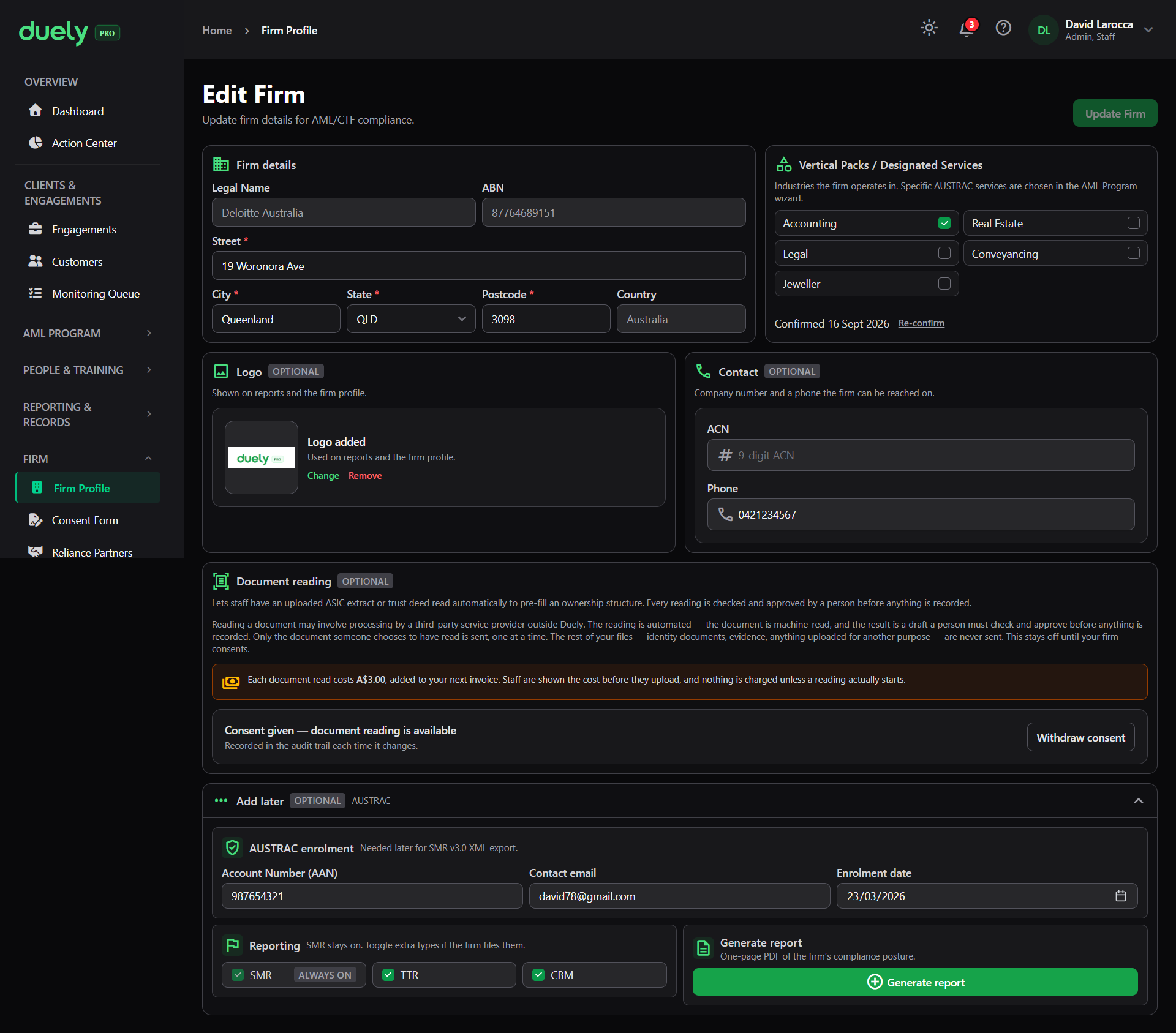
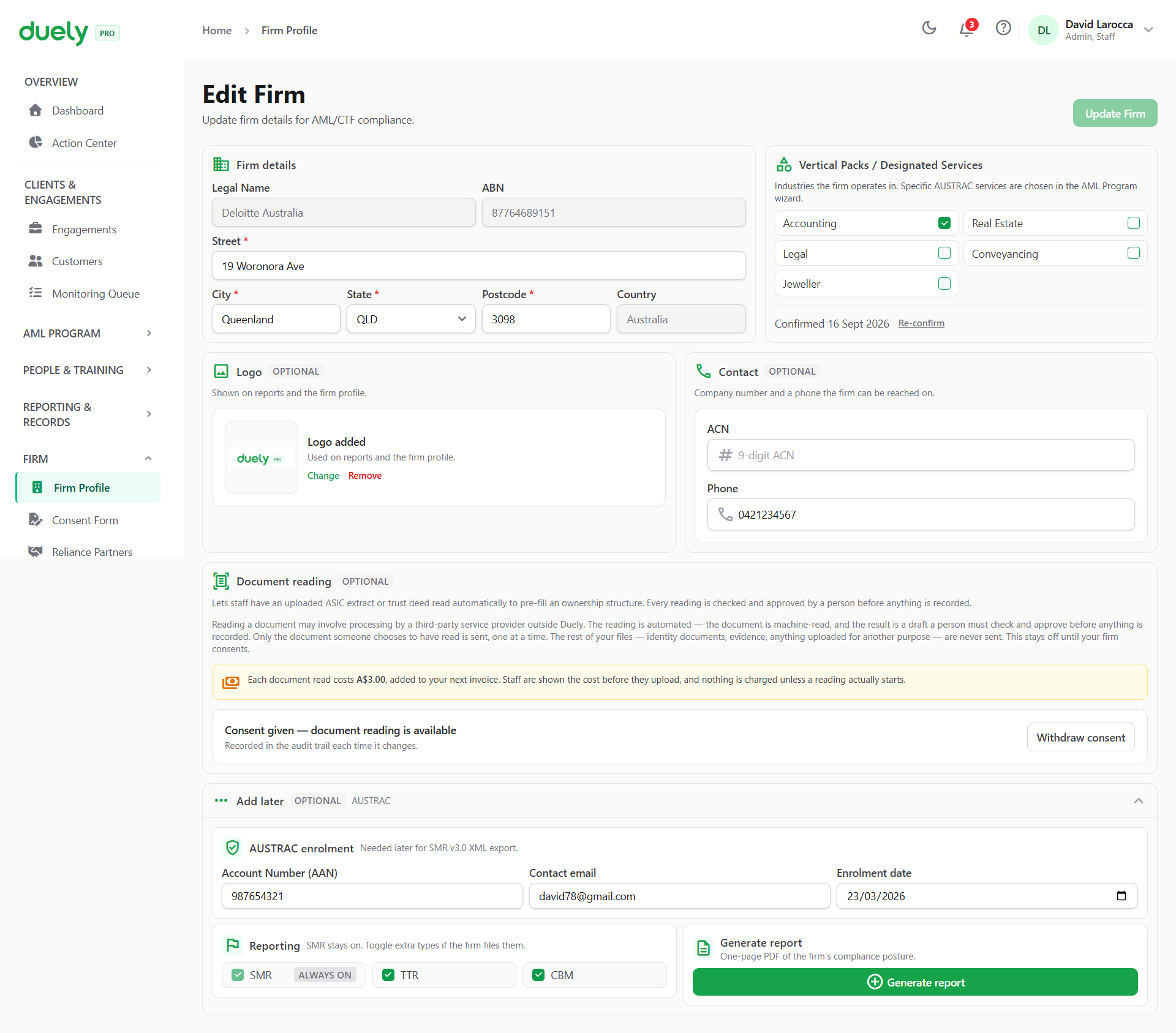
You record the firm's legal name and ABN, its address, its vertical, and its reporting toggles. The legal name prints on your program and evidence packs, and it locks once saved, so enter it as it should appear on a document handed to a regulator.
The vertical is the most consequential choice on the page. It decides which policy templates your program is built from, which designated services appear in your catalog, and even the words the interface uses. Set it correctly now: changing it later does not retroactively rewrite an approved program.
Before the product will run an identity or screening check, four setup statements must be accepted. They appear in a dialog that blocks administrators until the statements are accepted. Other staff can continue to the dashboard, but checks stay blocked until an administrator accepts. The statements cover that the firm carries on business in Australia, its privacy position, that it uses verification for its own customers only, and that it collects customer consent. See Firm setup.
2. The dashboard, before the program exists
Dashboard is the first item in the sidebar and always visible. A new firm lands on a setup path rather than a compliance view.
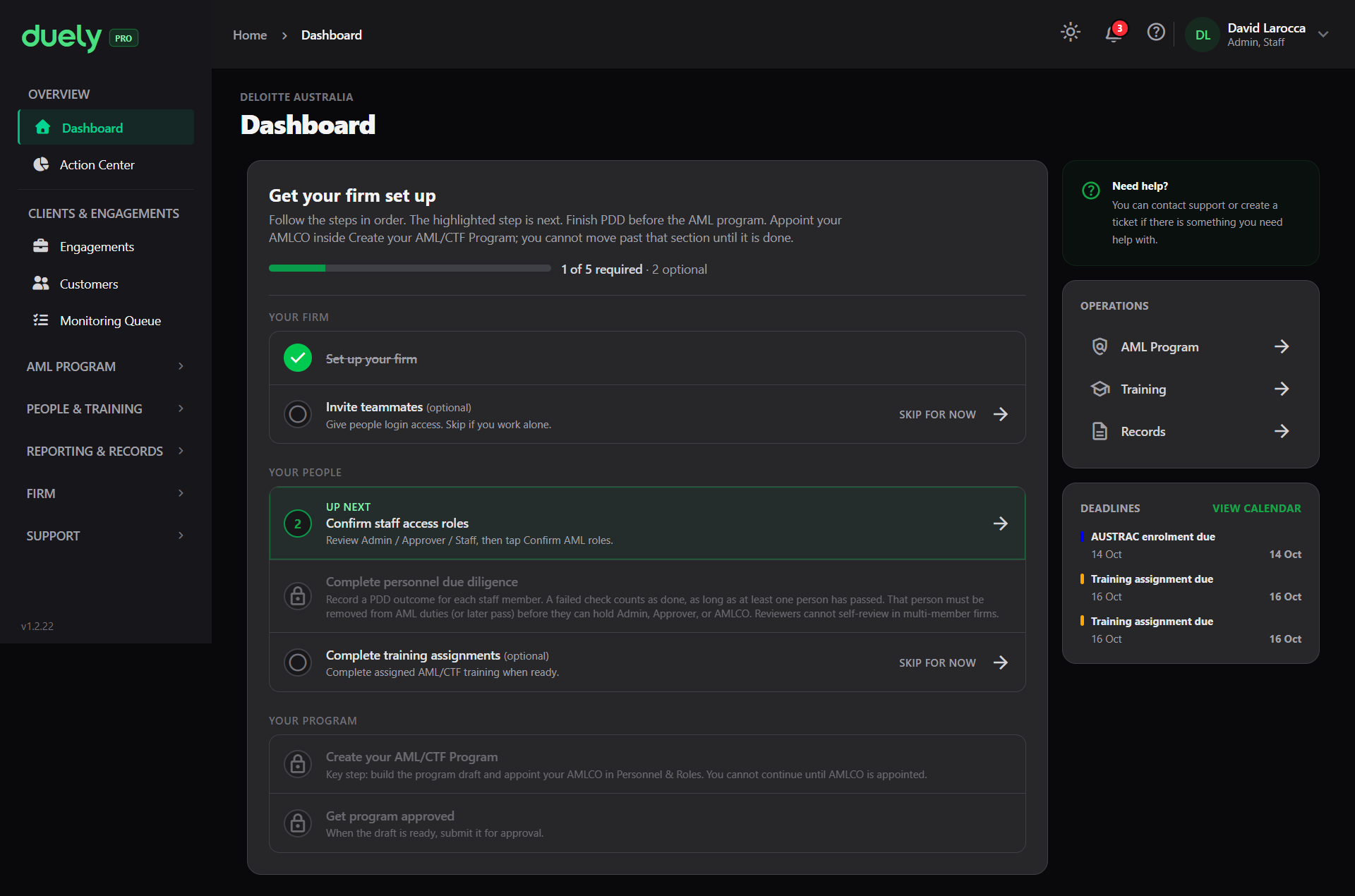
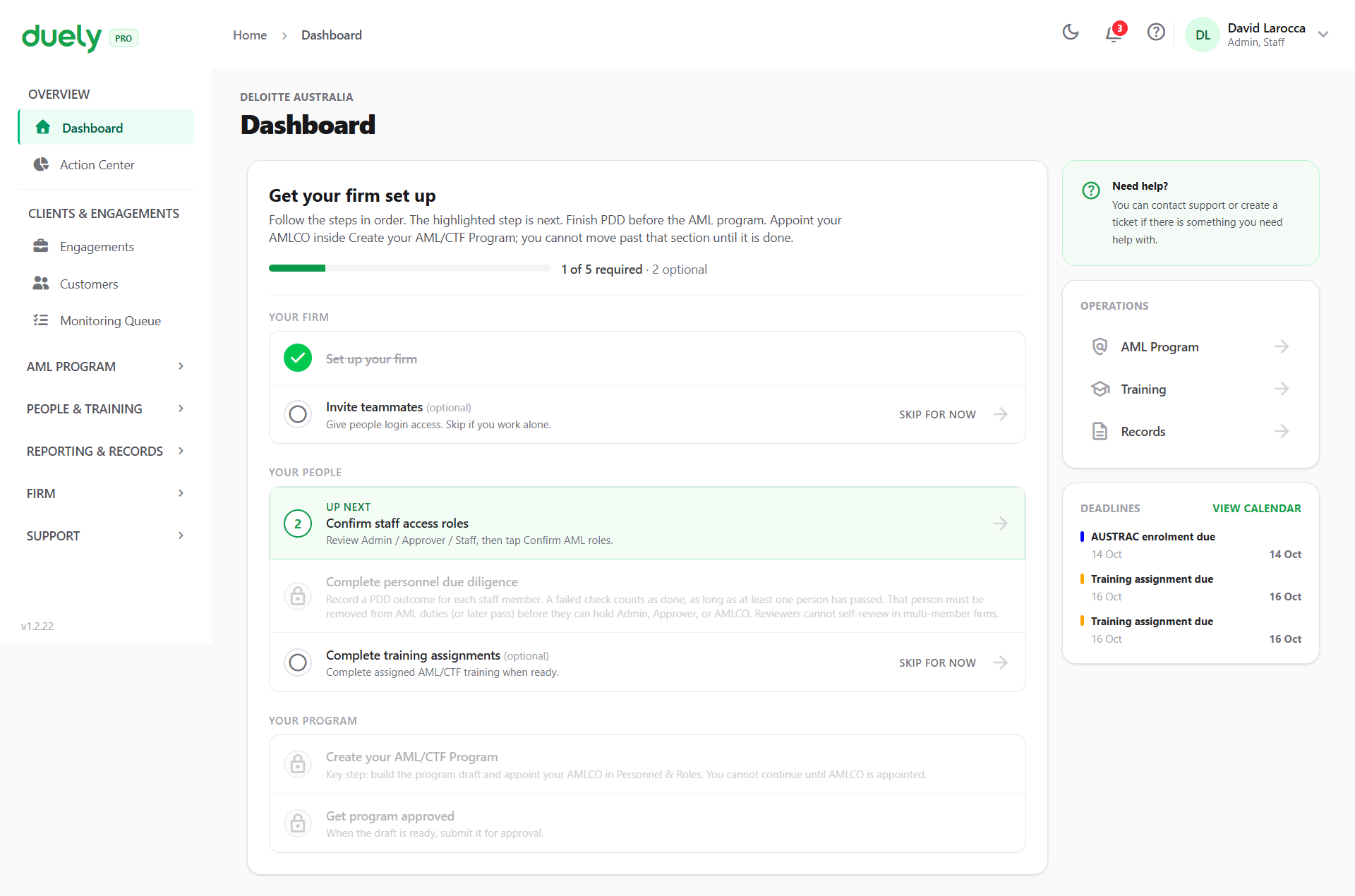
The panel is headed Get your firm set up and lists the steps in order, marking the next one and greying out anything not yet reachable. The steps are: set up your firm, invite teammates (optional), confirm staff access roles, complete personnel due diligence, create the program, get it approved, then complete training assignments (optional).
Two of those are optional and can be skipped with SKIP FOR NOW. The rest are not, and the panel is explicit about the dependency that catches people: personnel due diligence has to be done before the AMLCO can be appointed, and the program cannot move past that point until the AMLCO exists.
The right-hand column carries Operations shortcuts into the AML Program, Training and Records, and a Deadlines list showing what is coming up, including your AUSTRAC enrolment date.
3. Build and approve the AML/CTF program
Program Builder sits under AML Program, and it is the step the dashboard is waiting on.
The wizard has three steps: Risk Assessment, Personnel & Governance, and Client Due Diligence. A step rail runs down the left, the questions for the current section fill the centre, and the policy text your answers are generating appears on the right, so you watch the program being written rather than discovering it at the end.
The first section is Designated Services, and what you tick there propagates: it drives the program's CDD sections and the services you can later classify on a matter.
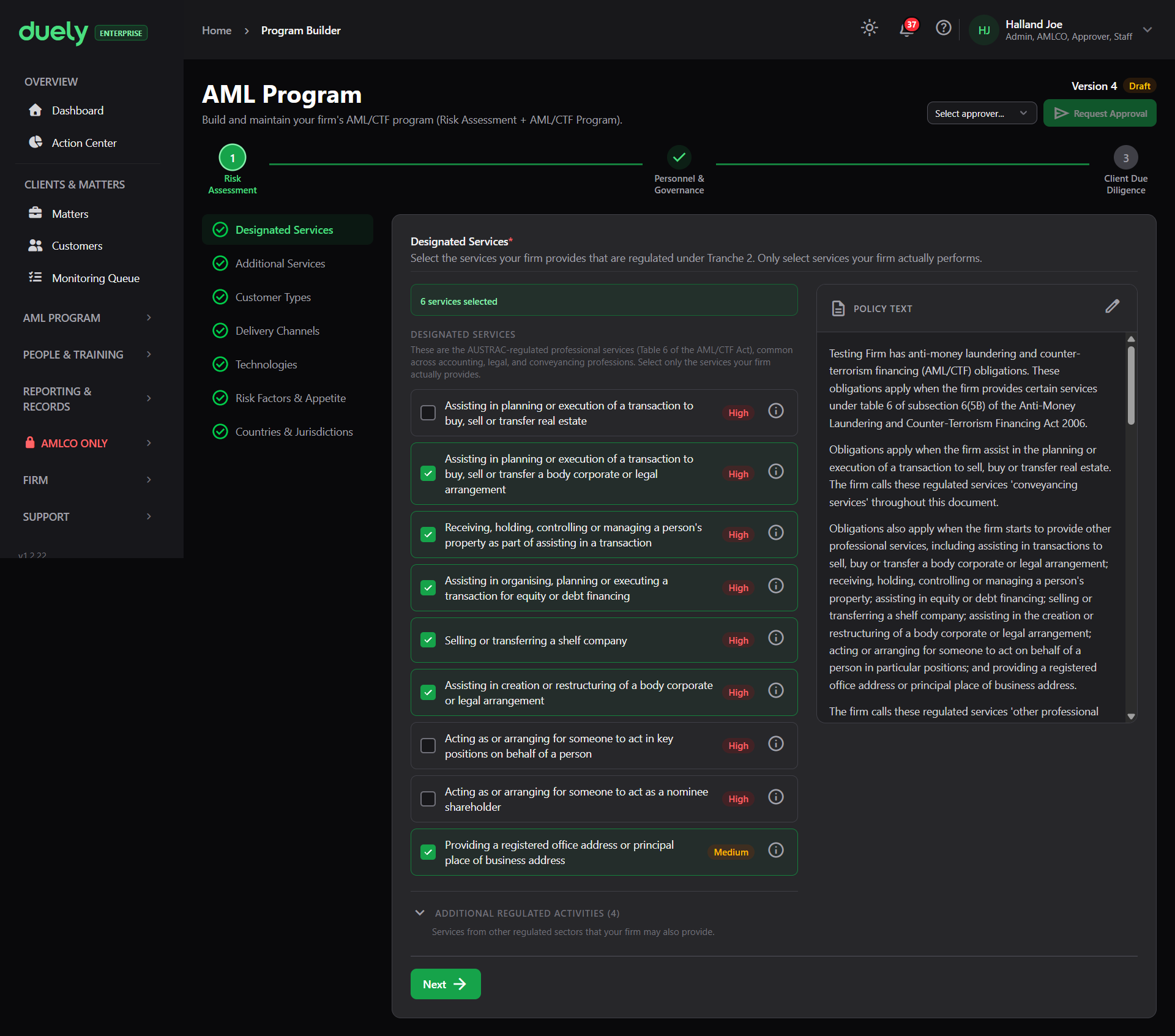
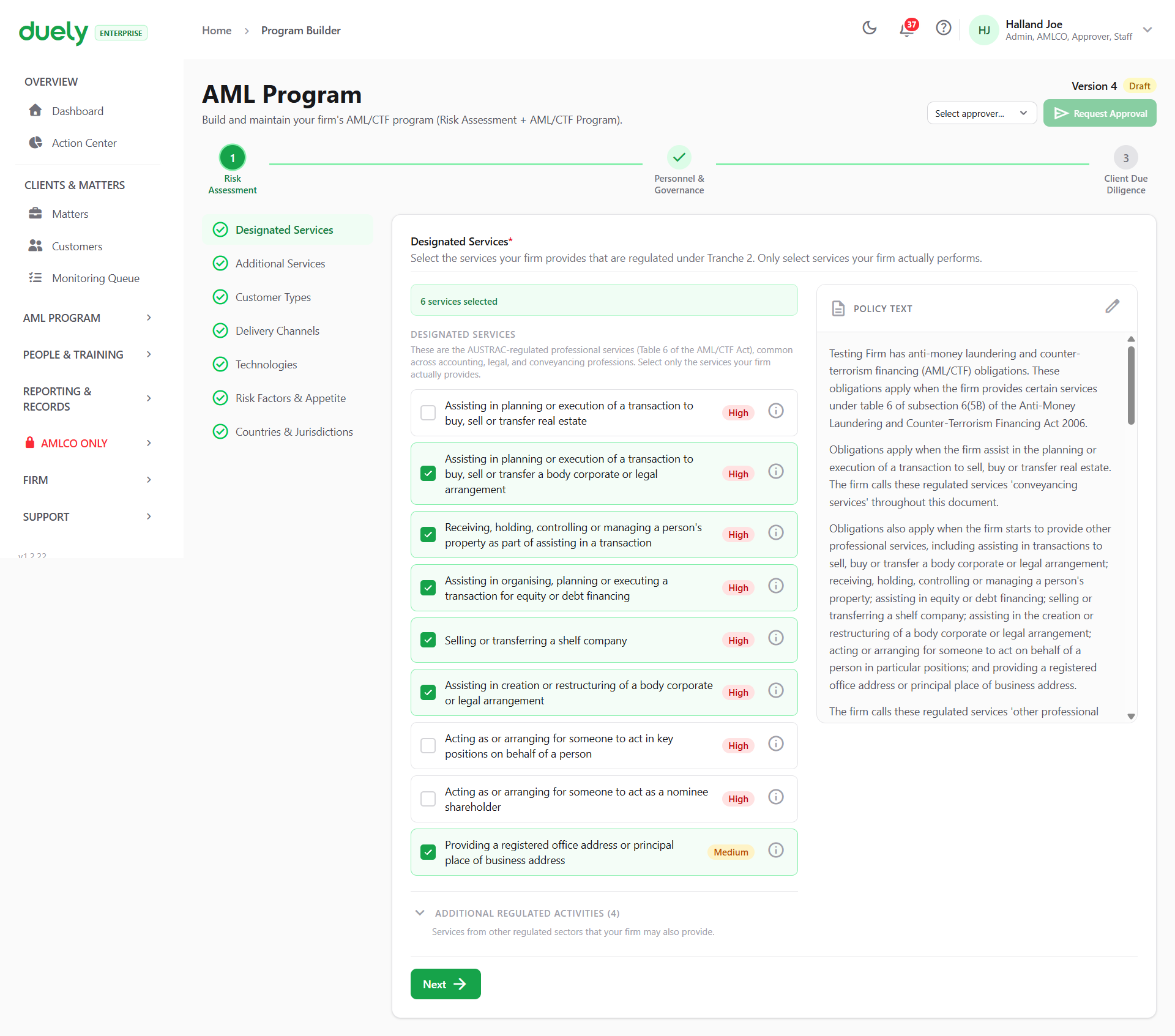
Personnel & Governance is where the AMLCO is appointed, in Roles & Responsibilities, and where the training program is set in Training Program. Client Due Diligence sets how often customers are reviewed by risk level, sets the escalation path in Escalation & ECDD, configures reporting, and ends with a preview of the whole document you can download as a PDF.
A fourth stage covering program maintenance is generated automatically into that document rather than asked as questions, which is why the wizard stops at three.
Approving produces a new version and marks the previous one superseded, so the version history shows what the program said at any point rather than only what it says now. See Using the Program Builder.
4. The dashboard after approval
Once a program version is approved, the dashboard stops being a setup path and becomes the firm's compliance position.
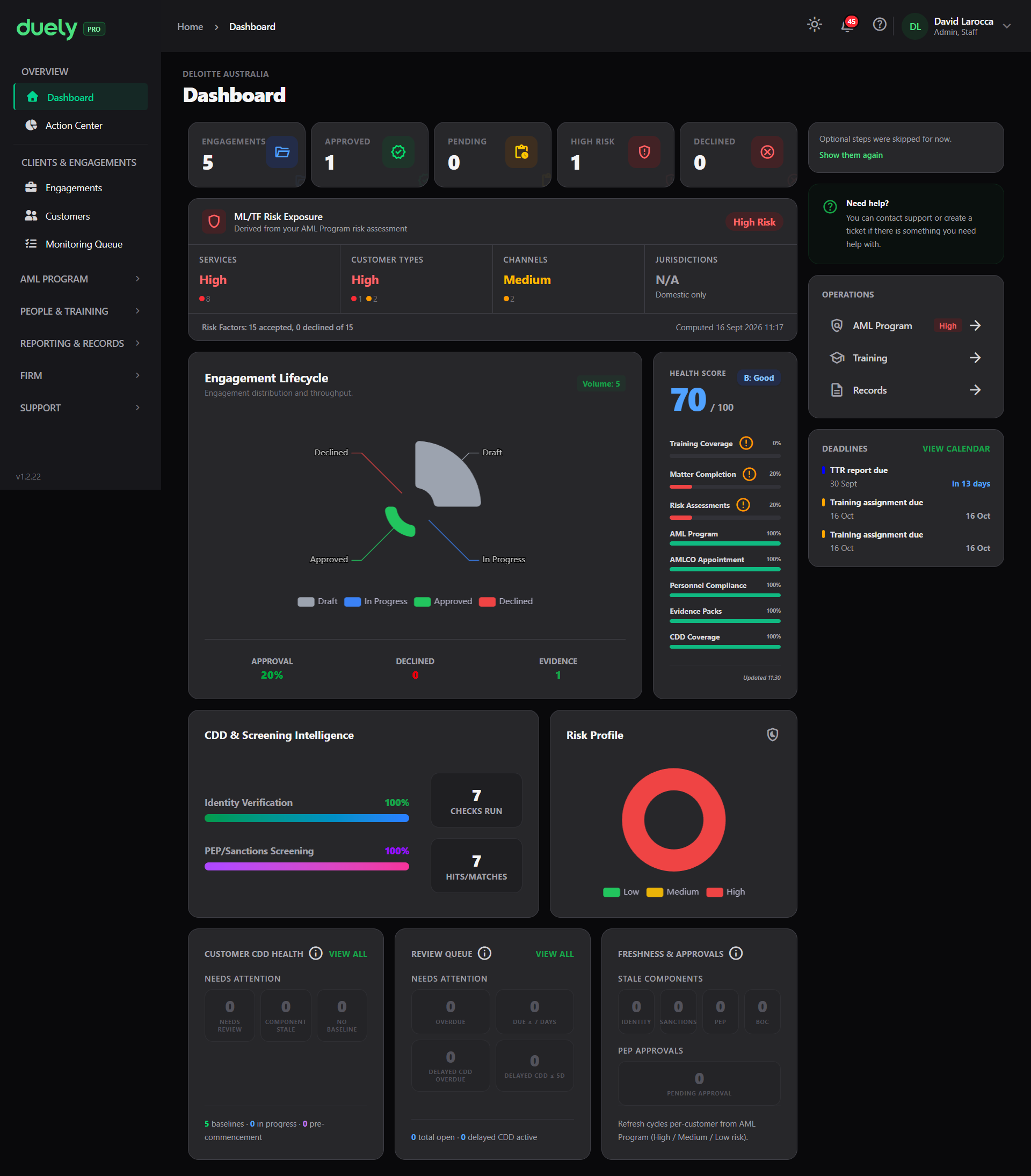
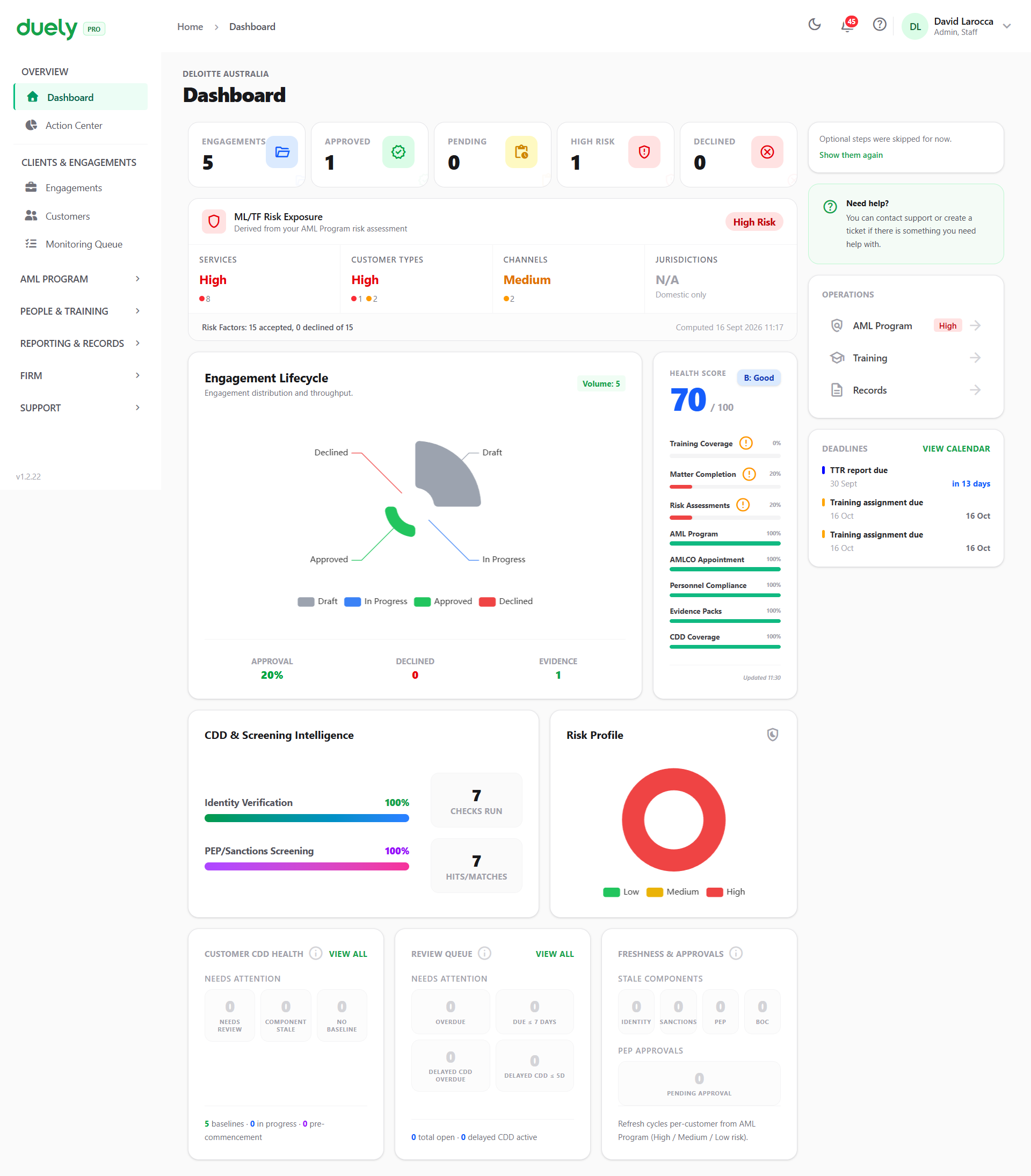
The checklist is replaced by working figures. Across the top, counts of engagements by state and how many are high risk. Below that, an ML/TF Risk Exposure panel taken from your program's risk assessment, and an Engagement Lifecycle chart showing how work is distributed from draft through to approved.
The Health Score panel scores the firm out of 100 and breaks that down across training coverage, matter completion, risk assessments, the AML program, AMLCO appointment, personnel compliance, evidence packs and CDD coverage. Each line is a link into the area that would raise it, so a low score tells you where to go rather than only that something is low.
Below that sit CDD & Screening Intelligence, a Risk Profile, a Customer CDD Health panel, the Review Queue, and Freshness & Approvals covering baseline staleness and pending approvals.
5. Onboard a customer
Customers, under the Clients & group (for example Clients & Engagements in an accounting firm), is the firm-wide register.
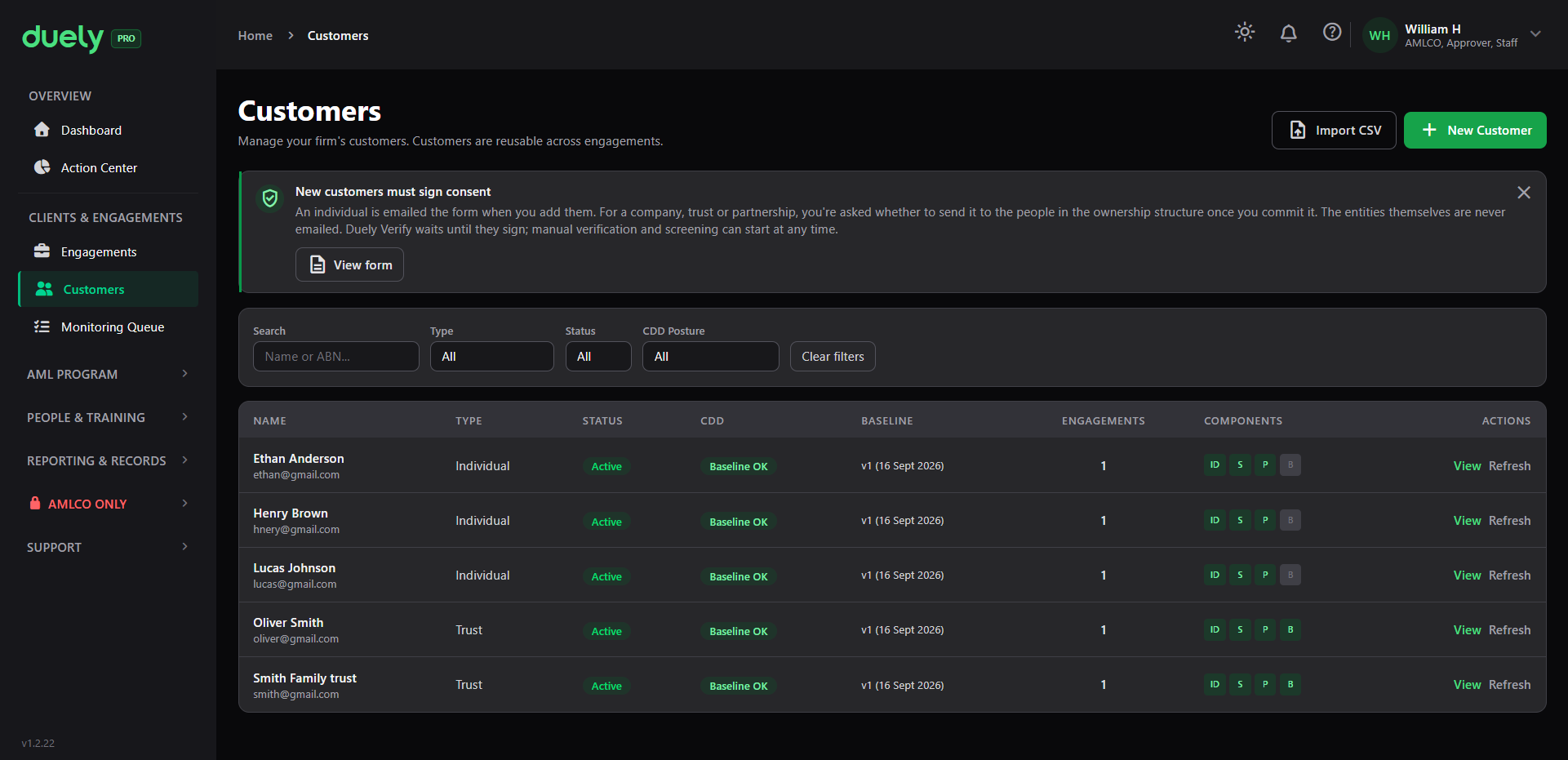
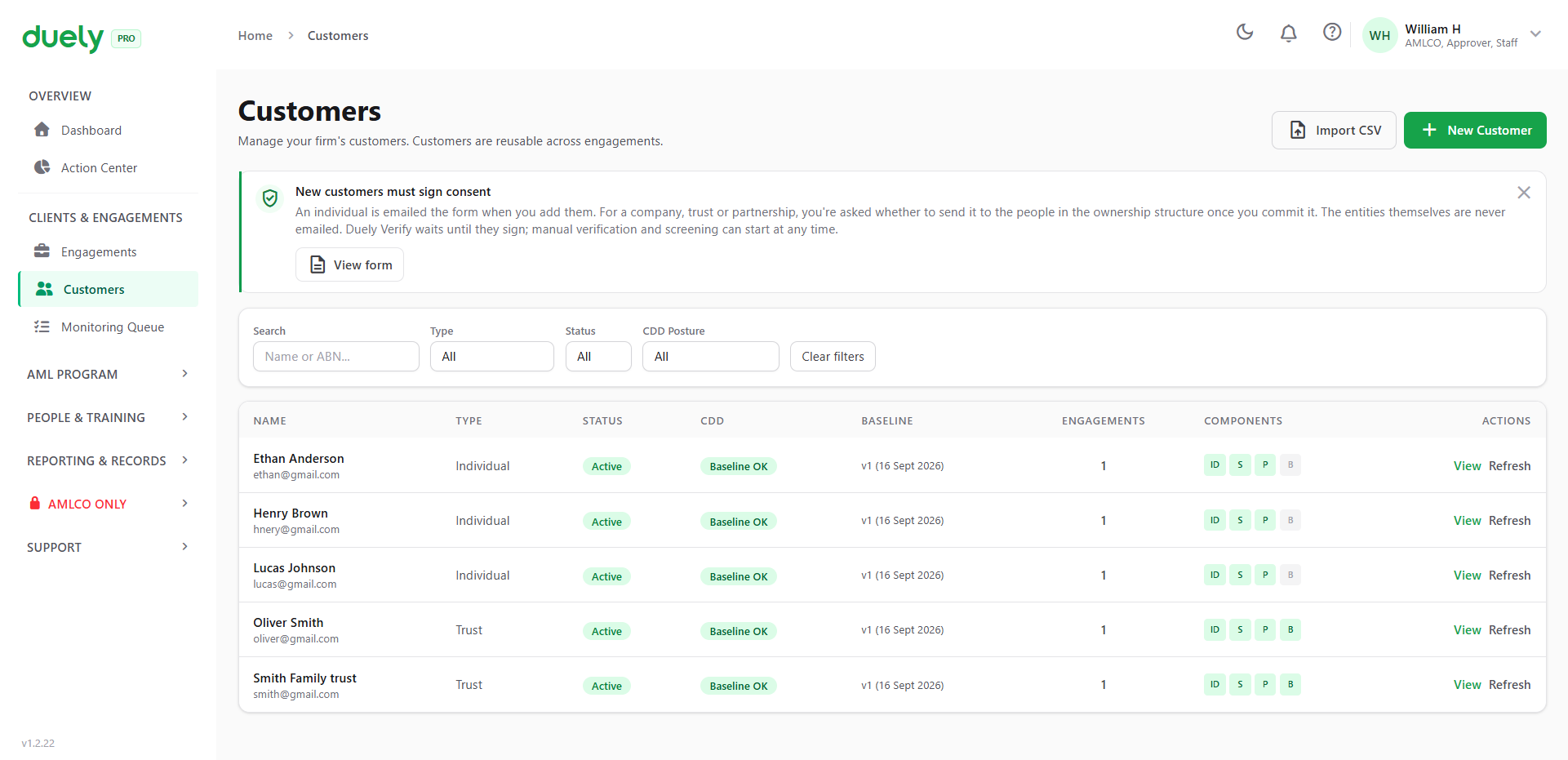
Each row shows the customer's type, status, CDD posture, baseline version and date, engagement count and actions. Adding one is a short form: customer type, identity and contact details, then the checks.
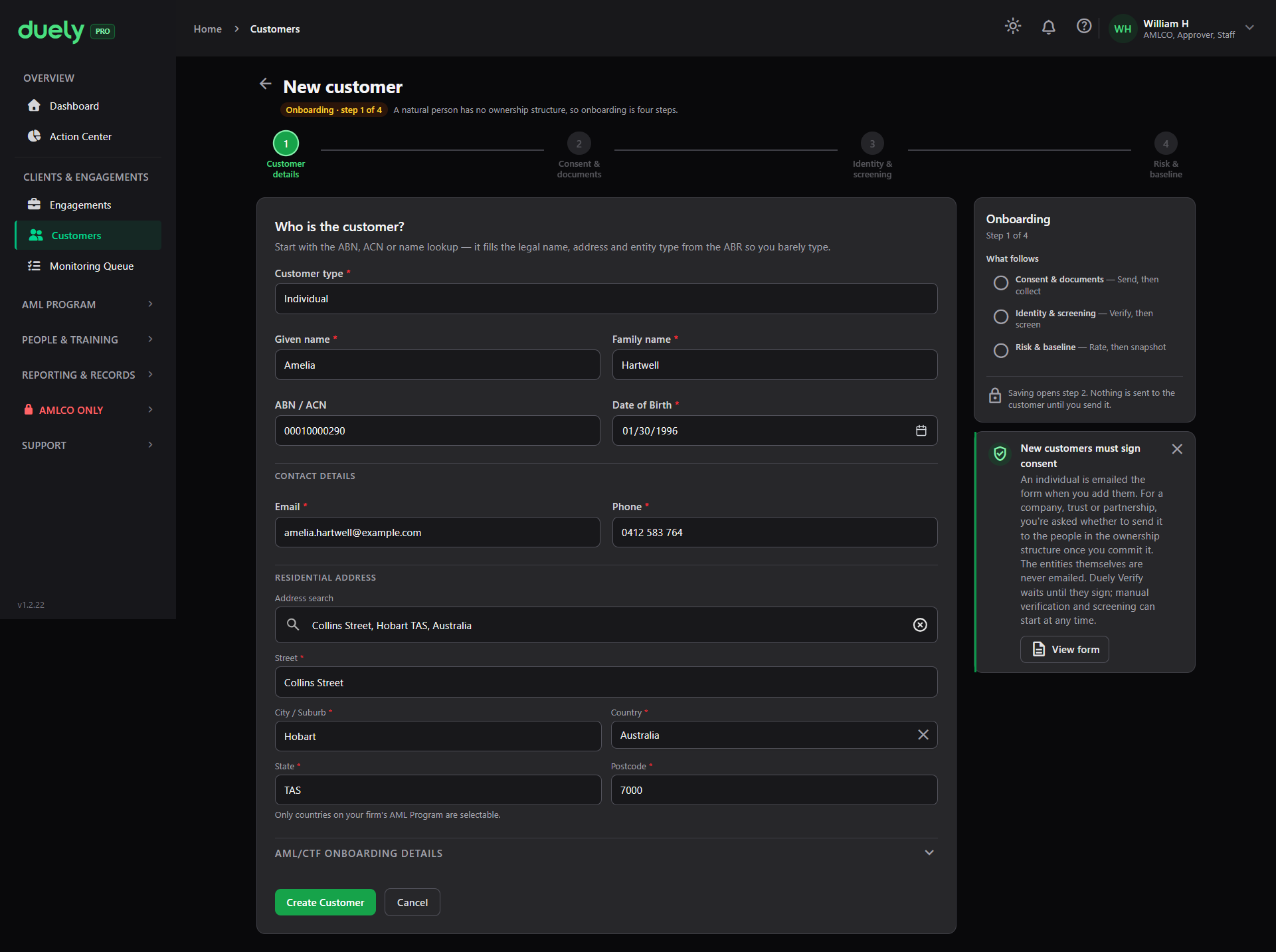
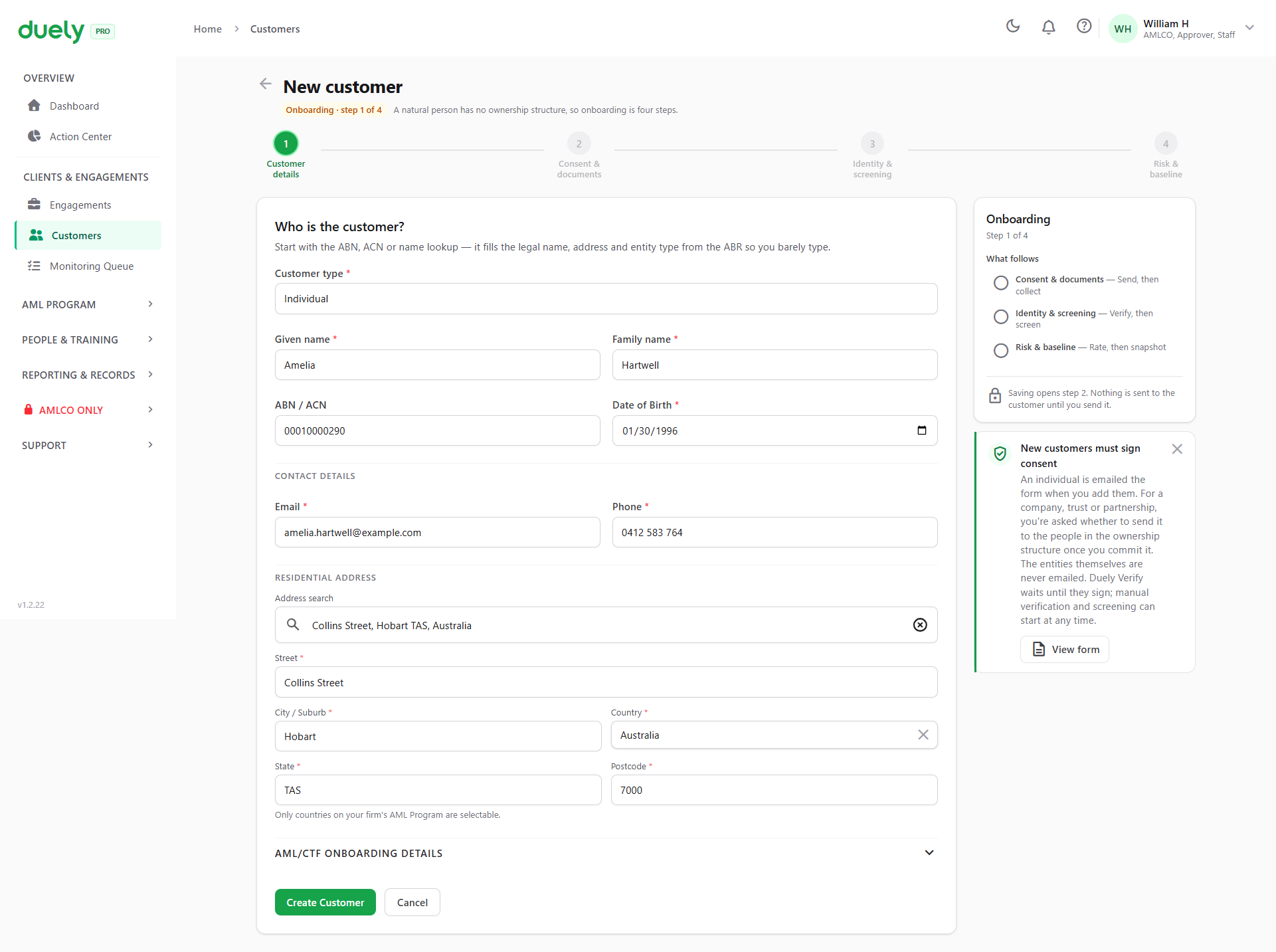
The form branches on customer type. An individual has no ownership structure, so onboarding is four steps. An entity needs its beneficial owners and controllers committed before it can be used, so it is five.
The rest of onboarding gathers consent, collects documents, runs identity verification and screening, and finishes by recording a risk rating and creating the customer's due diligence baseline. That baseline is what later lets the customer be dropped into an engagement without redoing the work. See Onboarding a customer.
6. Create and scope a matter
Matters is the core unit of compliance. The label depends on the vertical: Engagements for accounting, Matters for legal and conveyancing, and Transactions for real estate and jewellers. Obligations attach to the engagement rather than the client, because the same client can have several engagements with different risk profiles.
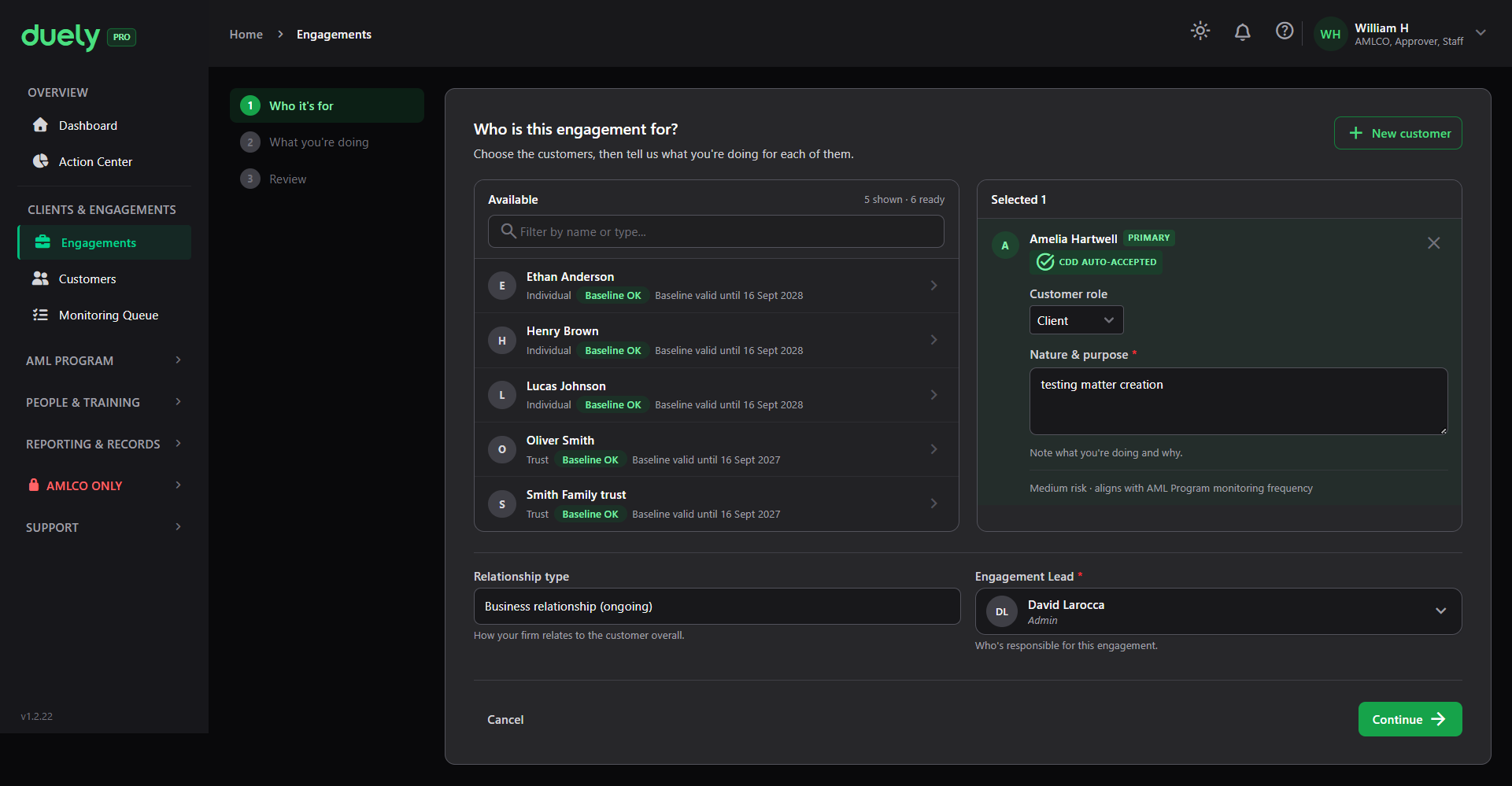
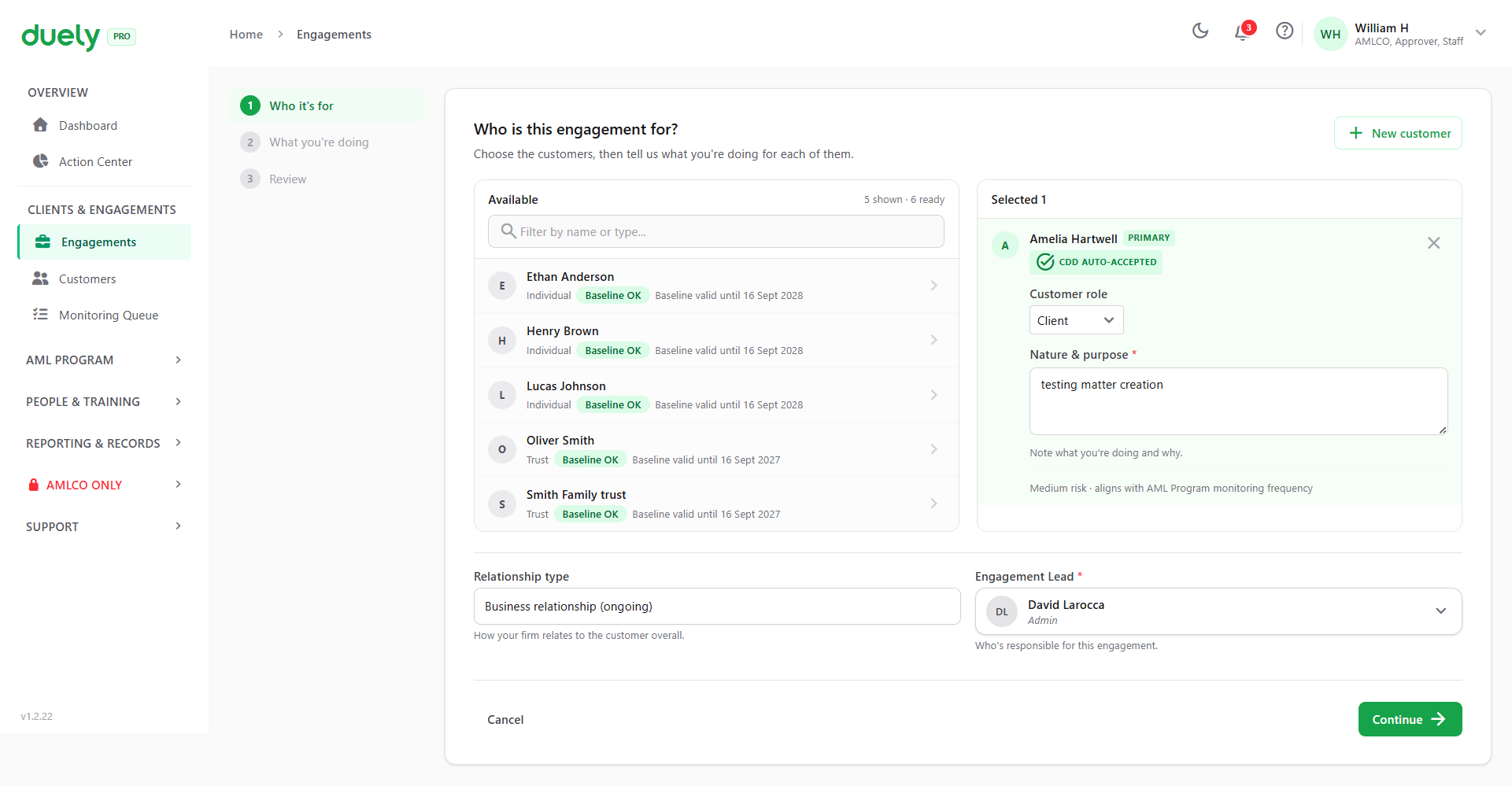
The wizard runs in three steps. First the customer the engagement is for, then what you are doing for them, then a review. The customer picker applies eligibility rules rather than failing quietly: a customer needs a current baseline, or a pre-commencement or delayed CDD basis, before it can be added, and an entity whose ownership structure is not committed is shown with a link to fix it.
Step 2 is scoping: you tick the designated services the engagement involves, drawn from the services your firm selected in its program.
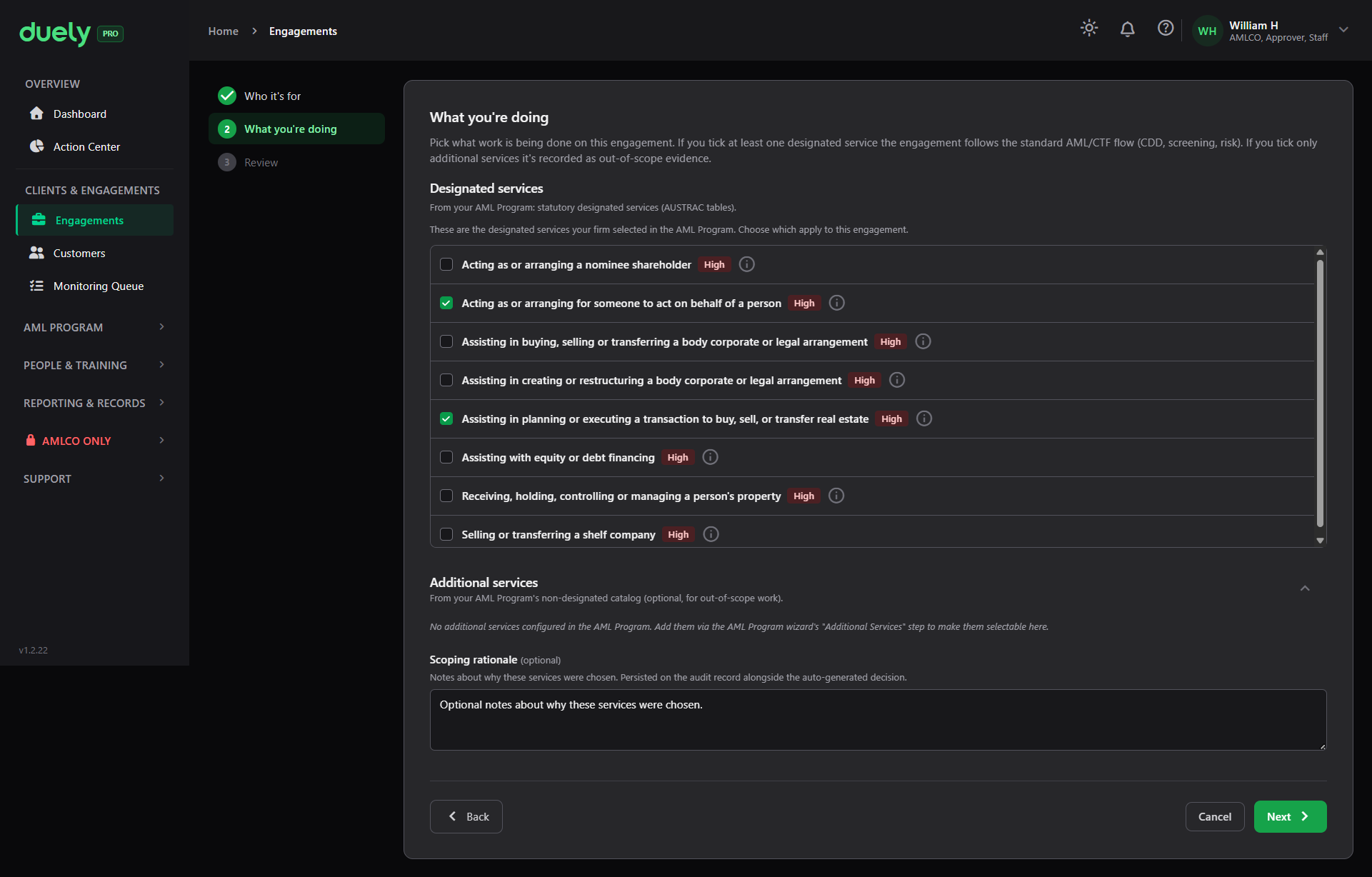
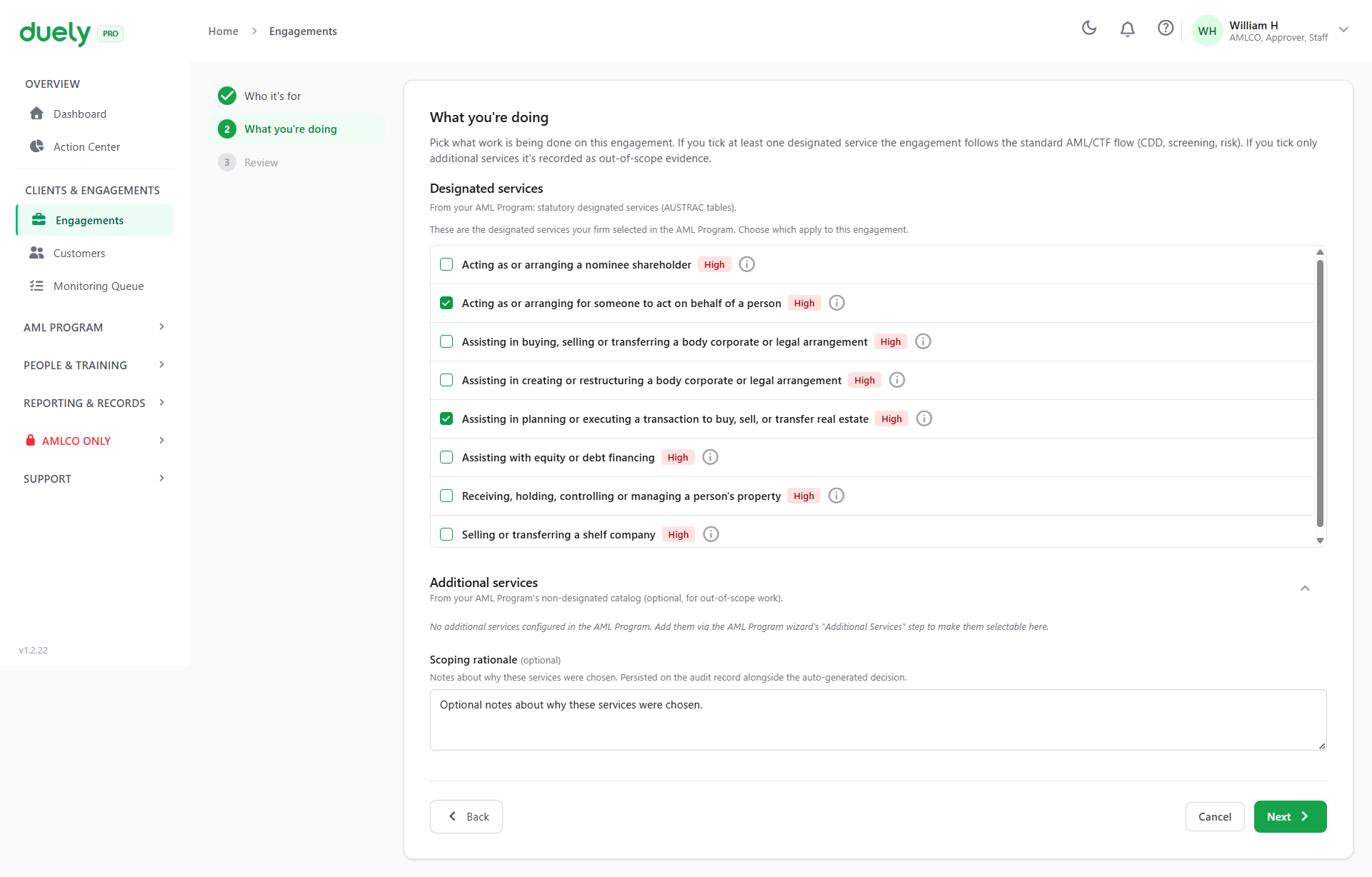
The decision is recorded either way. An engagement that involves no designated service is recorded as out of scope, a valid outcome that shows the question was asked.
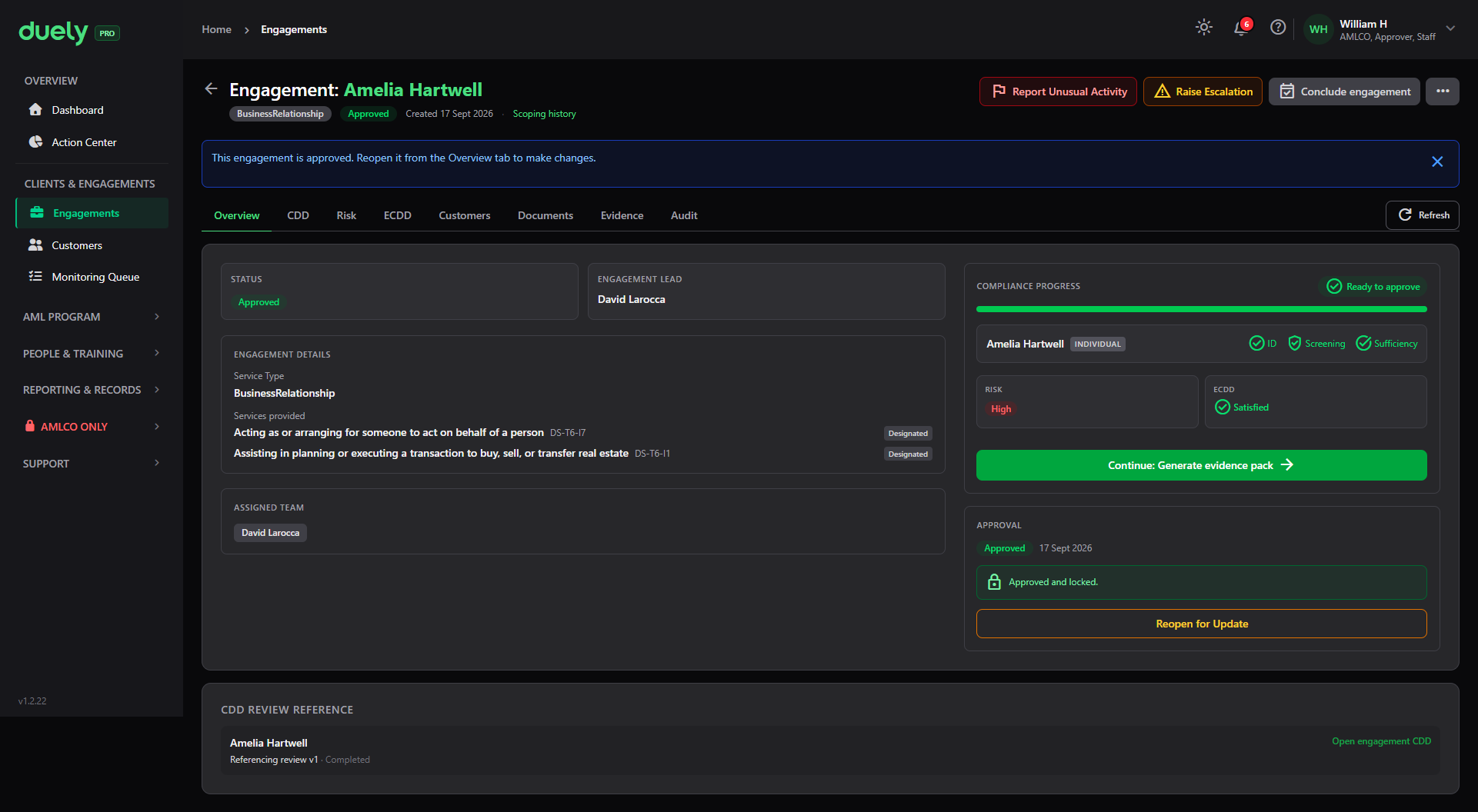
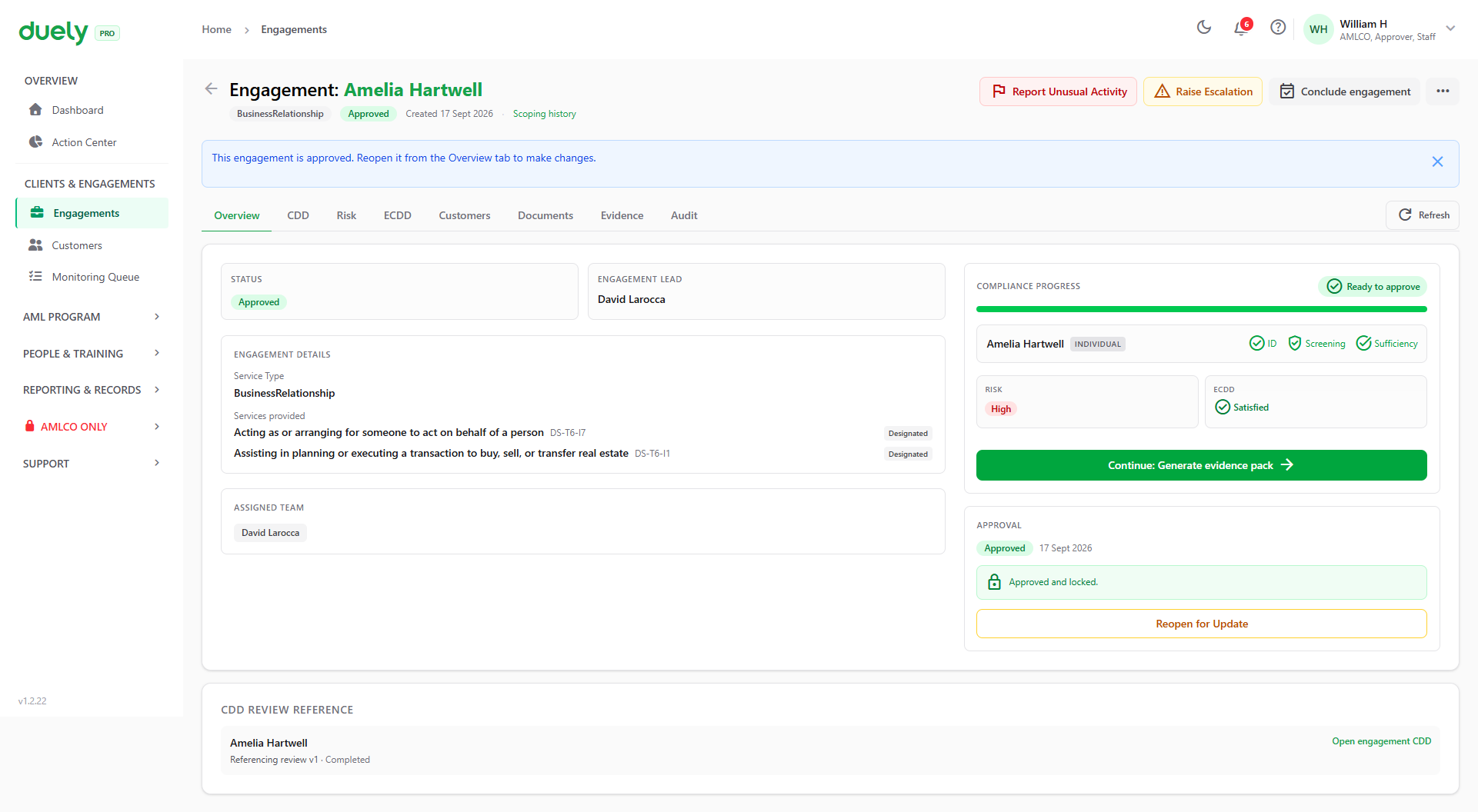
The engagement then moves through its own tabs: Overview for progress, CDD for the linked customer review, Risk for the rating, ECDD for enhanced due diligence, Customers, Documents, Reliance (reliance matters only), Evidence, and Audit, which lists every event in order.
See Creating a matter.
7. The rest of the platform
People and Training
- My Training: your own assigned training and attestations.
- Team Members: invite people, change roles, and open a member's profile. Personnel due diligence lives on each member's profile rather than on a separate page.
- Training Admin: assign training and see completion across the firm.
Reporting and Records
- TTR Records: threshold transaction report records, for cash transactions at or above $10,000.
- CBM Reports: cross-border movement report records.
Both are draft records. Duely prepares the report record; the firm lodges with AUSTRAC. This group is not visible to users without reporting access.
AMLCO Only
Visible only to the AML/CTF Compliance Officer. The entire group is hidden for every other user.
- Review Unusual Activity: the queue of unusual activity reports raised by staff.
- Escalation register: escalations raised by staff, with review and reporting checks.
- SMR Cases: suspicious matter report cases, held as isolated shadow cases with an XML export.
Firm
- Firm Profile: legal name, ABN, address, vertical, and reporting toggles.
- Consent Form: the customer consent form used for verification.
- Reliance Partners: firms you rely on, or that rely on you, for customer identification.
- Billing: subscription tier and resource limits.
Action Center and Support
Action Center is a date-driven view of firm level deadlines: program review, training, personnel and AUSTRAC dates, with overdue, urgent and upcoming counts, a calendar and a focus queue. Per matter customer due diligence follow-ups are not here; they live in the Monitoring Queue.
Support holds the Help Center and My Tickets, both available to every user.
How the sidebar behaves
Groups other than Overview and the Clients group start collapsed. With every group expanded, the sidebar runs past thirty rows and overflows the viewport.
The group containing the page you are on opens automatically, so your own context is always expanded. If you cannot find something, the usual reasons are that your role does not include access to it, or that your firm's subscription tier does not include the capability.
Related pages
- Roles and permissions, for what each role can see and do.
- Your first 30 days, for the order in which to set things up.
- Using Duely, for task-level guides covering each area above.