Accounting first client
This worked example follows a made-up firm, Example Firm Pty Ltd, as it takes on its first company customer, Harbourview Holdings Pty Ltd. Its director is Chris Nguyen and its shareholder is Taylor Reid. Every name is fictional. Each step links to the page that covers it in full.
Why this matters
A company is not a person you can look at. The law asks your firm to establish who owns and controls it, so the work is to record that structure and then check the people in it. Doing it in order means nothing is missed and nothing is repeated. See Customer due diligence.
Before you start
- Example Firm's AML/CTF program is approved and covers companies. See Your AML/CTF program.
- You have the company's ABN or ACN, and the names and dates of birth of Chris and Taylor.
- You have asked Chris for his director ID. It is not on the ASIC register.
Steps
- Add the company. Open Customers, choose Add a customer, then An organisation. Under Look it up, search for Harbourview Holdings Pty Ltd, choose Search, and pick the matching row. Duely fills in the legal name and ABN. Add the Principal place of business, the Email and Phone, answer Does any of these apply?, and choose Save and continue. See Add a company.
- Record who owns and controls it. The company opens with Next: record who owns and controls it. On the Ownership tab, choose Add a person for Chris and give him the role Director, with his Director ID. Add Taylor with the role Shareholder and the percentage held, here 100%. Enter each person's date of birth, email, phone and address so a verification link can be sent. See Ownership and control.
- Commit the structure. Choose Commit changes, then Commit. Nothing in the structure counts until it is committed. Committing sends each person who needs an identity check their link.
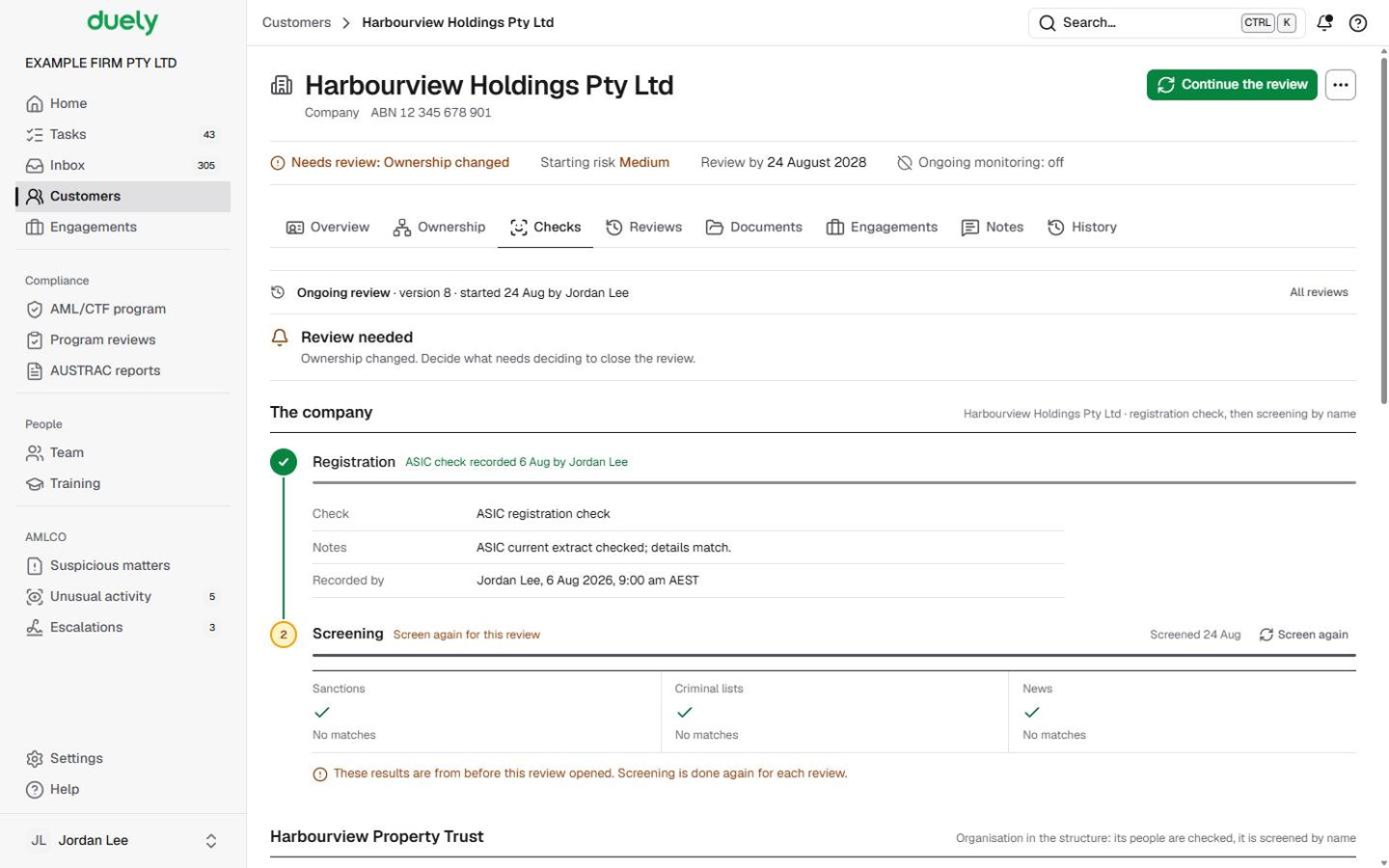
- Check the company itself. On the Checks tab, under The company, choose Record the registration check. Choose What did you check? (ASIC registration check), name the Source, choose the Result, write your Notes and choose Record. Then run screening by name. See Complete initial CDD.

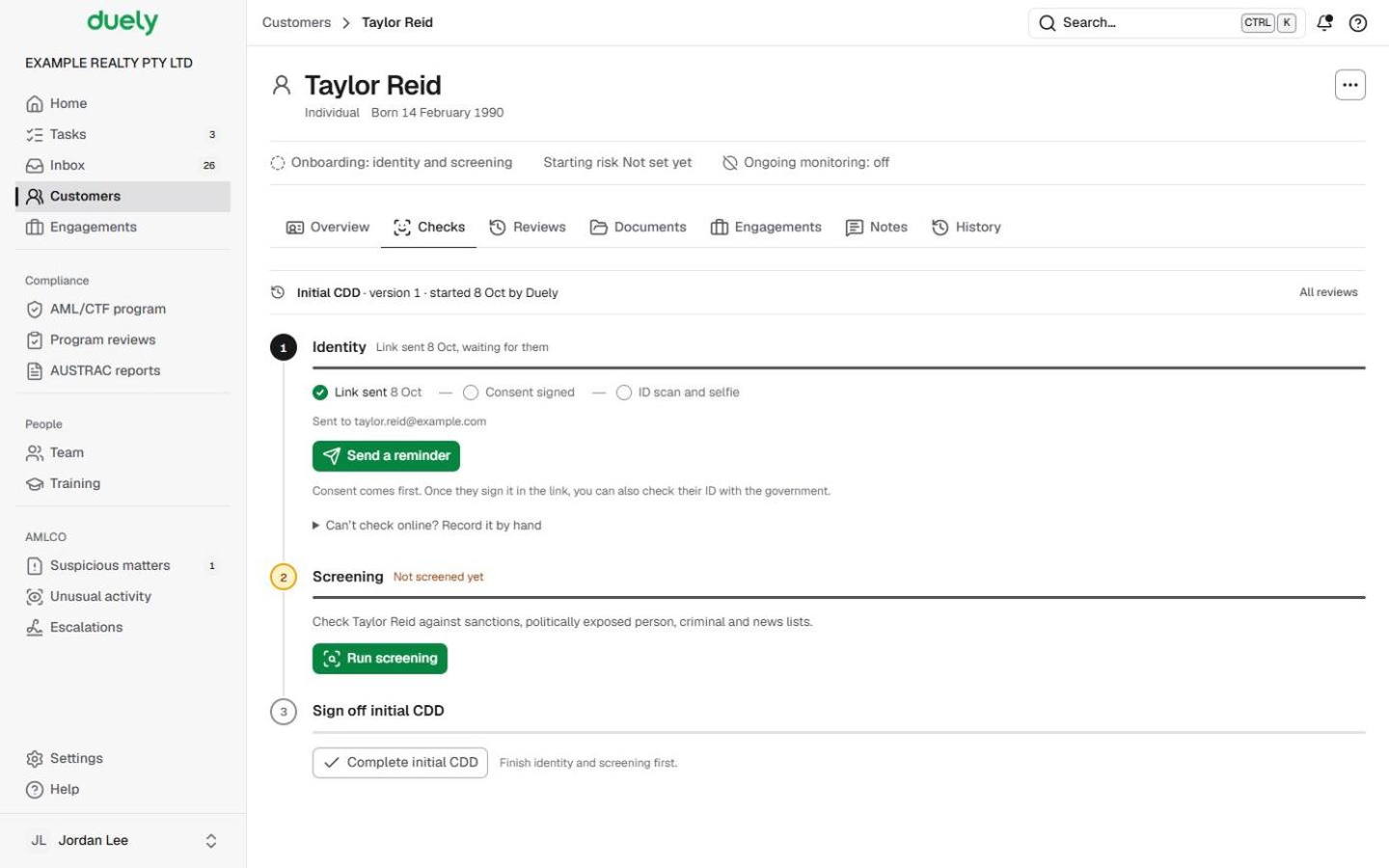
- Verify Chris and Taylor. Under People who need checking, select each person. Their Identity step follows the ticks Link sent, Consent signed, then ID scan and selfie. Use Send a reminder if needed. If someone cannot check online, use Can't check online? Record it by hand. See Identity checks.

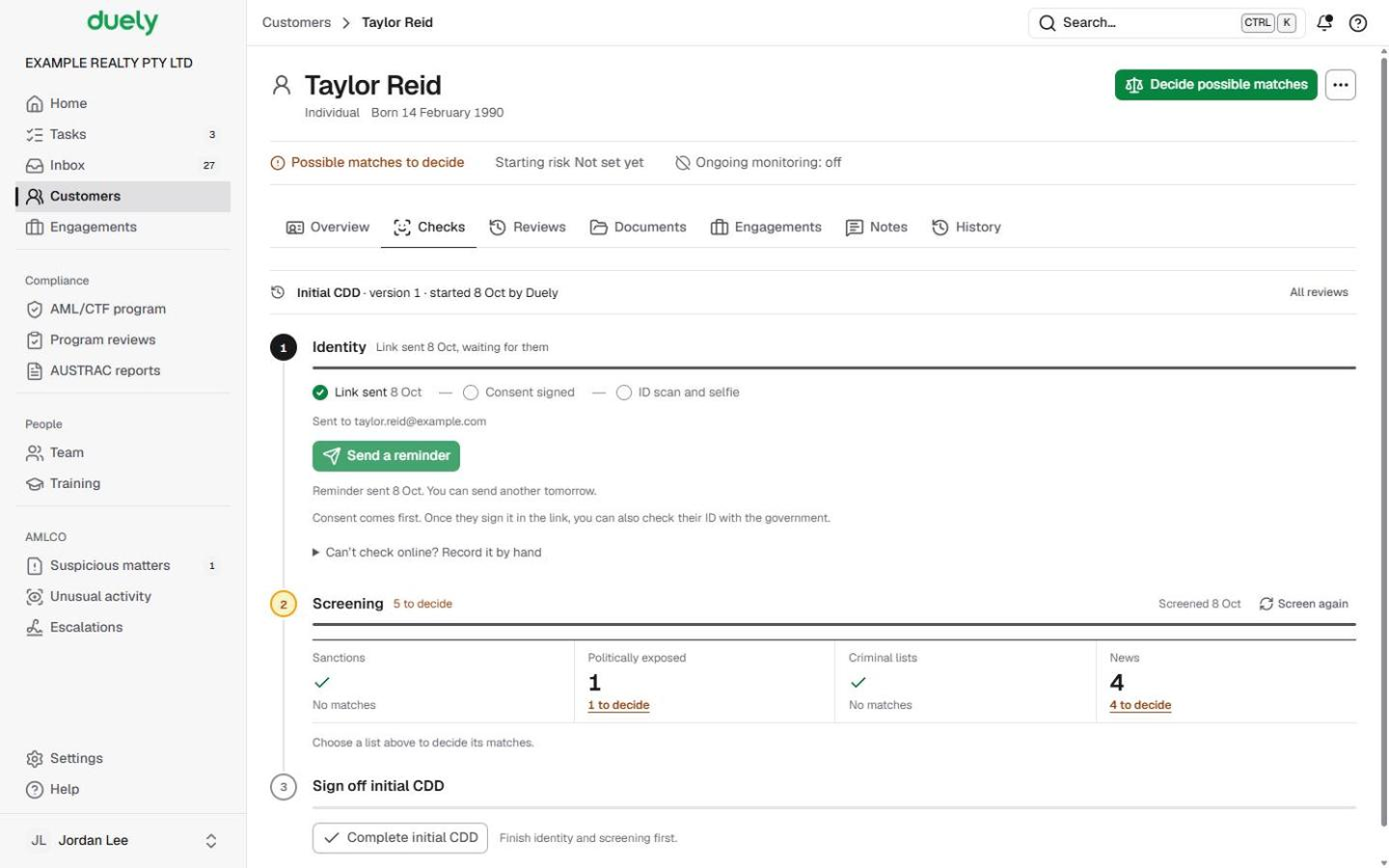
- Screen them. For each person, choose Run screening, then open any tile with something to decide and answer the guided questions. Anything you cannot rule out is referred as the screen directs. See Screening and matches.

- Sign off initial CDD. At the foot of Checks, the step reads Ready to sign off once the company and every person are finished. Choose Complete initial CDD, review the Proposed starting risk, and confirm it. Harbourview now reads Ready for engagements.
- Start the engagement. Choose New engagement. On Services tick the designated services Example Firm's program lists, and choose One job (occasional transaction) or Ongoing (business relationship). On Customers add Harbourview, mark it as the main customer and record the nature and purpose. If Chris will instruct the firm, add him on People acting with Add a person acting, recording his role and authority. Choose Create engagement. See Start an engagement.
- Assess the risk and ask for approval. Answer the questions on the Risk tab and choose Save the assessment, then choose Request approval on the Overview tab. See Risk assessment and Approvals.
What Duely checks
- A company needs an ABN or ACN, and another customer with the same ABN or email address stops the save.
- Duely works out who has to be checked from the committed structure and gives each person's reason, for example a beneficial owner who owns 25% or more, or a director. A secretary is checked only if they control the company or act for it.
- Percentages under one parent that add to more than 100 are refused.
- Sign-off waits until the company and every person are finished, with no possible match left to decide.
- Changing the proposed starting risk needs a reason.
What happens next
When the engagement is approved it moves to Under way, and monitoring keeps screening the same people. A later change to the ownership opens a customer review. See Customer reviews and monitoring, and make an evidence pack when you need a record of the engagement.
The law
Last updated: 8 October 2026
These pages are general information about the Duely product and the AML/CTF obligations it supports. They are not legal advice and do not cover your firm's particular circumstances.